Adding Features to a Signature Area
This topic explains how to add fill (highlighting), boxing, and an X marker
to the signature area of a SignatureSection. There are three pieces needed for this
process:
- add a condition to check the transaction for the Highlight Signature Indicator
- add the desired feature (for example, the highlight color) to the signature area, and
- update the flag in the transaction being processed.
For details, refer to the following subtopics:
Accessing available features
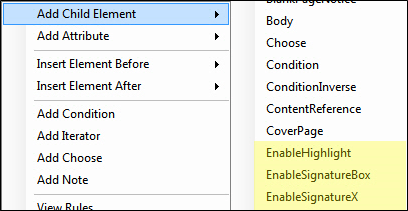
To access the available features, in the condition enabling the
features right-click and add the the child element for the feature(s) that you want
to apply in the document. The Condition will test if the transaction has the
HighlightSignatureIndicator set to True/Yes and will include (turn on) each of the
features within that condition.
Note: The features can be used
individually, or in any combination.
The following shows the SignatureSection features.
The Condition will test if the transaction has the
HighlightSignatureIndicator set to True/Yes and will include (turn on) each of the
features within that condition. The following image shows all three features,
Highlight, box, and X for signatures will enable when the Condition is true.
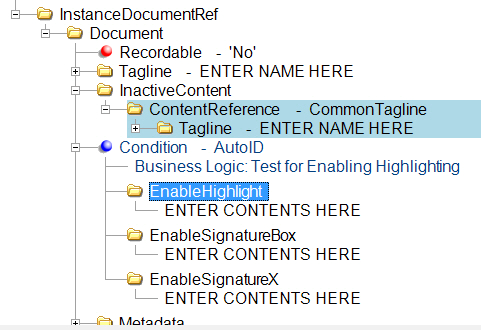
Features added as Child Elements of the Condition will be turned on when Condition is true.