Create a Table
Tables are typically created within a Prolog, Body, or Section parent element.
- Select the parent element, right-click and select . The Create Table dialog is displayed.
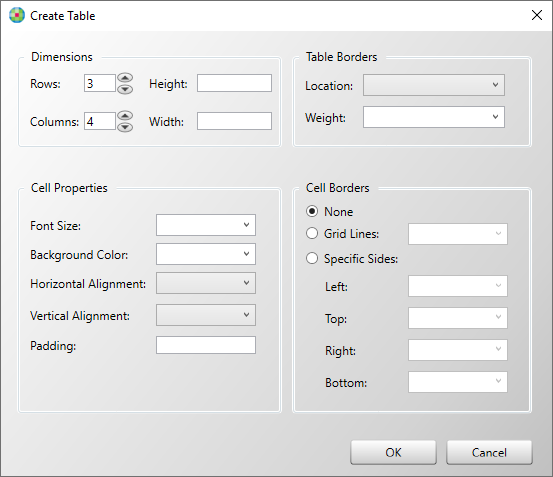
- Determine the number of Rows and Columns in the respective fields.
- In the Table Borders section, perform the
following:
- Click the Location dropdown list and
select one of the following:
- None
- All
- Bottom
- Top
- Sides
- Top and Bottom
- Click the Weight dropdown list and
select the desired thickness:
- 0.5
- 1.0
- 1.5
- 2.0
- 2.5
- 3.0
- Click the Location dropdown list and
select one of the following:
- In the Cell Properties section, determine the
following:
- Font Size
- Background Color
- Horizontal Alignment
- Vertical Alignment
- Padding: sets the padding for each cell in the tableNote:
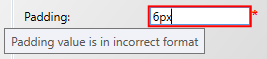
- Padding must be set in points (ex. 6pt). If you do not
set the padding amount correctly, the Padding control
will indicate an incorrect format with a red
border.
- Padding can accept up to four values (ex. 6pt 2pt 2pt 6pt) indicating top, right, bottom and left sides, respectively.
- Table padding has specific precedence. If the padding
does not look as expected, realize that the precedence
for padding is in the following order, highest to
lowest:
- Cells
- Row
- Column
- Table
- Padding must be set in points (ex. 6pt). If you do not
set the padding amount correctly, the Padding control
will indicate an incorrect format with a red
border.
- The Cell Borders section allows you to
determine the thickness of cell borders. Select one of the following:
- None
- Grid Lines
- Specific Sides