Adding an Image to Transaction Data
- In Requirements Editor, open the REQ file and navigate to the desired position in the document.
- Select the element and right-click to select .
-
Click in the details area for the element, and right-click to
select Add Rule. Update the PTR for the rule to say
PRINT
                        /xpath
for name of the transaction field that will have the base64 image.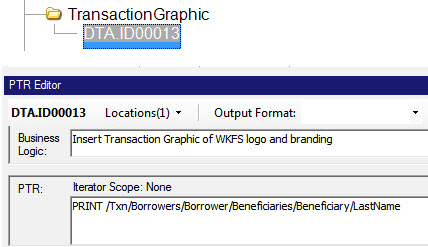
-
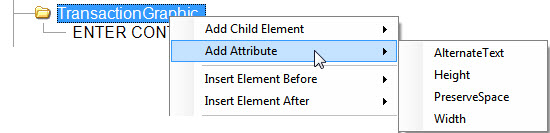
Select the TransactionGraphic element, right-click to select . This is a best practice for ADA Compliance.
-
There are three additional attributes available for
TransactionGraphics; PreserveSpace, Height, and Width. All
three are considered optional. PreserveSpace is a Yes/No feature that will
determine if the physical space will be kept if the field in the transaction is
blank. We recommend that authors only use the Height attribute. The value for
both Height and Width attributes are a numeric value followed by a unit of
measure ex: .5in would reduce the image to only consume space of one-half
inch high; and if PreserveSpace is set to yes, there will always be a half inch
of space – either the image or blank space.
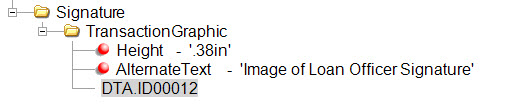
The REQ is updated for inserting a transaction graphic and the image will appear in the assembled document.
Figure 1. Example of REQ with TransactionGraphic 
Figure 2. Example of REQ with TransactionGraphic in a table 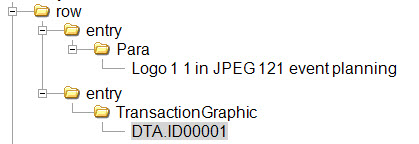
Figure 3. Example of REQ with TransactionGraphic in a signature