Recipients Grid
The Recipients grid displays on the Print page after Use WK E-Sign is selected on the Print page. The grid includes recipients based on the transaction details, the transaction phase, and the autoselected documents.
Note: If you select Interactive Signing in the Fulfillment Options section,
you must select Create Documents to display the Recipients grid.
- On the Recipient’s grid, select the parties who should receive the
packages. Note: Borrowers and Cosigners on the transaction will display in the grid.
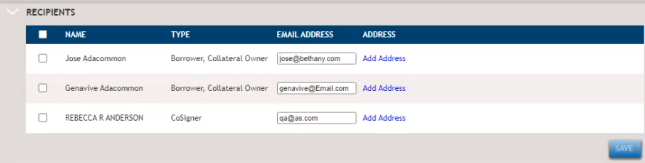
- Enter physical or email addresses information as needed. Add or change
email address directly in the grid. For Help information on adding a
physical address, select Adding Addresses to a Party.Note: Addresses entered or changed will change the applicant's information in Parties and other areas such as Collateral that use Party information.
- When Electronic Delivery and Additional
Authentication are selected in Fulfillment
Options, the grid displays challenge questions in
addition to name, type, email address, and address
information. You must enter the email and mailing
address for each party before you send the package
to fulfilment. For Help information, select Adding Addresses to a Party

- When Electronic Delivery is selected and Additional Authenticationis not selected in Fulfillment Options, the grid displays name, type, email address, and address information. You must enter the email and mailing address for each party before you send the package to fulfilment.
- When Direct to Paper is selected in Fulfillment Options, the grid displays name, type, and address information. You must enter a mailing address for each party.
- After Interactive Signing is selected,
documents must be created to display the Recipients
grid. The Recipients grid is based on the created
documents and will include the parties that apply to
the documents including guarantors. If physical or
email address information is added or changed, the
documents must be recreated.
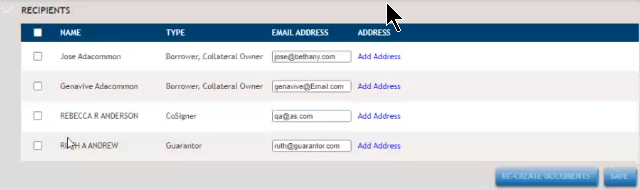
Note: Each party must have a unique email address. Duplicate email addresses are not allowed across parties. - When Electronic Delivery and Additional
Authentication are selected in Fulfillment
Options, the grid displays challenge questions in
addition to name, type, email address, and address
information. You must enter the email and mailing
address for each party before you send the package
to fulfilment. For Help information, select Adding Addresses to a Party
- Add recipients or third parties as needed. For Help information, select Adding Recipients and/or Third Parties.
- If you are using Interactive Signing, select Re-create Documents so the signature will print to the appropriate documents.