DocViewer
DocViewer is a web application that allows you to view and save a
requirements file as rendered through the DocViewer engine.
Note:
- Before working with DocViewer, you must configure Requirements Editor to work with it. For more information, refer to Configuring for DocViewer Integration.
- For details in working with the DocViewer interface, refer to the DocViewer User Guide.
- DocViewer can only be intialized if a requirements file is open in Requirements Editor.
Working with DocViewer with an open requirements document
With a requirements document open, select , or press Ctrl+Shift+D.
The Execute DocViewer dialog is displayed.
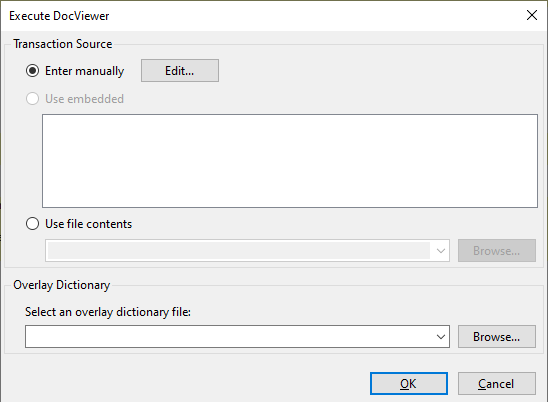
Next, select the source of the transaction data from the list of
available options.
- Enter manually: refer to Entering Transaction XML Manually.
- Use embedded: allows you to use the transactions from the current document.
- Use file contents: Select this option to use an external transaction file.
- Overlay Dictionary: Selecting the Browse button allows you to select an overlay dictionary file. When the overlay dictionary option is selected, only your custom data dictionary is used.
Entering Transaction XML Manually
When selecting the Enter manually option on the Execute
Document dialog, the Edit button is enabled, allowing you to display the
Execute Document window. Paste your transaction data directly in the window and
click OK.
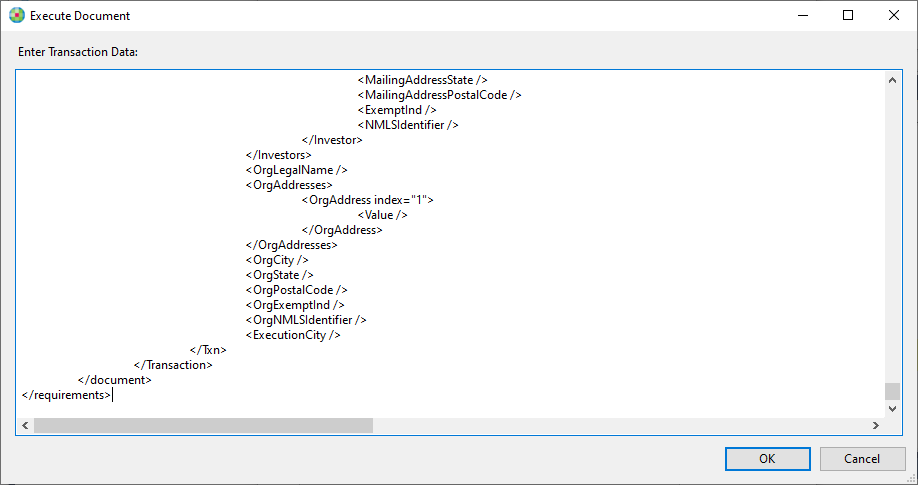
Note: When using the Edit button to paste in a transaction, you
also have the ability to make changes to the transaction XML prior to executing the
document.
When returned to the Execute DocViewer dialog box, click OK to execute the document.