Working with Stylesheets (StyleGuides)
This section introduces the collection of StyleGuides and describes how to update style sheets and author style sheet overrides in a document.
About StyleGuide
Requirements Editor, and Expere authoring in general, uses a collection of StyleGuides that define the document transformation and presentation. These style guides are based on Extensible Stylesheet Language Family (XSL) recommendations and, as XSL style sheets, describe how to display an REQ document.
C:\Users\<user.name>\AppData\Local\Wolters Kluwer\RequirementsEditor\3.0\content\WKFS_StyleGuide.xsl- WKFS_StyleGuide.xsl (default)
- WKFS_StyleGuide_Commercial_ModifiedStandard.xsl
- WKFS_StyleGuide_Commercial_Standard.xsl
- WKFS_StyleGuide_FannieFreddie.xsl
- WKFS_StyleGuide_IntegratedDisclosures.xsl
- WKFS_StyleGuide_URLA.xsl
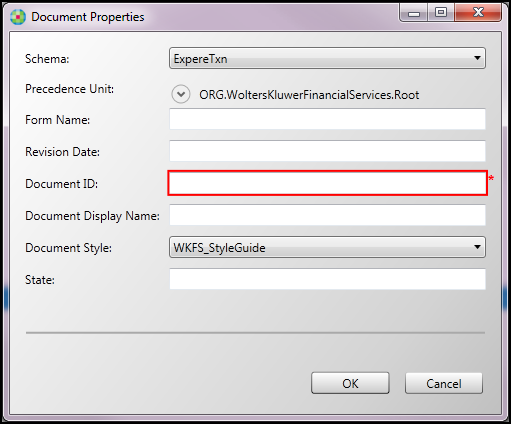
<document type="Dynamic"
                    transactionSchemaUri="http://schemas.bankerssystems.com/2005/VMPMISMO"
                    documentStyle="WKFS_StyleGuide"
                    formName="AddendumToLoanApplication"
                    revisionDate=""
                    documentID="INS.AddendumToLoanApplication"
                    documentDisplayName="Addendum To Loan Application"
                    organization="ORG.WoltersKluwerFinancialServices.Root"
                    state=""
                    xTemplatePath="">
Updating Style Sheets

You can optionally manually refresh the style sheets by selecting Refresh Authoring Files from the Tools menu.
There is no need to copy custom style sheets to the core folder, unless it isn't in the authoring web service you are using. Whenever you run the Refresh Authoring Files command or change the web service, the style sheets, images, etc. are all pulled into the core folder.
All precedence levels are pulled down from the authoring web service, so all customized style sheets, images, etc. are pulled down along with the base content.
Stylesheet Options and Override Details
The style sheets listed below are used when creating content. Each stylesheet description details the items that are an override from the standard WKFS_StyleGuide. To select a style sheet override: in the outline editor, enter one of the following values into the DocumentSpecificStyle attribute on the Document element.
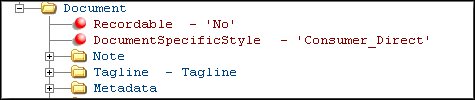
- WKFS_StyleGuide: Follows the WKFS StyleGuide requirements. Standard 10pt base font, 11” page length, etc.
- Consumer_Direct: 9pt base font size override. CT state specific changes for title size (2pts above base font size) and spacing between sections (3/16th). The 9pt base font size meets the minimum required for some NY and NJ documents.
- Consumer_Indirect: 8pt base font size override in addition to using condensed font as the base. Eform outputs will have field underlines for all fields except multiline fields. CT state specific changes for title size (2pts above base font size) and spacing between sections (3/16th). Other state required style overrides should be set using the InstanceFormattingMetadata (ex. NY and NJ 9pt minimum base font)
- Privacy: The tagline will only print on page one (1).