Request Status
The Request Status pane is specific to the selected package. If the package type is
altered, the request status information is refreshed to show relevant information for
the selected package.
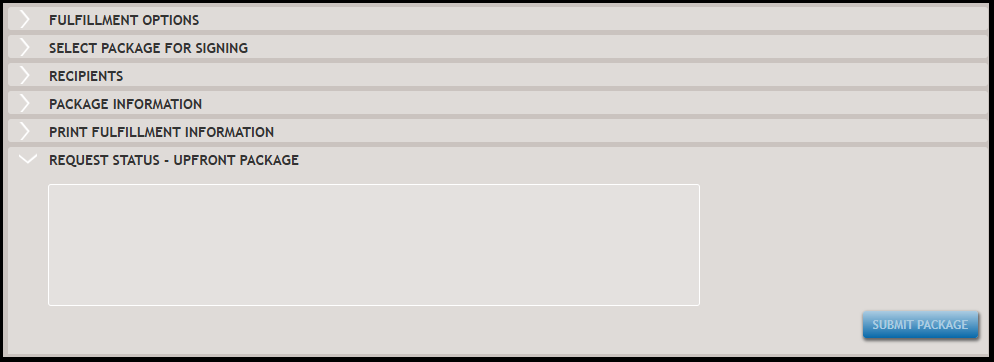
- Submit Package- submits the package for the first time.
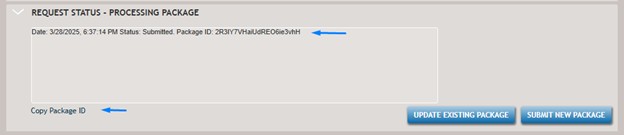
- Update Existing Package- updates to the existing package
- Submit New Package- removes the previously submitted package and creates a new submission.
To submit the package all required fields should be completed and any validation message must
be resolved. After the package is submitted (or an updated package submitted), the
submission status is displayed including the date/time of the submission (or update) and
the package identifier (Package ID).
Note:
Packages submitted using
Direct To Print, enter SmartSign Plus with an Expired Print
Eligible status and cannot be edited. The only available option is to remove
the existing package and create a new one by clicking Submit New Package if
any subsequent package changes are required.
If an issue happens upon the package submission or during an update, a generic message is displayed in the Request Status section. Click Details to learn more about the possible reasons package transition failedl.
You can use Package ID to quickly find a package in SmartSign Plus. In the Request
Status results, click Copy Package ID, then open the SmartSign Plus and
enter the Package ID in the search field.

You can also view the package status in SmartSign Plus.
Important:
SmartSign Plus displays critical information about next steps and
actions required for the package.
- A user can update the package only if the package is in “Available to Signers" or "Completed" status in eOriginal SmartSign Plus.
- A user can delete a previously submitted package and create a new one instead only if the package is not in "Available to Signers", "Started", "Expired Print Pending", or "Expired Mailout Pending" status.
SmartSign Plus uses the Loan Number and the package type as two primary identifiers. For
this reason, if a package is submitted, and then the Loan Number is updated after
the document package submission and the Update Existing Package option selected,
a warning message is displayed indicating that an update to the package under a
different (new) loan number is unavailable.
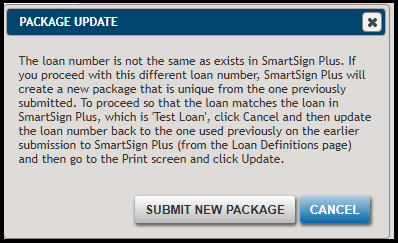
In this scenario, you can either revert the loan number to the one used in the earlier submission or submit a new package under the new loan number.
In this scenario, you can either revert the loan number to the one used in the earlier submission or submit a new package under the new loan number.