Keyboard Support
A user can use a keyboard to navigate in Vanceo Dashboard and Configuration to streamline the process of inputting data for inquiries and transactions.
Navigating
- Select the Tab key to navigate down on a page.
- Select the Shift+Tab keys to navigate up a page.
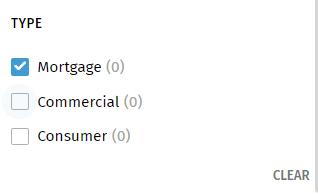
- The space key selects or deselects the focused item. Navigate to a check
box and press the space key to select it.
In the example below, “Commercial” was navigated to, but not yet selected. To select it, press the Space key.
Navigating Inputs
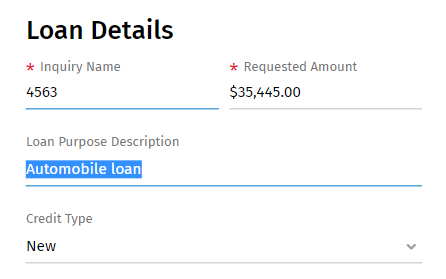
- Select the Left/Right keys to move the cursor to the left/right.
- Select the Up/Down keys to move the cursor to the left (beginning of the input) or to the right (end of the input). The Up/Down keys can be applied when all text is selected.
In the example below, “Loan Purpose Description” has been navigated to by using the keys.
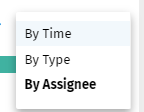
- Select the Return key (Enter key) or Space key when the drop-down list is selected to view the drop-down list options. Select the Return key (Enter key) or Space key to select the option and close drop-down list options.
- Select the Up/Down arrow keys to navigate up or down.
- Select the Esc key to clear input (if any) and close the drop-down list
options.
In example below, “By Time” is in focus, not selected.
- Select the Return key (Enter key) when the drop-down list is selected to open and close the drop-down list options.
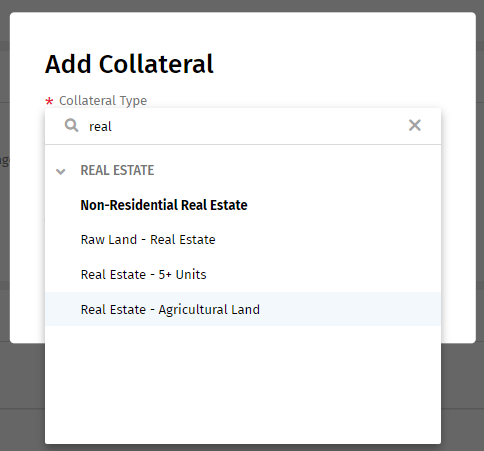
- Search is triggered after the third case input and redundant items (with its categories) are cleared; only search items results and their category is shown.
- Select the Down/Up arrow keys to navigate through the drop-down
options.
In example below, the “Real Estate – Agriculture Land” option is in focus but not selected.
- Select the Return key (Enter key) when the drop-down list is selected to open and close the drop-down list options.
- Select the Down/Up arrow keys to move through the drop-down options.
- Select the Space key to select an option in the list.
- Select the Return key (Enter key) to save all changes and close the drop-down list options.
- Select the Esc key to close the drop-down list options.
Navigating Buttons
- After navigating to the button, select the Space key/Return (Enter) to
confirm the selection.
In example below, “TRANSACTION DETAILS” is selected.

- The first tab defaults as selected. Select the Left/Right arrow keys to navigate left/right.
- Select the Space key/Return (Enter) to select a tab.
In example below, “TRANSACTIONS” tab is focused, but “INQUIRIES” tab is selected.

- On focus on the group of radio-buttons, the focus moves to the selected item.
- Select Up/Down arrow keys to navigate up/down and select the option in radio button group.
- Select the Space key to select or deselect the switch.
- In example below, “Receive email notifications” switch is focused.

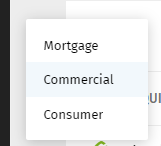
- Select the Down/Up arrow keys to navigate through the list options.
- Select the Return key (Enter key) or Space key to select an option and close the pop-up.
- Select the Esc key to close the pop-up.
In example below, “Commercial” option is focused, but not yet selected.