Pipeline/Funding Reports
Overview
The Pipeline Funding report provides information about all transactions. The report can be
accessed by selecting Reports in the left pane.
- A user must be assigned the 'View Pipeline/Funding Reports' permission in Security Administration to access pipeline report functionality.
- The Pipeline/Funding report view includes a graph, Summary, and Details sections.
- The Pipeline/Funding report view can be customized by using filters options and selecting list options. Select Custom Report Views for information about a custom report views.
- A report view can be downloaded as an Excel file and saved. Select Downloading a Report for more information.
Pipeline/Funding Graph
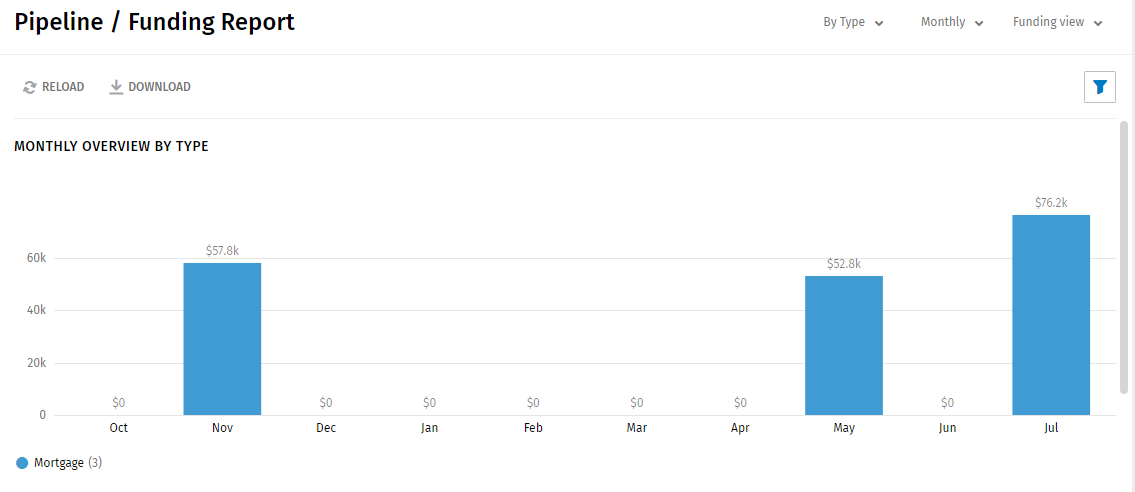
The Pipeline/Funding Report graph shows data in a graph format according to selections made in the lists and the filter pane.
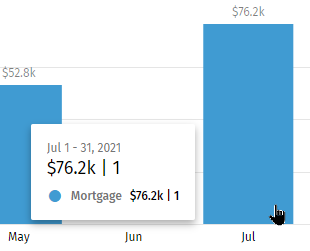
- Hover over a section/color in the graph to show details for the
selection. The tool tip shows details from the current date, not
the start of the week/month/quarter. If Weekly is selected for
the time period, the graph shows the first date of the week and
the details for a bar section will show data based on the
current date.
- Transactions without a closing date do not appear in the Graphical and Summary view, but will display in the Details section. A note displays at the top of the graph with a total amount if a report has transactions without a closing date.
Summary Section
The Summary section provides loan counts and amounts in a grid. The grid can be sorted by Type, Count, and Amount.

Details Section
The Details section shows specific transactions with details information in a grid. The grid can be sorted by selecting a column heading.
Selecting a row in the Details section opens the Transaction Summary page for more information about a specific transaction.
