Task
Adding  to a
template adds a manual task that a user completes to moves the workflow forward.
to a
template adds a manual task that a user completes to moves the workflow forward.
Adding a Task
- Complete one of the following:
- Drag to the diagram.
- Select and
select New Task, a custom task if available, or a
default task if available.
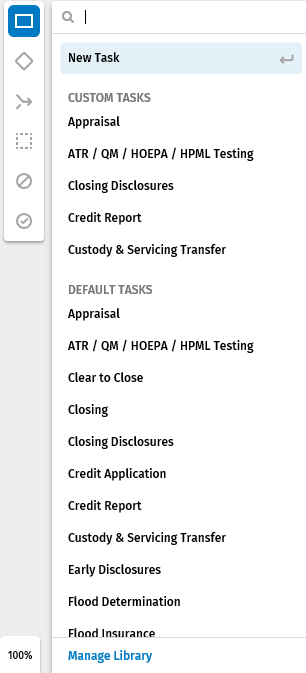 Note:Search for a task by entering an name or a few characters in the search box at the top.Note:Default tasks were added by Wolters Kluwer.
- Drag
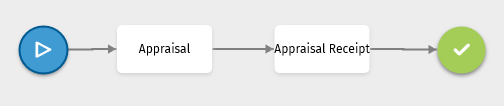
- Connect the task to other items in the diagram by connecting the arrows.
- Correct any errors. For Help information, select Errors.
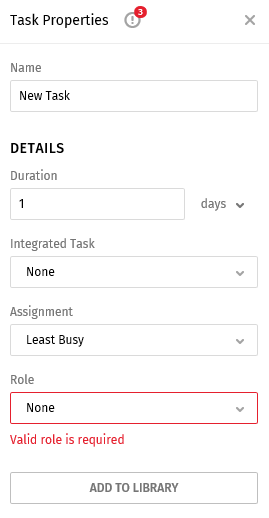
- Complete the Properties Pane.
Example
Properties Pane
- Name: The name must be a unique and is limited to one hundred characters.
- Duration: Enter the maximum number of hours, days, or weeks needed to complete the task.
- Integrated Task: Select an integrated task if applicable. For more information, select Integrated Tasks.
- Assignment: Selecting an assignment determines how the task will be assigned to a user.
- Select Queue to add the task to a queue where users with the appropriate role for the task can assign the task to themselves.
- Select Least Busy to assign the task a user in the selected role who has the least amount of tasks in their queue.
- Role: Select a role to apply to the task. Only a user with the selected role can complete the task.
- Add to Library: Select this option to add the task to a library for reuse later. The task is added to the library after the template is saved.