Importing Information
- User must have System Administrator privilege to use Import/Export functions.
- The Import function allows selection of only XML formatted files which requires the Exported ZIP to be extracted before choosing the files to import. You can choose to import all, one, or a subset of files.
- The logged in user performing the Import must have access to the organization in the file being imported.
- If importing new policy or product files for an organization that does not yet exist in the imported environment, the organization file must be included and it will be imported first before creating the policies/products.
- If importing a new organization, user must have access to the parent organization. In a multi- tenant environment, this may require the host administrator to create the shell organization as a child of the host root organization (and a new user with administrator permissions) in the import environment as the user does not have access to the root parent organization. The organization file can then be included in the import and data can be updated/replaced.
The Import function allows users to import OPPSA Organization, Policy, and Product information.
- Pre-Step: If not previously completed with the export steps, be sure to extract the content of the export ZIP File to a folder. The Import process allows selection of .xml formatted files (it will not allow selection of a .zip file).
- From the Organizations page, hover over the Organization Short Name and click VIEW to access the Organization where the Import will be triggered.The import can be triggered from any organization or any child node organization to which the user has access.
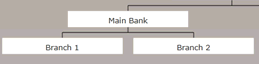
Note: The Export function allows exporting of files for the Organization selected and any child node organization. Access the top most organization in the hierarchy where files need to be exported. In the example above, access Main Bank to be able to export files for Main Bank, Branch 1, or Branch 2. - From the left Navigation options, choose the Import menu option.
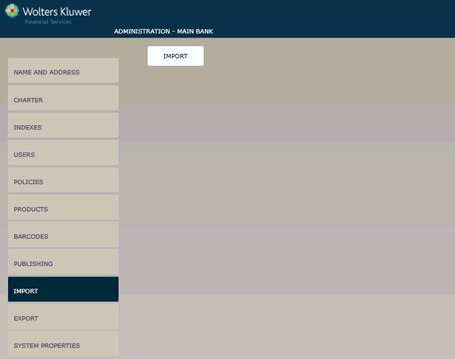
- Click the IMPORT button.
- An Internet Explorer browse dialog window displays. Navigate to the location where the exported XML files have been extracted/copied and select all files or choose specific files to include in the import process.
- The export process names the files using the name given when it was created in the OPPSA application. If you need to select a subset of files to import and unfamiliar with how they were created in the application, consider redoing the export to include only those files that need to imported.
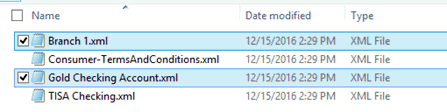
Files can be selected using standard windows keyboard shortcuts:Keystroke Result CTRL+A
Select all.
SHIFT with any of the arrow keys
Select more than one item in a window.
SHIFT and click filename
Press and hold SHIFT key, then click first filename and last filename to select a range of files.
CTRL and click filename
Press and hold CTRL key, then click each filename to select specific files.
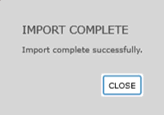
- Click OK to begin the Import process. A loading message displays to indicate files are being processed. If all files process successfully without any validation or existing items messaging, the Import Complete dialog message appears. (See step 10.)
- Permission Validation: The Import function performs an initial validation to check the data in the XML files to ensure the logged in user triggering the import has permissions to the organizations being created or updated and the organization of the policy and/or product being created or updated.
- The Organization file contains an element indicating the Parent Organization for the Organization being imported for creation or updating. If the logged in user does not have access to that parent organization, the entire import will halt.
- The Policy and Product files contain an element indicating the Organization for which the policy/product should be created or updated. If the logged in user does not have access to the organization, the entire import will halt.
- If the validation fails for any of the files being imported, the following message displays. The import process halts and none of the files will import until the issue is resolved. Click the DETAILS expander to see the Organization name that the logged in user does not have access.
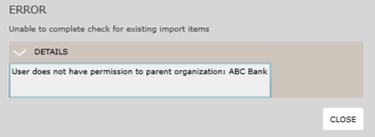
Note: This validation halts the entire import process upon the first file encountered that fails validation. The entire set of import files should be researched and remedied to avoid failures additional failures. - Update/Replace Messaging/Decisioning: If the initial validation passes, the import then checks if the any of the organization, policy, or product files already exists. If any data previously exists, the following message appears:
- Click CLOSE to proceed to see the list of files that exist.

- The Existing Items page appears listing all files that exist. User decisioning is required to specify which files to update.Click the checkbox next to all files that should be updated. Leaving the checkbox deselected will not process that file and the data will not be updated.
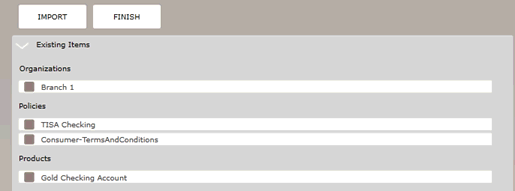
Click FINISH to proceed. - The Import Complete dialog message appears. Click CLOSE which to return to the Organizations page.
- After files are imported, they must be published. See Publishing for more information.