Creating Export Files
This section explains how to create export files.
- From the Organizations page, hover over the Organization Short Name and click VIEW to access the Organization to export the desired files.

Note: The Export function allows exporting of files for the Organization selected and any child node organization. Access the top most organization in the hierarchy where files need to be exported. In the example above, access Main Bank to be able to export files for Main Bank, Branch 1, or Branch 2. - From the left Navigation options, choose Export menu option.
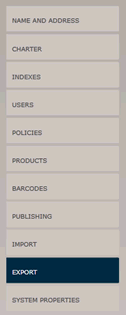
- The Export page is categorized by organization with sub groupings for the Organization, Policies, and Products. Use one of the following options to select the files to export:
- Click the expander to view the files available to export. Select the checkbox individually for each file to export.
- Click SELECT ALL button to automatically select all files for all organizations. Individually, de-select checkbox to exclude the file from the export.
Note: The Export page includes an option for Barcodes; however, Barcodes need to be created manually in each environment as the import does not accurately process and barcodes and they will not print on the generated document.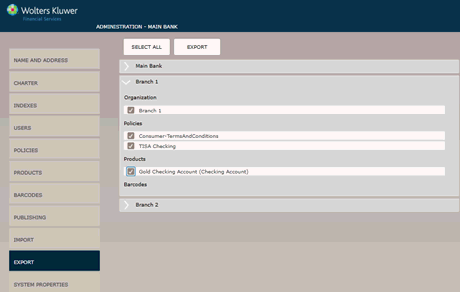
- Once all files are selected to export, click the EXPORT button. A dialogue pop-up displays to specify the location and filename for the .zip file output. Choose the output location and filename and click SAVE.
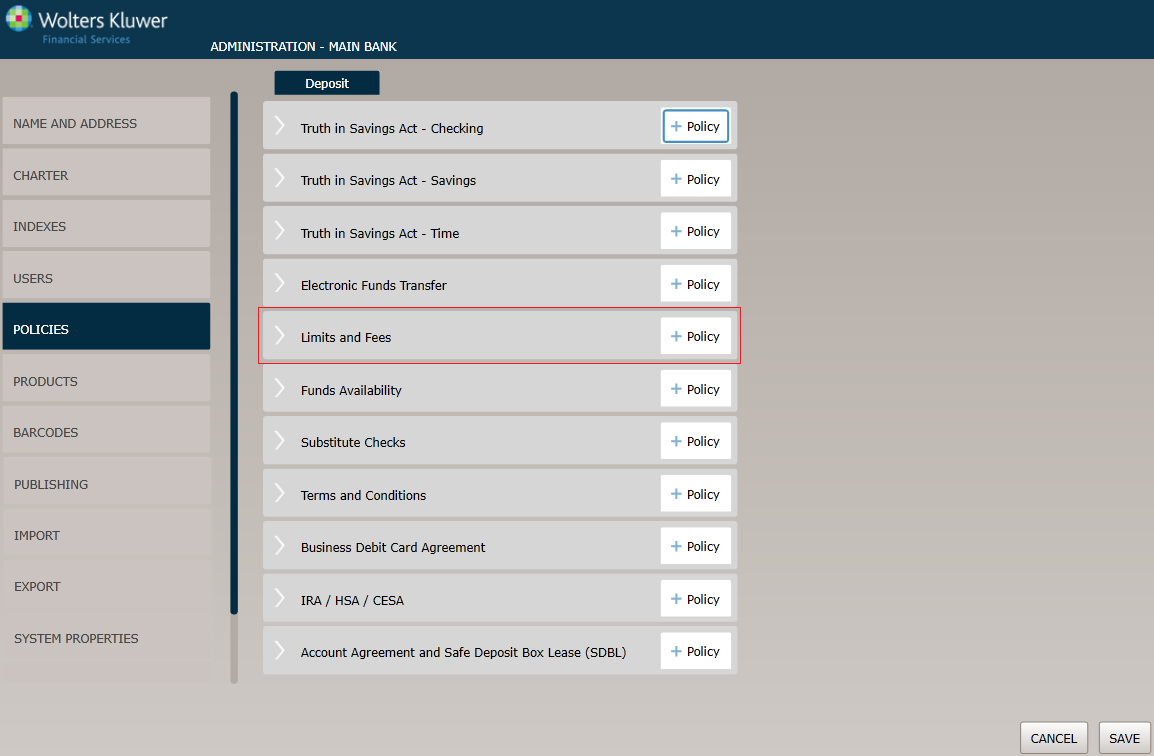
The Loading message appears while the Export is processing; once complete, the SUCCESS dialog appears.Note: Exporting Terms and Conditions policies may take a few minutes for each one exported. If several Terms and Conditions policies exist, consider exporting one or two at a time and either import separately or extract all to a single folder and trigger a simple import. - Navigate to the ZIP file location specified. Each organization, policy, and product exported will be a separate XML formatted file. The files are named using the name specified for the organization, policy, product respectively in the application.