Creating a Policy
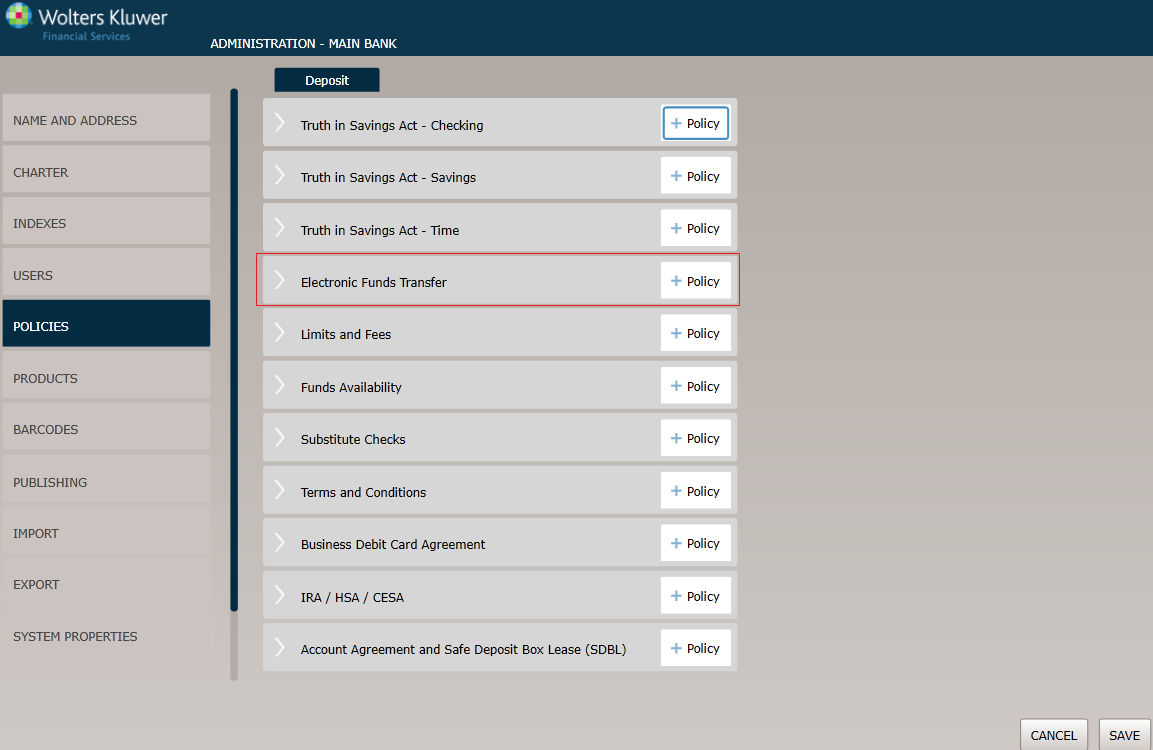
Before You Begin: Saving Your Changes
Click the OK button at any time to save the policy information and make it available to OPPSA users; however, keep in mind that the policy will close and save the information when you click OK. You will have to go to the menu page and open the policy again to make additional changes.
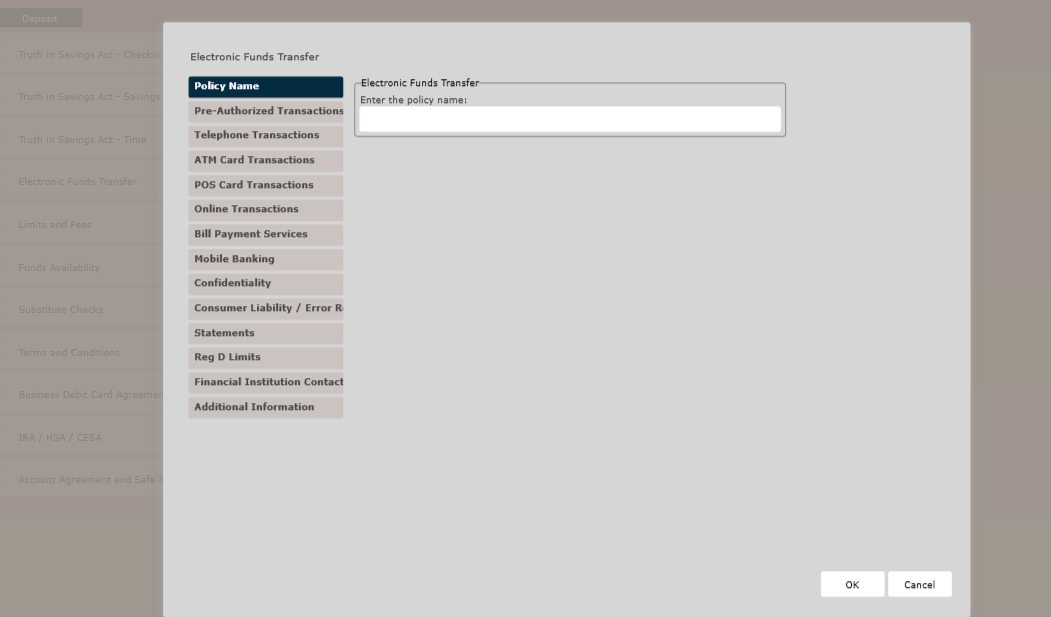
Policy Name page
The Policy Name page appears by default. Complete this page and then click the option immediately under Policy Name,in this case Pre-Authorized Transactions. Continue until you have completed each page.
Pre-Authorized Transactions
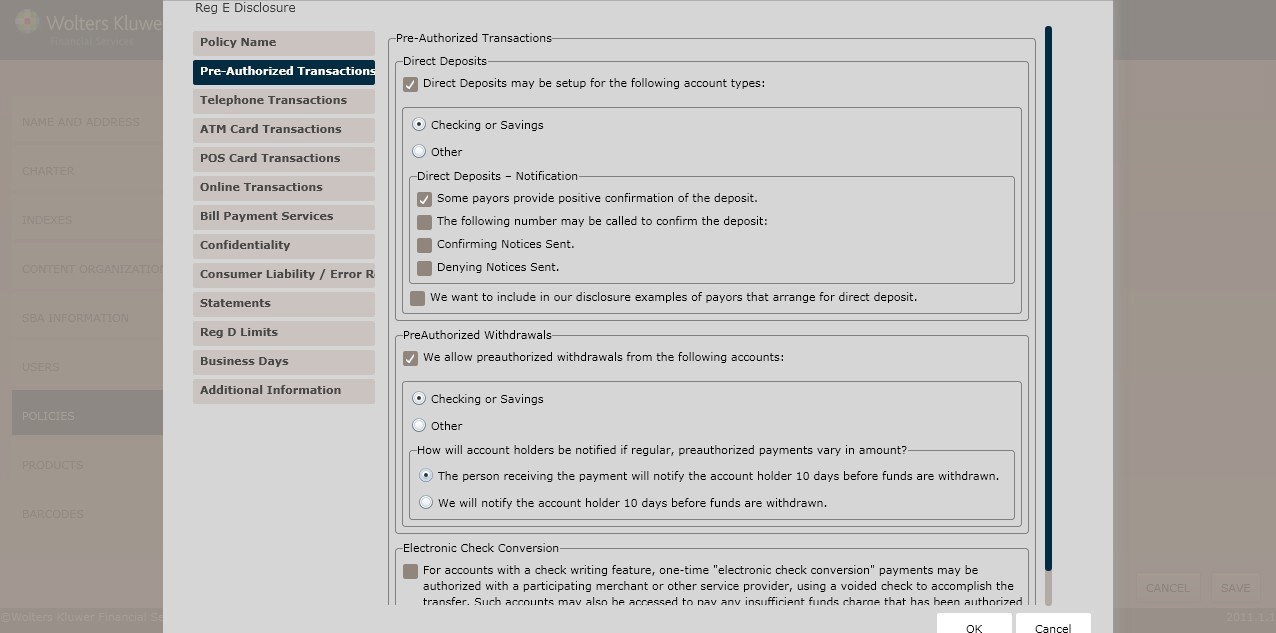
This page allows you to configure the following transaction types:
- Direct deposits
- Pre-authorized withdrawals
- Electronic check conversion
Pre-Authorized Transactions
To setup direct deposits for a particular account, click the Direct Deposits may be setup for the following account types checkbox. Select one of the following:
- Checking or Savings
- Other
- Select one of the following check boxes:
- Some payors provide positive confirmation of the deposit (default)
- The following number may be called to confirm the deposit
- Enter the Phone Number in the corresponding textbox.
- Confirming Notices Sent
- Denying Notices Sent
To include examples of payors that arrange for direct deposit, click the We want to include in our disclosure examples of payors that arrange for direct deposit checkbox. Enter the listing of payors that arrange for direct deposits in the corresponding textbox.
PreAuthorized Withdrawals
To allow preauthorized withdrawals for a specific account, click the We allow preauthorized withdrawals from the following accounts checkbox.
Select one of the following:
- Checking or Savings (default)
- Other
:
- Determine how account holders will be notified if regular, preauthorized payments vary in amount; select one of the following:
- The person receiving the payment will notify the account holder 10 days before funds are withdrawn. (default)
- We will notify the account holder 10 days before funds are withdrawn.
Electronic Check Conversion
- To authorize one-time electronic check conversion payments to a participating service provider, click the following checkbox:
- For accounts with a check writing feature, one-time “electronic check conversion” payments may be authorized with a participating merchant or other service provider, using a voided check to accomplish the transfer; such accounts may also be accessed to pay any insufficient funds charge that has been authorized for collection by electronic transfer.
Telephone Transactions
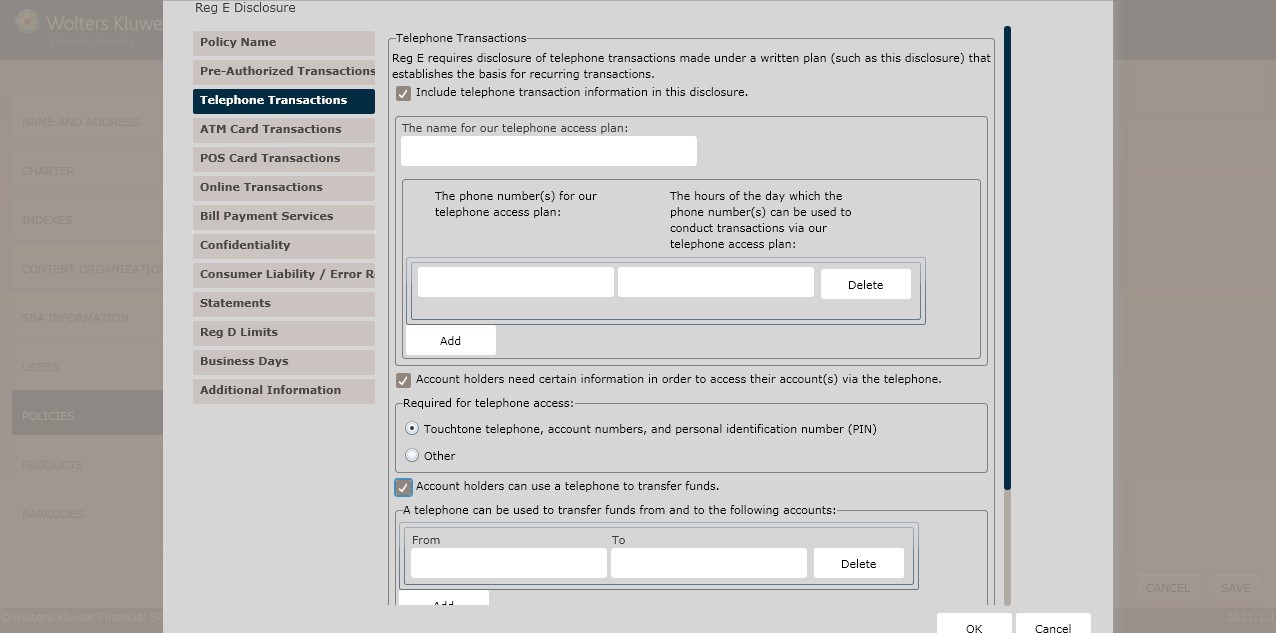
To include telephone transaction information for the disclosure, click the Include telephone transaction information in this disclosure checkbox.
- Enter the name for our telephone access plan in the corresponding textbox.
- Click Add to add additional telephone numbers fields.
- Click Delete to delete a telephone number.
- Enter the Access PhoneNumber and Hours in the corresponding textboxes.
- To specify that account holders need certain information to access their account over the telephone, click the Account holders need certain information in order to access their account(s) via the telephone checkbox. Select one of the following:
- Touch tone telephone, account numbers, and personal identification (PIN)
(*default)
- Other
- Touch tone telephone, account numbers, and personal identification (PIN)
- To specify that account holders need certain information to access their account over the telephone, click the Account holders need certain information in order to access their account(s) via the telephone checkbox. Select one of the following:
- To allow account holders to use a telephone to transfer funds, click the Account holders an use a telephone to transfer funds checkbox.
- Enter the accounts to transfer From and To in the corresponding textboxes.
- Click Add to add additional telephone numbers fields.
- Click Delete to delete a telephone number.
- To allow account holders to use a telephone to make a payment,click the Account holders can use a telephone to make payments checkbox.
- Enter the accounts to transfer Fromand To in the corresponding textboxes.
- Click Add to add additional telephone numbers fields.
- Click Delete to delete a telephone number.
- To allow account holders to use a telephone to obtain balance information, click the Account holders can use a telephone to obtain balance information checkbox.
- Select the type of account to obtain balance information:
- Checking or Savings (*default)
- Other
- To allow account holders to use a telephone to obtain withdrawal history, click the Account holders can use a telephone to obtain withdrawal history checkbox.
- Select the type of account to obtain withdrawal history:
- Checking or Savings (*default)
- Other
- To allow account holders to obtain deposit history by telephone, click the Account holders can use a telephone to obtain deposit history checkbox.
- Select the type of account to obtain deposit information:
- Check or Savings (*default)
- Other
- To allow account holders to obtain transaction history by telephone, click the Account holders can use a telephone to obtain transaction history checkbox.
- Select the type of account to obtain transaction information:
- Check or Savings (*default)
- Other
ATM Card Transactions page
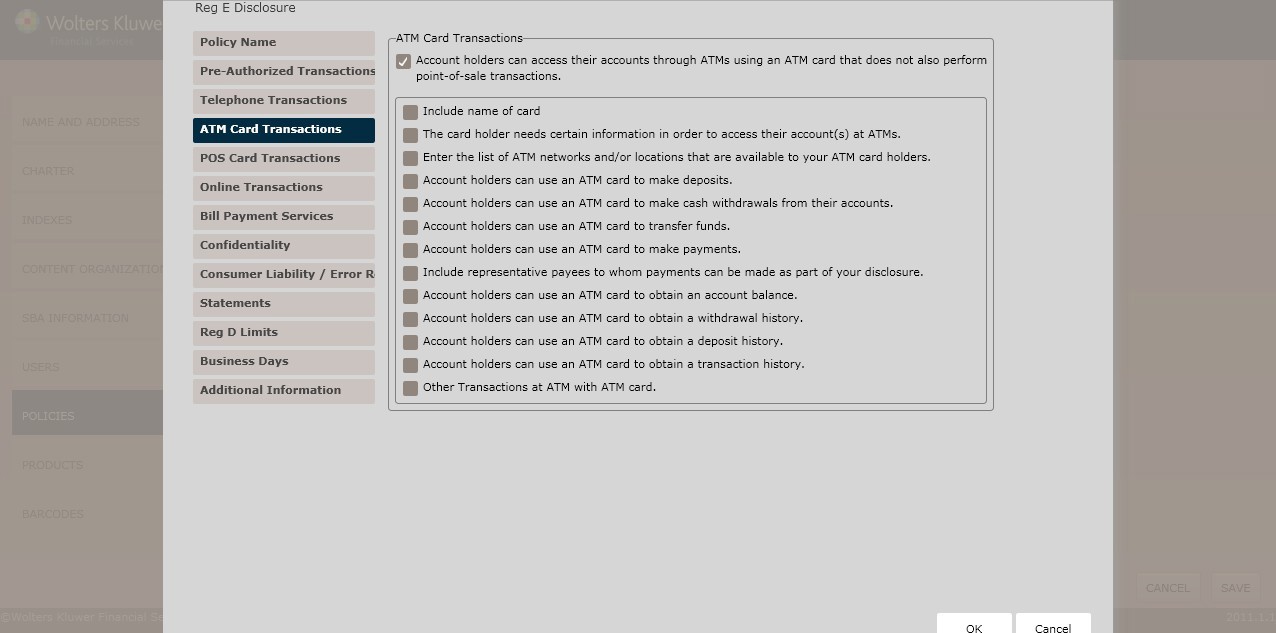
ATM Card Transactions
Clicking the Account holders can access their accounts through ATMs using an ATM card that does not also perform point-of-sale transactions checkbox displays a list of additional ATM Card Transaction rules.
- To include the card name, click the Include name of card checkbox; enter the card name in the field below.
- To specify that card holders need certain information to access an account at an ATM, click The card holder needs certain information in order to access their account(s) at ATMs checkbox; indicate what a card holder needs to access their account(s) at ATMs checkbox. Select one of the following:
- Personal Identification (PIN) (*default)
- Other
- Enter the list of ATM networks and/or locations in the Enter the list ATM networks/locations available to your card holders field below.
- To allow account holders to make deposits using an ATM card,click the Account holders can use an ATM card to make deposits checkbox. Specify the account type by selecting one of the following:
- Checking or Savings (*default)
- Other
- To allow account holders to make cash withdrawals with an ATM card, click the Account holders can use an ATM card to make cash withdrawals from their accounts checkbox. Specify the account type by selecting one of the following:
- Checking or Savings (*default)
- Other
- To allow account holders to use an ATM card to transfer funds, click the Account holders can use an ATM card to transfer funds checkbox; determine the accounts to transfer From and To in the corresponding fields.
- Click Add Additional Accounts to add additional From and To fields.
- To delete a desired From and To field, place the cursor in the desired field; click Delete.
- To allow account holders to use an ATM card to make a payment, click the Account holders can use an ATM card to make payments checkbox; determine the accounts to transfer From and To in the corresponding fields.
- Click Add Additional Accounts to add additional From and To fields.
- To delete a desired From and To field, place the cursor in the desired field; click Delete.
- To create a list of representative payees per a disclosure, Click the Include representative payees to whom payments can be made as part of your disclosure checkbox. Enter the list of representative payees who will accept payments from ATMs in the field below.
- To allow account holders to use an ATM card obtain account balances, click the Account holders can use an ATM card to obtain an account balance checkbox. Specify the account type by selecting one of the following:
- Checking or Savings (*default)
- Other
- To allow account holders to use an ATM to obtain withdrawal history, click the Account holders can use an ATM card to obtain withdrawal history checkbox. Specify the account type by selecting one of the following:
- Checking or Savings (*default)
- Other
To allow account holders to use an ATM card to obtain a deposit, click the Account holders can use an ATM card to obtain a deposit checkbox. Specify the account type by selecting one of the following:
- Checking or Savings
- Other
- To allow account holders to use an ATM card obtain a transaction, click the Account holders can use an ATM card to obtain a transaction checkbox. Specify the account type by selecting one of the following:
- Checking or Savings (*default)
- Other
- To create a list of other allowable ATM transactions, click the Other Transactions at ATM with ATM card checkbox. Specify additional EFT type(s) in the field below. Describe the following:
- The transaction type
- Accounts that may be accessed
- Any special conditions
- Any limits or frequency transactions
Click Next to advance to the POS Card Transactions page.
POS Card Transactions page
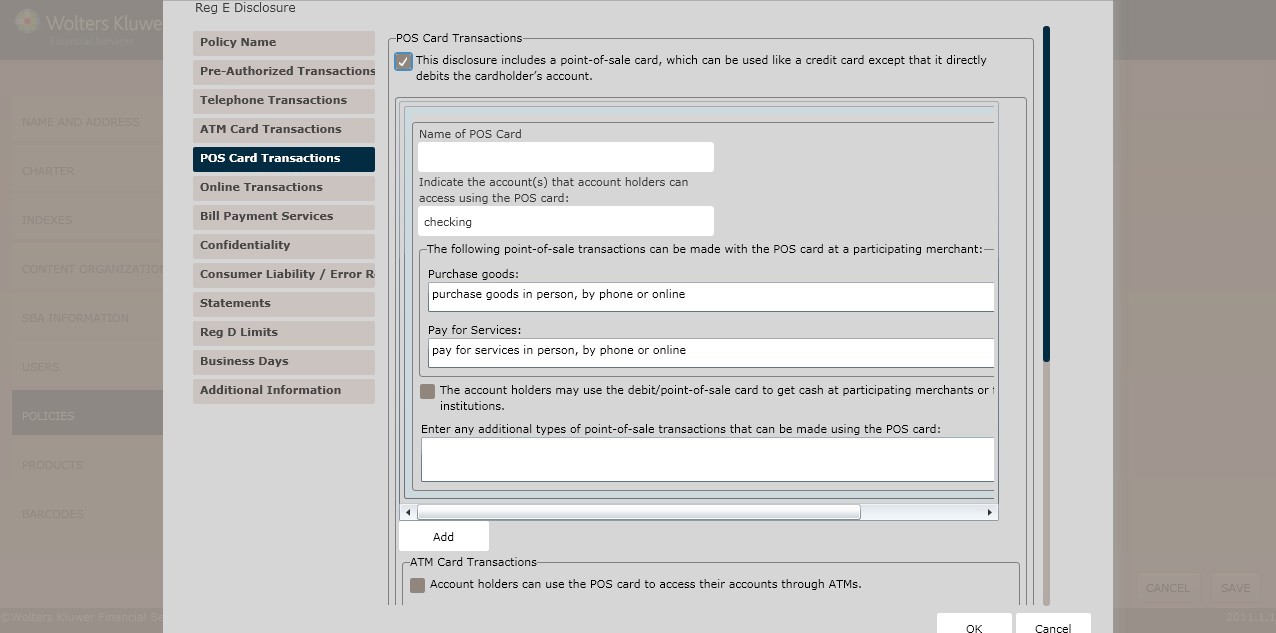
POS Card Transactions
To specify that the disclosure includes a POS card, click the This disclosure includes a point- of sale card, which can be used like a credit card except that it directly debits the cardholder’s account checkbox.
- To include a POS card name, click the Include a name(s) for our POS card checkbox; enter the POS card name in the corresponding text box.
- Specify the type of point-of-sale transactions that can made with a POS card by selecting any of the following:
- Purchase Goods; select one of the following:
- In person, by phone or online (*default)
- Other
- Purchase Goods; select one of the following:
- Click Add to add additional telephone numbers fields.
- Click Delete to delete a telephone number.
- Pay for Services; select one of the following:
- In person, by phone or online (*default)
- Other
- Click Add to add additional telephone numbers fields.
- Click Delete to delete a telephone number.
- To allow account holders to make debit card or POS withdrawals at particular financial institutions, click The account holders may use the debit/point-of-sale card to get cash at participating merchants or financial institutions checkbox.
- To specify any additional types of point-to-sale transactions, select Other; enter the additional types in the field below.
- To specify if any Minnesota Point-of-Sale Transactions can be reversed,select one of the following:
- Yes, a point-of-sale transaction can be reversed by (*default)
- No, a point-of-sale transaction cannot be reversed.
- To allow California account holders to use their POS card without a PIN, click The POS card may be used for transactions without the use of a Personal Identification Number (PIN) or other similar transaction checkbox.
- To allow Wisconsin institutions to honor charge back requests of $50 or higher POS transfers within three banking days, click the Disclose that the institution will honor requests for charge backs on point-of-sale transfer for $50 or more, if the institution receives notice within3 banking days of the transaction checkbox.
- To assess a fee, click the For this service,a fee will be assessed checkbox. Specify the following: Fee Name, Fee Amount.
ATM Card Transactions
- To allow account holders to use a POS card at ATM, click the Account holders can use the POS card to access their accounts through ATMs checkbox.
- When clicking the Account holders can use the POS card to access their accounts through ATMs option, the In addition to the POS card, card holders need certain information in order to access their account(s) at ATMs checkbox appears. Selecting this function requires card
holders to provide additional information when using their POS card at an ATM. Determine the type of information the card holder needs by selecting one of the following:
- Personal Identification number (PIN) (*default)
- Other
- To specify whether a list of ATM networks/locations should be made available toward holders, click the List the ATM networks/locations available to your card holders checkbox. Enter the list of ATM networks/locations in the corresponding textbox.
- To allow card holders to use their POS card to make a deposit, click the Card holders can use their POS cards to make deposits checkbox. Specify the account type by selecting one of the following:
- Checking or Savings (*default)
- Other
- To allow card holders to use their POS card to make a withdrawal, click the Card holders can use their POS cards to make withdrawals checkbox. Specify the account type by selecting one of the following:
- Checking or Savings (*default)
- Other
- To allow card holders to use a POS card to transfer funds, click the Card holders can use a POS to transfer funds checkbox; determine the accounts to transfer From and To in the corresponding fields.
- Click Add to add additional From and To fields.
- Click Delete to delete a desired From and To field.
- To allow a card holder to make a payment with a POS card, click the Card holders can use a POS card to make payments checkbox; determine the accounts to make payments From and To in the corresponding fields.
- Click Add to add additional From and To fields.
- Click Delete to delete a desired From and To field.
- To create a list of representative payees per a disclosure, click the Include representative payees to whom payments can be made as part of your disclosure checkbox. Enter the representative list in the corresponding textbox.
- To allow card holders to obtain an account balance with a POS card, click the Card holders
can use their POS cards to obtain an account balance checkbox. Specify the account type by selecting one of the following:
- Checking or Savings (*default)
- Other
- To allow card holders to obtain withdrawal history with a POS card, click the Card holders can use a POS cards to obtain a withdrawal history. Specify the account type by selecting one of the following:
- Checking or Savings (*default)
- Other
- To allow card holders to obtain a deposit history with a POS card, click the Card holders can use their POS cards to obtain a deposit history checkbox. Specify the account type by selecting one of the following:
- Checking or Savings (*default)
- Other
- To allow card holders to obtain a transaction history with a POS card, click the Card holders can use their POS cards to obtain a transaction history checkbox. Specify the account type by selecting one of the following:
- Checking or Savings (*default)
- Other
- To create a list of other allowable POS transactions, specify additional EFT type(s)in the Other Transactions at ATM with POS card field below. Describe the following:
- The transaction type
- Accounts that may be accessed
- Any special conditions
- Any limits or frequency transactions
Online Transactions page
The Online Transactions page is used to create the following rules regarding online transactions:
- Online Transactions Information
- Computer Access Information
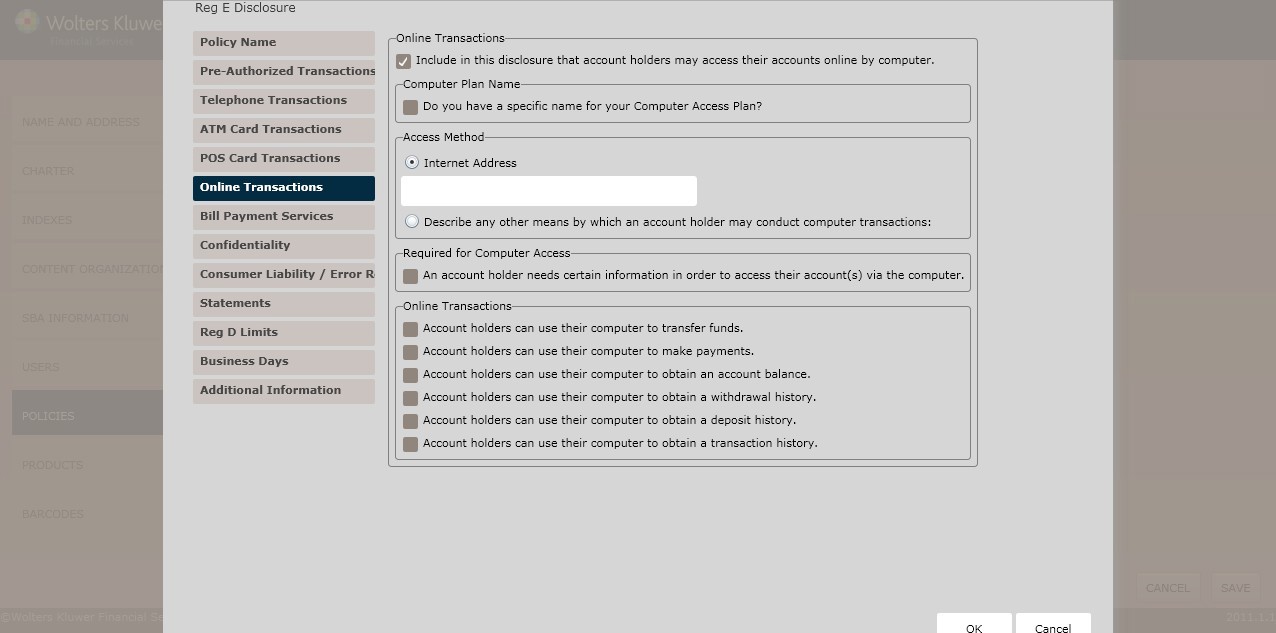
Online Transactions
Clicking the Include in this disclosure that account holders may access their accounts online by computer checkbox.
Computer Plan Name
If necessary, select the Do you have a specific name for your Computer Access Plan checkbox. Enter the name of a computer access plan in the corresponding textbox.
Access Method
To specify other Access Plans, select one of the following:
- Internet Address (*default); enter the internet address in the field below.
- Describe any other means by which an account holder may conduct computer transactions; enter the additional information in the field below.
Required for Computer Access
To require account holders to provide additional information when accessing their account with a computer, click the An account holder needs certain information in order to access their account(s) via the computer checkbox. Select one of the following:
- Username and password (*default)
- Other
Online Transactions
- To allow account holders to make payments with a computer, click the Account holder can use their computer to transfer funds checkbox. Determine the accounts to make payments From and To in the corresponding fields.
- Click Add Additional Accounts to add additional From and To fields.
- To delete a desired From and To field, place the cursor in the desired field; click Delete.
- To allow account holders to make payments with a computer, click the Account holder can use their computer to make payments checkbox. Determine the accounts to make payments From and To in the corresponding fields.
- Click Add Additional Accounts to add additional From and To fields.
- To delete a desired From and To field, place the cursor in the desired field; click Delete.
- To specify that paper check payments are not subject Regulation E, click the Payments made by paper checks to specified payees (as disclosed in a separate agreement) will not be subject to Regulation E checkbox.
- To allow account holders to obtain account balances with a computer, click the Account holders can user their computer to obtain an account balance checkbox. Specify the account type by selecting one of the following:
- Checking or Savings (*default)
- Other
- To allow account holders to obtain withdrawal histories with a computer, click the Account holders can user their computer to obtain an withdrawal history checkbox. Specify the account type by selecting one of the following:
- Checking or Savings (*default)
- Other
- To allow account holders to obtain a deposit history with a computer, click the Account holders can user their computer to obtain a deposit history checkbox. Specify the account type by selecting one of the following:
- Checking or Savings (*default)
- Other
- To allow account holders to obtain a transaction history with a computer, click the Account holders can user their computer to obtain a transaction history by clicking the checkbox. Specify the account type by selecting one of the following:
- Checking or Savings (*default)
- Other
Bill Payment Service page
The Bill of Payment Service page is used to create the following rules for online bill payment:
- Bill Payment Services
- Computer Access Information
- Telephone Access
- Other Access Types
- Transfer Types
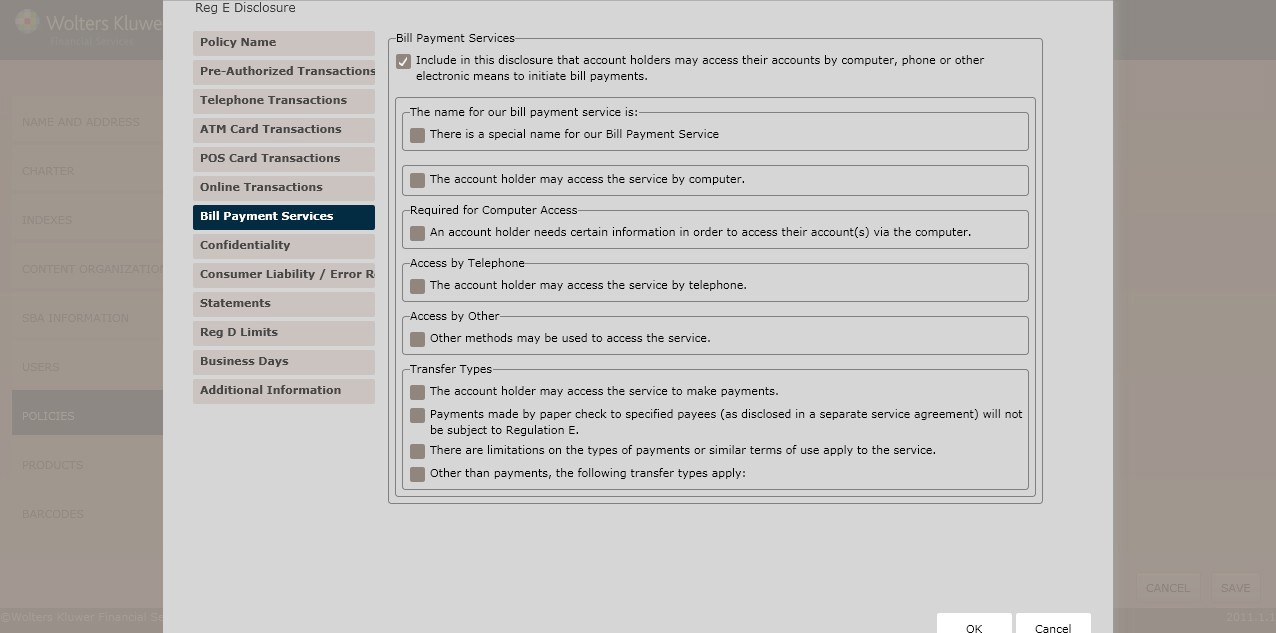
Bill Payment Services
Clicking the Include in this disclosure that account holders may access their accounts by computer checkbox displays a list of additional Bill Payment Service options.
- To specify a special bill payment service name, click the There is a special name for our Bill Payment Service checkbox. Enter the name in the corresponding textbox.
- To allow an account holder to access the service by computer, click the The account holder may access the service by computer checkbox. Enter the name in the field below.
Required for Computer Access
To require an account holder provide certain information when accessing an account with a computer, click the An account holder needs certain information in order to access their account(s) via the computer checkbox. Select one of the following:
- Username and password (*default)
- Other
Access by Telephone
To allow an account holder to access the service by telephone, click The account holder may access the service by telephone checkbox. Enter the phone number in the corresponding text box.
- If selecting The account holder may access the service by telephone option, specify what information account holders to access the service by telephone; select one of the following:
- Username, password, and account number (*default)
- Other
Access by Other
To determine other methods of accessing the service, click the Other methods may be used to access the service checkbox. Enter the methods in the field below.
- To require that account holders,click the Account holders need certain information to access the service checkbox. Enter the information in the field below.
Transfer Types
- To allow account holders to make payments through the service,click The account holder may access the service to make payments checkbox.
- Determine the accounts to transfer From and To in the corresponding fields.
- To verify that paper checks made to specific payees are not subject to Regulation E, click the Payments made by paper checks to specified payees (as disclosed in a separate agreement) will not be subject to Regulation E checkbox.
- If selecting the Payments made by paper checks to specified payees (as disclosed in a separate agreement) will not be subject to Regulation E option, determine if any limitations on types of payments apply. Click the Limitations on the types of payments or similar terms of use apply to the service checkbox.
- Enter the limitations in the corresponding text box.
- If any additional transfer types apply,click the Other than payments, the following transfer types apply checkbox. Enter the additional transfer types in the corresponding text box.
Mobile Banking page
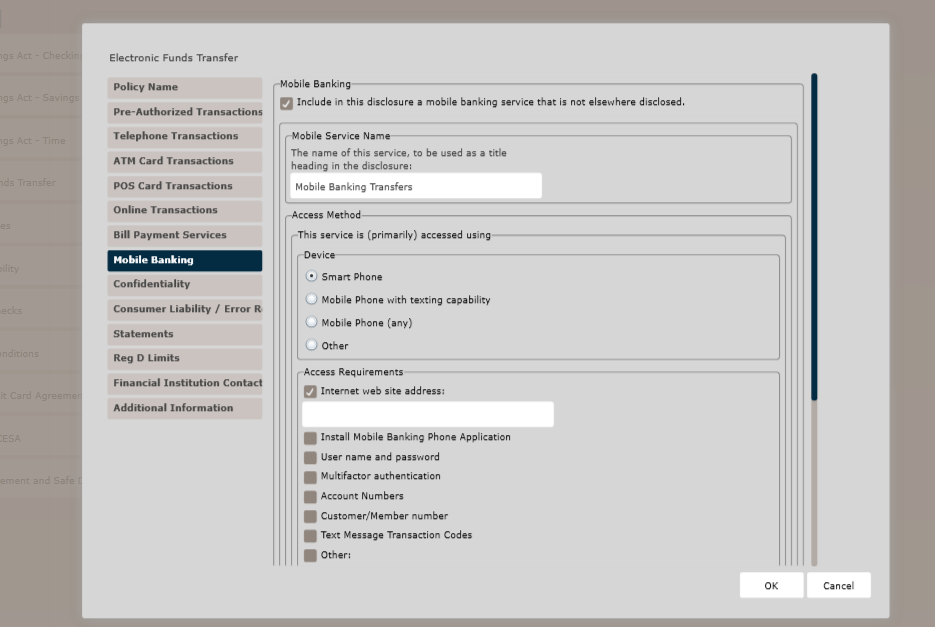
Mobile Banking
Clicking the Include in this disclosure a mobile banking service that is not elsewhere disclosed checkbox displays a list of additional Mobile Banking options.
Mobile Service Name
Defaults to “Mobile Banking Transfers”. Enter mobile service name in text box.
Access Method
In the This service is (primarily) accessed using section, select one of the following:
- Smart Phone
- Mobile Phone with texting capability
- Mobile phone (any)
- Other
Access Requirements
In the Access Requirements section, select those options required to access mobile banking service:
Internet web site address
- Install Mobile Banking Phone Application
- User name and password
- Multifactor authentication
- Customer/Member number
- Text Message Transaction Code
- Other
Mobile Banking
Clicking the Include a second/alternative method of accessing mobile banking checkbox allows for an additional device to be included for mobile banking and corresponding access requirements. The same prompts are presented as documented above in section This service is (primarily) accessed using.
Mobile Transaction Types
In the Mobile Transaction Types section, select those options available to access with mobile banking service:
- Transfers of funds between account holder’s accounts
- Payments to others (loans, bills to third parties, etc.)
- Account balance information can be obtained
- Withdrawal history information can be obtained
- Deposit history information can be obtained
- Transaction history information can be obtained
Non-EFT Transactions
Clicking the Include descriptions of additional transactions that may be performed using this service that are NOT electronic fund transfers subject to the disclosure displays
- Deposit checks remotely
- View recent account statements
- View paid check images
- View deposited check images
- Arrange account activity notices
- Other
- Click Add to add additional telephone numbers fields
- Click Delete to delete a telephone number
Prepaid Card Transactions
- Prepaid Card
- ATM
- POS
- Other Features: Limits and Fees, Statements, and Consumer Liability
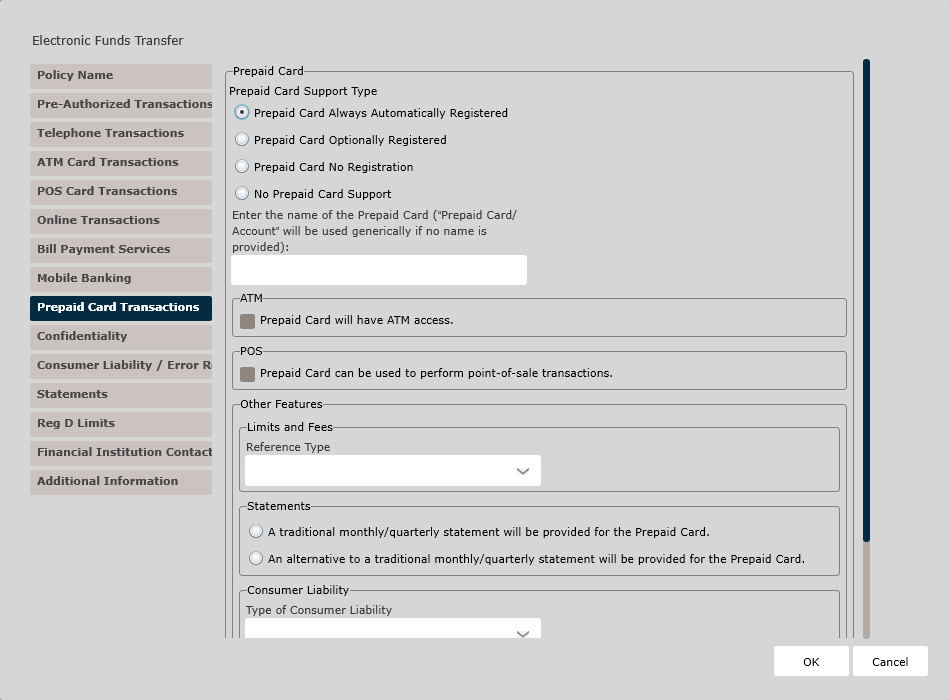
Prepaid Card Support Type
- Prepaid Card Always Automatically Registered
- Prepaid Card Optionally Registered
- Prepaid Card No Registration
- No Prepaid Card Support
Enter a name for the Prepaid Card. If none is entered "Prepaid Card/Account" will be used.
ATM
- The user will need to provide information,
such as PIN, in order to access the card at an
ATM.
- Prepaid Card accessed with PIN
- Prepaid Card accessed with the following
information:Note: Enter a description of how the Prepaid Card is accessed in the text field below.
- Include a description of the ATM location or
network.Note: Enter a description of the ATM location or network in the text field below.
-
Usage Methods
- Prepaid Card can be used to make deposits at an ATM.
- Prepaid Card can be used to make cash withdrawals at an ATM.
- Prepaid Card can be used to obtain account balance information at an ATM.
- Prepaid Card can be used to transfer
funds.Note: Use the From and To fields to indicate how funds can be transferred. Click Add to enter additional transfer options.
- Prepaid Card can be used to make a
payment.Note: Use the From and To fields to indicate how payments can be made. Click Add to enter additional payment options.
- Prepaid Card can be used to obtain withdrawal history at an ATM.
- Prepaid Card can be used to obtain deposit history at an ATM.
- Prepaid Card can be used to obtain transaction history information at an ATM.
- Prepaid Card can be used to perform other
types of transactions.Note: Enter a description of the other types of transactions that may be completed using the Prepaid Card at an ATM in the text field below.
POS
- Include a description of the kind of
point-of-sale purchases that can be made using the
Prepaid Card. Note: If using this field, enter the necessary information in the text field below.
- Include a description of the kind of
point-of-sale payments for services that can be
made using the Prepaid Card.Note: If using this field, enter the necessary information in the text field below.
- Prepaid Card may be used to get cash via a point-of-sale transaction.
- Prepaid Card may be used to perform other
types of point-of-sale transactions.Note: If using this field, enter the necessary information in the text field below.
Other Features
Limits and Fees
- General Limits and Fees Only
- Specify Both General Limits and Fees and Prepaid Card Disclosures
- Separate Prepaid Card Disclosure Only
Statements
Select one of the following Statement options. Note that depending on which option you have selected for the Prepaid Card Registration above, some fields may not be available.
- A traditional monthly/quarterly statement will be provided for the Prepaid Card.
- An alternative to a traditional
monthly/quarterly statement will be provided for
the Prepaid Card.Note: When an alternative statement is selected, enter a phone number and website address to use to obtain balance information in the text fields below.
Consumer Liability
- Include Other Services/Liability Protection Always Applies
- Include Other Services/No Liability Protection for Unregistered Card
- Prepaid Card Disclosure Only/Liability Protection Always Applies
- Prepaid Card Disclosure Only/No Liability Protection for Unregistered Card
Check There is a special web address for Prepaid Card Error Resolutions, if needed. Then, enter the web address in the text field below.
Additional Other Features Fields
- The Prepaid Card has been set up so that registered
prepaid accounts are eligible for deposit
insurance.Note: This field displays only when Prepaid Card Always Automatically Registered or Prepaid Card Optionally Registered are selected in the prepaid Card Support Type section above.
- There is a special contact method for questions
regarding Prepaid Cards, other than generally
contacting through phone, mail, or
website.Note: Enter a description of the contact method for questions regarding Prepaid Cards in the text box below.
Michigan-Specific Other Field
- Prepaid card holders must maintain a minimum balance in their account as a conditions of using the card.
Confidentiality page
The Confidentiality page is used to create account sharing information when conducting transactions. This page outlines the following rule creation:
- Confidentiality – All States Except Massachusetts
- Confidentiality – Massachusetts
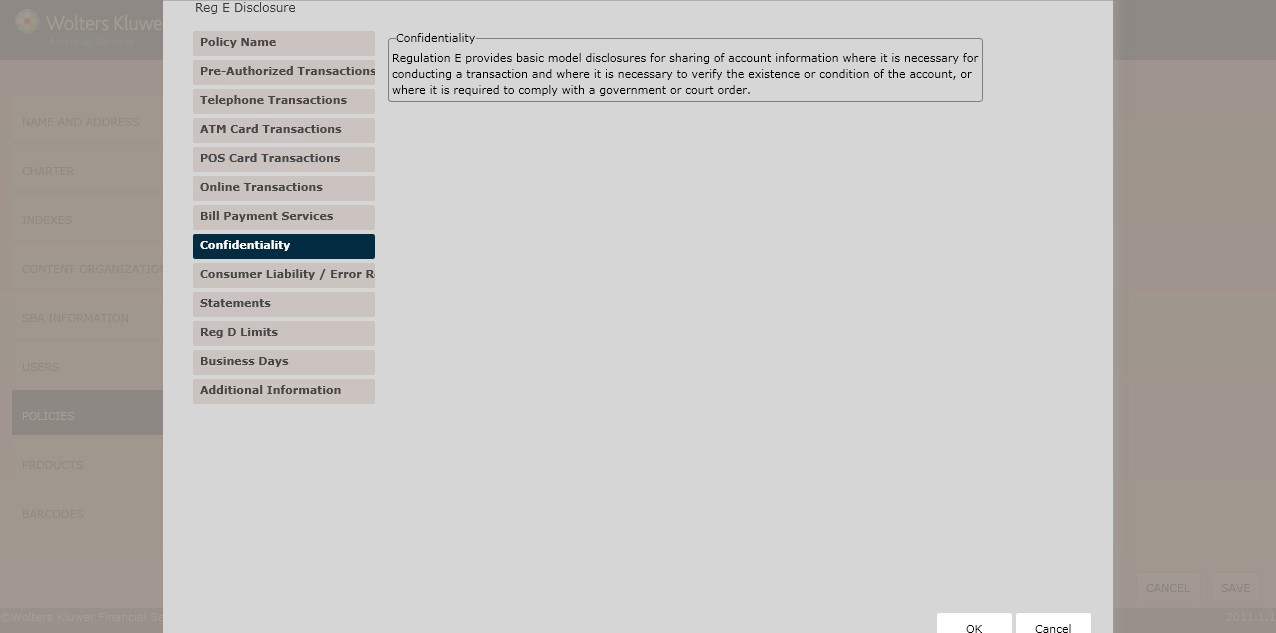
Confidentiality – All States Except Massachusetts
In the Confidentiality – All States Except Massachusetts section, determine the circumstances in which account information should be shared with third parties; select one of the following:
- Add a cross-reference to our privacy disclosure, which is provided separately in addition to the basic disclosure
- When the account holder’s written permission is obtained prior to the release of any information (*default)
- Other
Confidentiality – Massachusetts
In the Confidentiality –Massachusetts section, determine the circumstances in which account information should be shared with third parties; select one of the following:
- Add a cross-reference to our privacy disclosure, which is provided separately in addition to the basic disclosure
- When the account holder’s written permission is obtained prior to the release of any information (*default)
- Other
Consumer Liability/Error Resolution page
This page allows users to determine regulatory language for the following:
- Consumer Liability
- Advisory Against Illegal Use
- Error Resolution
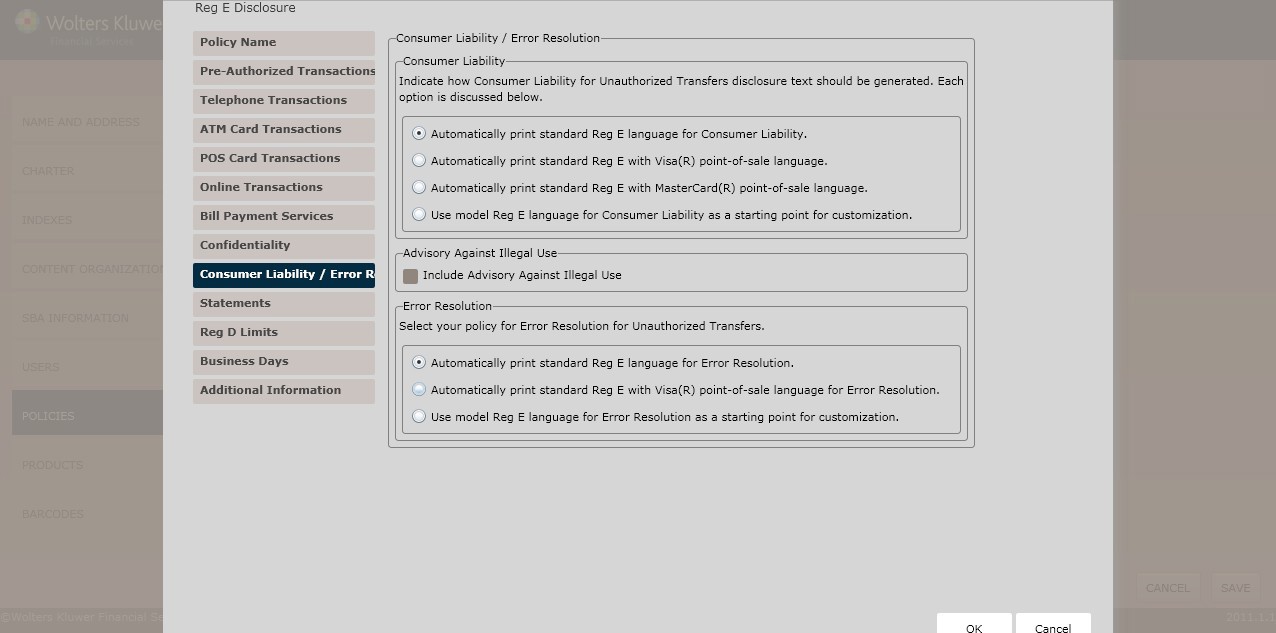
Consumer Liability
The Consumer Liability section allows users to indicate how Consumer Liability for Unauthorized Transfers disclosure text should be generated. Select one of the following options:
- Automatically print standard Reg. E language for Consumer Liability
- Automatically print standard Reg. E with Visa® with point-of-sale language
- Automatically print standard Reg. E with MasterCard® with point-of-sale language
- Automatically print standard Reg. language for Consumer Liability as a starting point for customization.
Advisory Against Illegal Use
If applicable, select the Include Advisory Against Illegal Use checkbox.
Error Resolution
Select one of the following policies for Error Resolution for Unauthorized Transfers:
- Automatically print standard Reg. E language for Error Resolution
- Automatically print standard Reg. E with Visa® point-of-sale language for Error Resolution.
- Use model Reg. E. language for Error Resolution as a starting point for customization.
- For Michigan users, go to the Contact Information page; for all other users, advance to the Statements page.
Contact Information page
This page allows users to enter contact information for the institution.
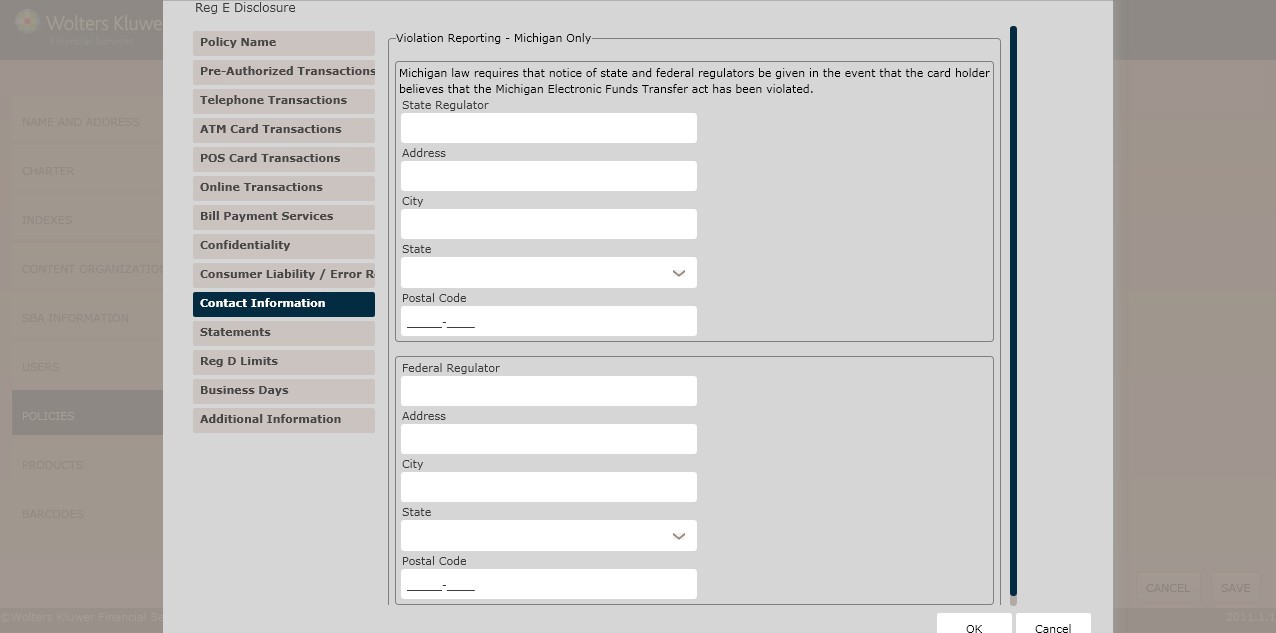
Violating Reporting – Michigan Only
Enter the following contact information:
- State Regulator
- Address
- City
- State (select the desired state from the dropdown box)
- Postal Code
- Federal Regulator
- Address
- City
- State (select the desired state from the dropdown box)
- Postal Code
Statements page
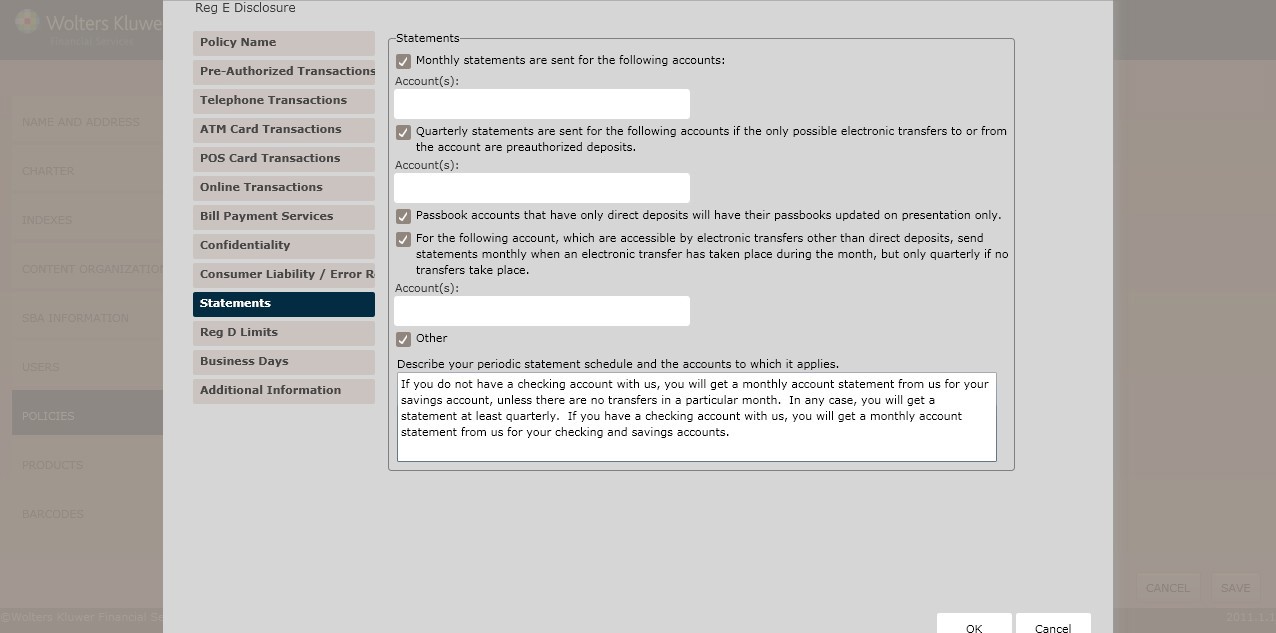
Statements
To specify monthly statements will be sent for a particular account,click the Monthly statements are sent for the following accounts checkbox. Enter the Account(s) in the field below.
- To specify that quarterly statements will be sent if preauthorized deposits are the only allowable electronic transfers, click the Quarterly statements are sent for the following accounts if the only possible electronic transfers to or from the account are preauthorized deposits checkbox.
- Enter the Account(s) in the field below.
- To specify passbook account with only direct deposit are updated on presentation, click the Passbook accounts that have only direct deposits will have their passbooks updated on presentation only checkbox.
- To specify that monthly statements are sent for a particular account when an electronic transfer has occurred, Click the For the following account, which are accessible by electronic transfers other than direct deposits, send statements monthly when an electronic transfer has taken place during the month, but only quarterly if no transfers take place checkbox.
- Enter the Account(s) in the field below.
- To specify a statement schedule for a particular account, perform the following:
- Click the Other checkbox
- Enter the periodic statement schedule and the accounts to which it applies in the field below.
Reg.D Limits page
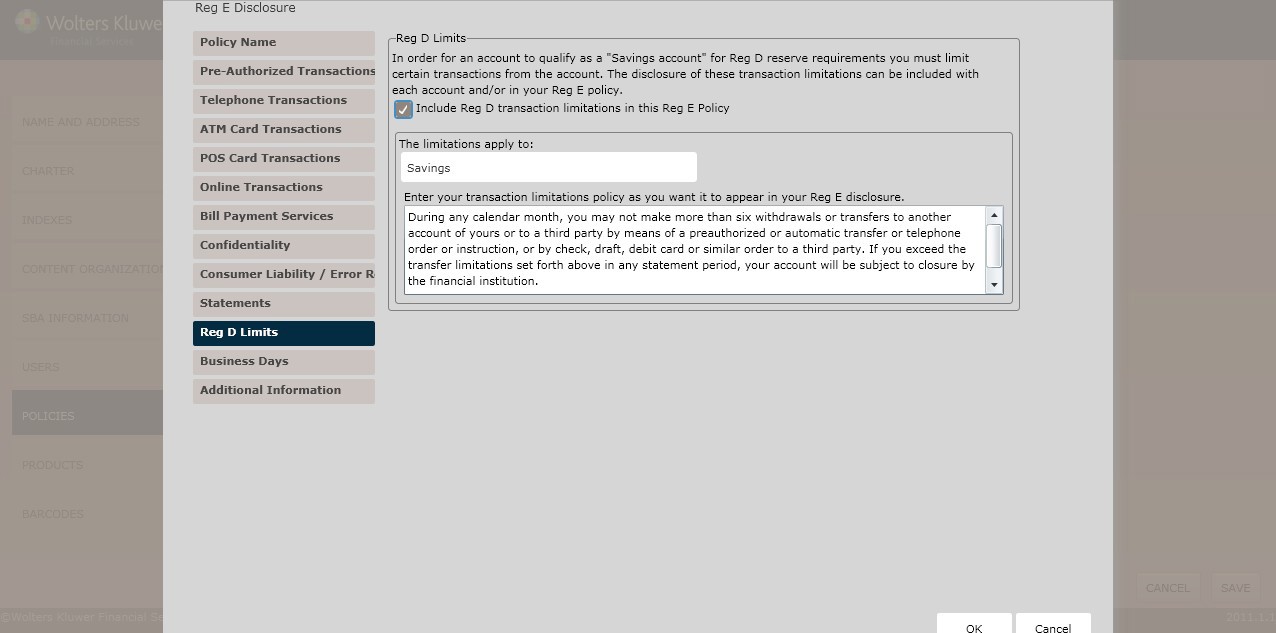
Reg. D Limits
To include Reg. D transaction limitations in the Reg. E policy, click the Include Reg. D transaction limitations in the Reg. E Policy checkbox.
- If selecting the Include Reg. D transaction limitations in the Reg. E Policy option, select one of the following:
- Checking and savings account(s) (*default)
- Other
- Enter the transaction limitations policy as you want it to appear in your Reg. E disclosure in the corresponding text box.
Financial Institution Contact page
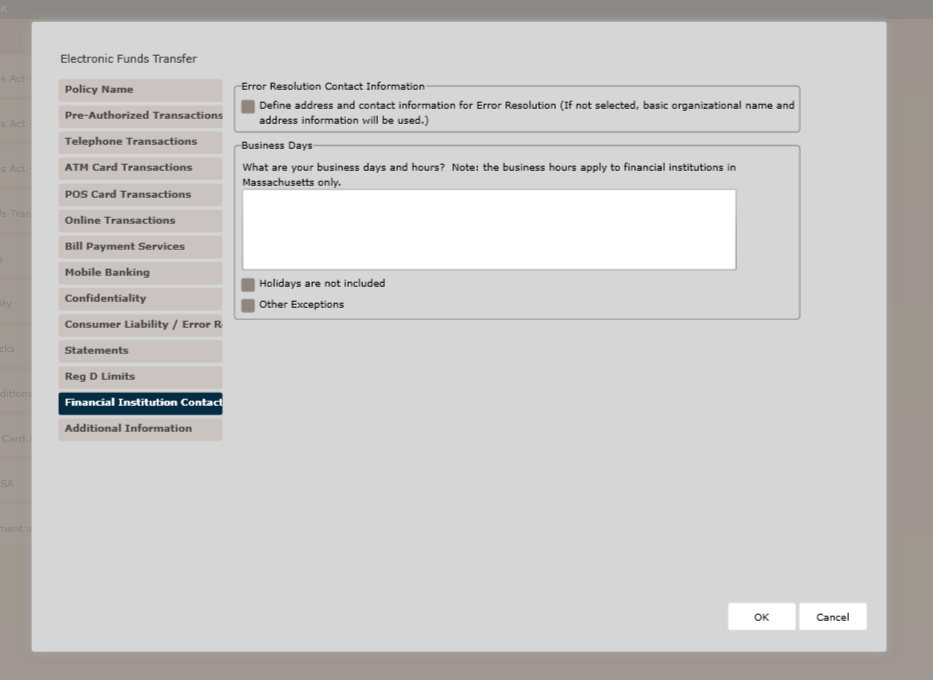
Error Resolution Contact Information
Select this checkbox to define an address and contact information for Error Resolution (If not selected, basic organizations and address information will be used) and populate text fields below:
- Institution Name
- Contact Information – e.g., ATTN: EFT Dept.
- Address
- City
- State
- Postal Code
- Phone Number / Purpose or Usage Specifics
- Alternate Phone Number/ Purpose or Usage Specifics
- Additional Alternate Phone Number / Purpose or Usage Specifics
- Email (optional)
Business Days
Specify the business days and hours in the field below.
- If applicable, select the following:
- Holidays are not included
- Other Exceptions
Additional Information page
This page allows users to specify the following information:
- Security Limitations
- ATM User Precautions
- Cross Border/International Transfers
- EFT Agreement Terminations for Massachusetts and Minnesota
- Termination Transaction Completion Time for Minnesota
- Minimum Account Balance for Massachusetts and Michigan
- Health Savings Accounts (HSAs)
- Other Terms
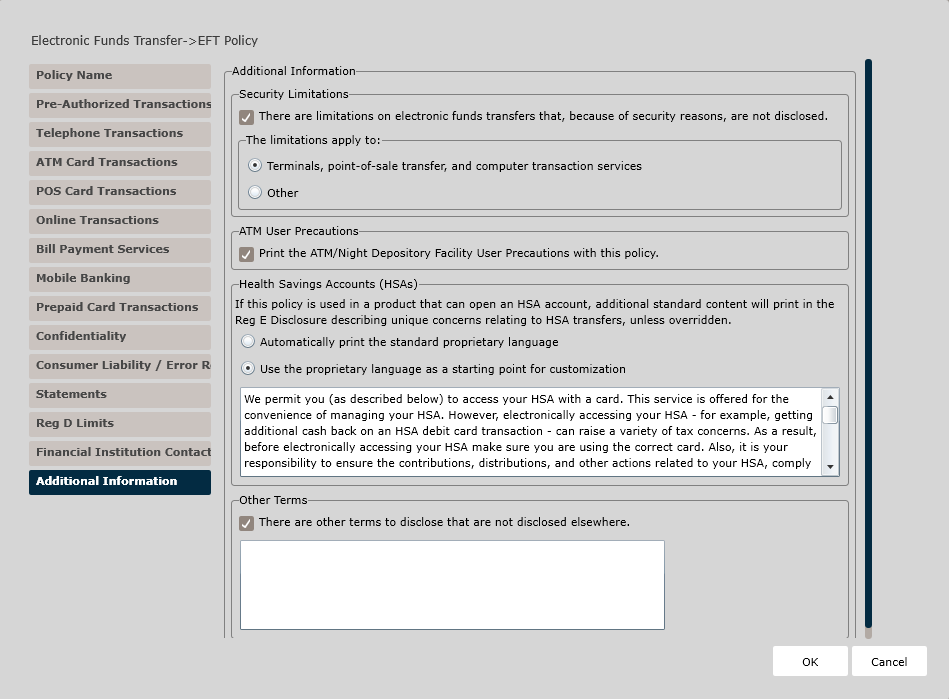
Additional Information/Security Limitations
To specify any security limitation on electronic transfers, click the There are limitations on electronic transfers that, because of security reasons, are not disclosed checkbox.
- Select one of the following:
- Terminals, point-of-sale transfer, and computer transaction services (*default)
- Other
ATM User Precautions
To print ATM/Night Depository Facility User Precautions, click the Print the ATM/Night Depository Facility User Precautions with this policy checkbox.
Cross Border/International Transfers
To disclose rules on how transactions in foreign currency are converted to U.S. dollars, click the Disclose rules explaining how transactions in foreign currency will be converted to U.S. dollars checkbox.
Depending on whether you chose VISA or Mastercard, select the corresponding button.
- This disclosure includes a point-of-sale card, which can be used like a credit card except that it directly debits the cardholder's account on the POS Card Transactions page.
- Either the Automatically print standard Reg E with VISA® point-of-sale language or Automatically print standard Reg E with MasterCard® point-of-sale language from the Consumer Liability/Error Resolution page.
- Select one of the following:
- Automatically print standard VISA/Mastercard card currency conversion and international transactions language (*default)
- Use VISA/Mastercard card foreign currency conversion and cross-border transactions language as a starting point
EFT Agreement Termination – Massachusetts and Minnesota Only
To terminate any EFT agreements in Massachusetts and Minnesota, specify the agreement rules or guidelines in the Account holders may terminate an electronic funds transfer agreement by field.
- Specify the agreement rules in the We may terminate an electronic funds transfer agreement by field.
Terminal Transaction Completion – Minnesota Only
To specify the terminal transaction completion time in Minnesota, Enter the time needed to complete terminal transactions by selecting one of the following:
- Withdrawals will normally be completed
- Deposits will normally be completed
- Transfers between accounts will normally be completed
- Payments will normally be completed
- Other
Minimum Account Balance– Massachusetts and Michigan Only
To determine minimum account balances in Massachusetts and Michigan, specify minimum account balances for the following:
- Checking
- Enter the account balance in the corresponding text box.
- Savings
- Enter the account balance in the corresponding text box.
Health Savings Accounts (HSAs)
If this policy is used in a product that can open an HSA account, additional standard content will print in the Reg E Disclosure describing unique concerns relating to HSA transfers, unless overridden. Select one of the following, if applicable:
- Automatically print the standard proprietary language
- Use the proprietary language as a starting point for customization
Other Terms
To include relevant terms necessary to the Reg. E disclosure, click There are other terms to disclose that are not disclosed elsewhere checkbox.
- Enter the terms in the field below.
- Click OK to complete the policy creation process. The policy is now available to OPPSA users.
Overdraft Opt-In Notice
- Transactions (Other than ATM or Debit Card) that can cause overdrafts
- Overdraft protection alternatives
- Overdraft charge details
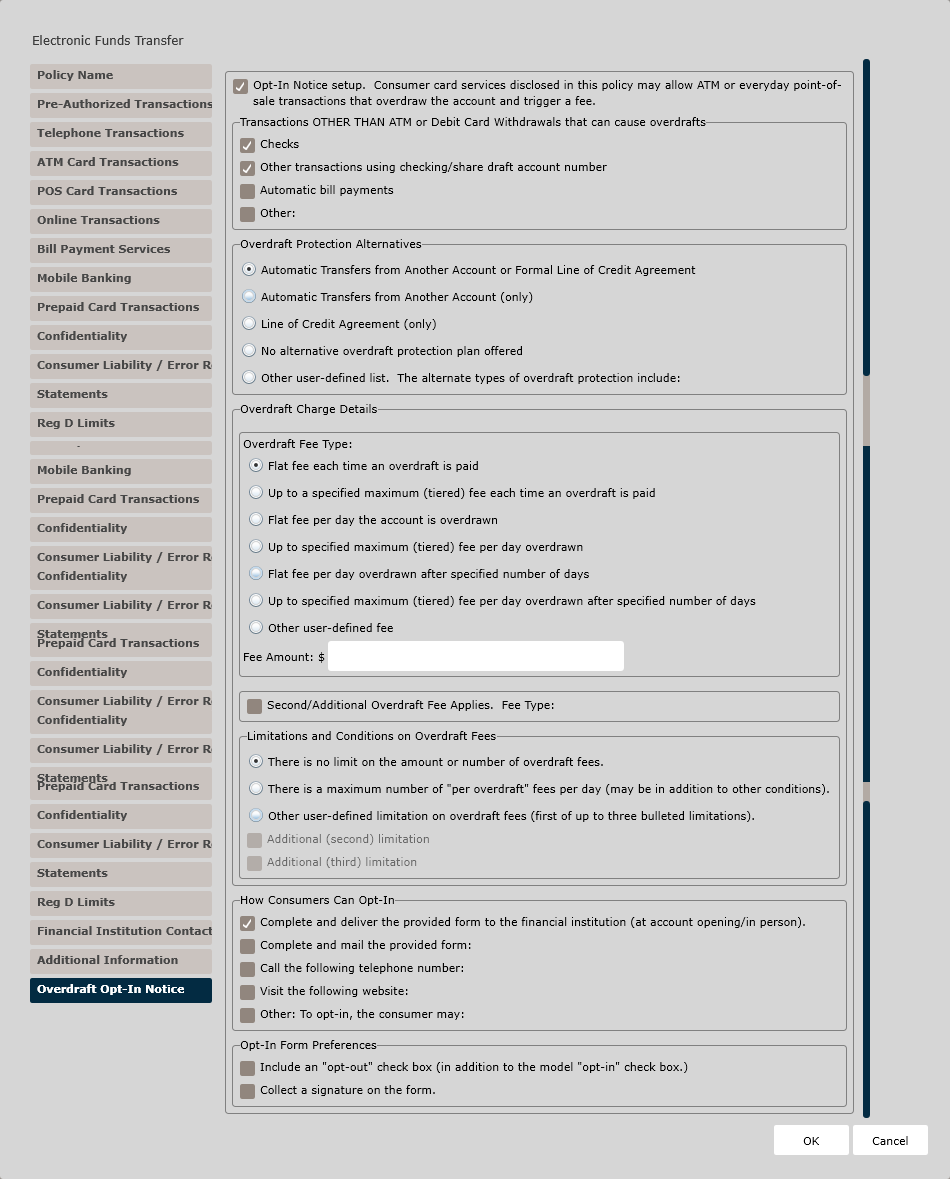
- Checks
- Other transactions using checking/share draft account number
- Automatic bill payments
- OtherNote: If selecting Other, describe the account type in the corresponding textbox.
Overdraft Protection Alternatives
- Automatic Transfers from Another Account or Formal Line of Credit Agreement
- Automatic Transfers from Another Account (only)
- Line of Credit Agreement (only)
- No alternative overdraft protection plan offered
- Other user-defined list. The alternate types
of overdraft protection include:Note: If selecting Other user-defined list, describe the overdraft protection in the corresponding textbox.
Overdraft Charge Details
- Overdraft Fee Type
- Second/Additional Overdraft Fee
- Limitations and Conditions on Overdraft Fees
- How Consumers Can Opt-In
- Opt-In Form Preferences
- Flat fee each time an overdraft is paid. Enter a Fee Amount in the corresponding textbox below.
- Up to a specified maximum (tiered) fee each time an overdraft is paid. Enter a Maximum Fee Amount in the corresponding textbox below.
- Flat fee per day the account is overdrawn. Enter a Fee Amount into the corresponding texbox below and indicate whether the charge is per business day or calendar day.
- Up to specified maximum (tiered) fee per day overdrawn. Enter a Maximum Fee Amount in the corresponding texbox below and indicate whether the charge is per business day or calendar day.
- Flat fee per day overdrawn after specified number of days. Enter a Fee Amount into the corresponding textbox below and indicate whether the charge is per business day or calendar day. Then, enter the number of days after which the fee is charged.
- Up to specified maximum (tiered) fee per day overdrawn after specified number of days. Enter a Maximum Fee Amount in the corresponding textbox below and indicate whether the charge is per business day or calendar day. Then, enter the number of days after which the fee is charged.
- Other user-defined fee. Note: If selecting other user-defined fee, enter a fee description into the corresponding textbox.
- Flat fee per day the account is overdrawn. Enter a Fee Amount into the corresponding texbox below and indicate whether the charge is per business day or calendar day.
- Up to specified maximum (tiered) fee per day overdrawn. Enter a Maximum Fee Amount in the corresponding texbox below and indicate whether the charge is per business day or calendar day.
- Flat fee per day overdrawn after specified number of days. Enter a Fee Amount into the corresponding textbox below and indicate whether the charge is per business day or calendar day. Then, enter the number of days after which the fee is charged.
- Up to specified maximum (tiered) fee per day overdrawn after specified number of days. Enter a Maximum Fee Amount in the corresponding textbox below and indicate whether the charge is per business day or calendar day. Then, enter the number of days after which the fee is charged.
- There is no limit on the amount or number of overdraft fees.
- There is a maximum number of "per overdraft"
fees per day (may be in addition to other
conditions).Note: Enter the maximum number of overdraft fees per day in the corresponding textbox below.
- Other user-defined limitation on overdraft
fees (first of up to three bulleted limitations).
If desired, check the corresponding checkboxes for
second and third limitations as well.Note: Enter a user-defined limitation in the corresponding textbox below.
Define how consumers can opt-in by choosing from the following options. More than one option may be chosen.
- Complete and deliver the provided form to the financial institution (at account opening/in person).
- Complete and mail the provided form. Choose
from one of the following options:
- to the financial institution at the address provided.
- using the provided postage-paid evenlope.
- Call the following telephone
number:Note: Enter the telephone number in the corresponding textbox below.
- Visit the following website:Note: Enter the website address in the corresponding textbox below.
- Other.Note: Enter a user-defined opt-in method in the corresponding textbox below.
- Include an "opt-out" check box (in addition to the model "opt-in" check box).
- Collect a signature on the form.
How Do I View and Manage the New Policy?
For information on displaying, editing, copying, or deleting policies, see Creating and Managing Policies.