Creating and Managing Policies
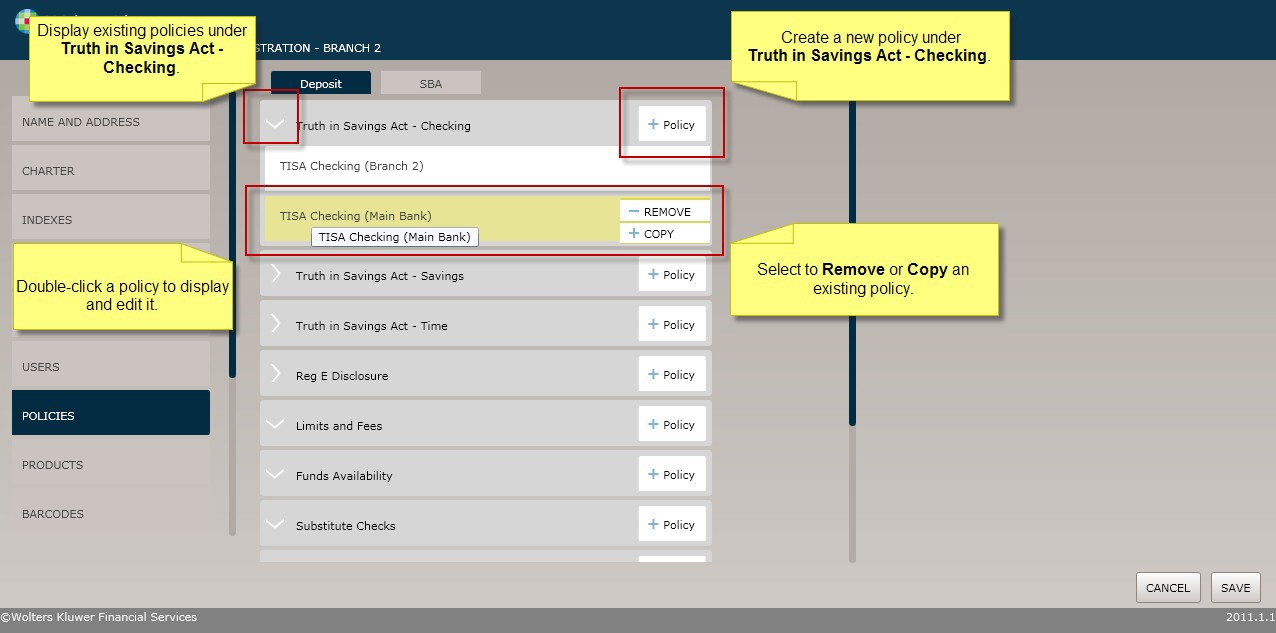
As shown in the screen shot below, select the Policies menu option to display and work with policies as follows:
- Click the arrow next to a policy category to see the existing policies under that category.
- Click the Policy button to add a new policy under the selected policy category.
- Click an existing policy to display or modify it.
Note: Polices created at a parent organization are inherited to all child node organizations. Inherited polices can be viewed from any child node organization; however, can only be modified at the organization originally created
- Select Copy to duplicate a policy. All policy data is copied and you can save the information under a new name.
- Select Remove to delete a policy. Error messages appear when a policy cannot be deleted at the current Organization level. Policies must be deleted from the level at which they were created.
- Select Rename to rename a policy. The following error occurs if the policy is renamed using an existing policy name: "Updates were not saved. The Policy Name already exists."
Note: When renaming a policy, it is best practice to rename the policy and click SAVE to ensure no errors occur and then proceed to make any other updates to the policy data so changes are not lost.
Note: When creating or modifying existing policies with a large set of data (for example,
the Terms and Conditions Policy), you may experience an application error. (Error
message details will generically have "NotFound" reference.) If you encounter this
error, contact your System Administrator to review if the environment is configured with
a Load Balancer that may require increasing timout settings.