Gate
Adding  to a template requires all tasks must be completed before moving to the next
step in the process.
to a template requires all tasks must be completed before moving to the next
step in the process.
Adding a Gate
- Select and drag to the template diagram.
- Connect the gate to other items in the diagram by connecting the arrows.
- Correct any errors. For Help information, select Errors.
- Complete the Properties Pane.
Properties Pane
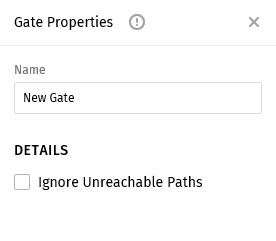
- Name: The name must be a unique and is limited to one hundred characters.
- Ignore Unreachable Paths: Select this option if
applicable.Note:If this option is selected, the gate will open and the process will continue only after all reachable incoming paths are complete. See examples below.
Example 1
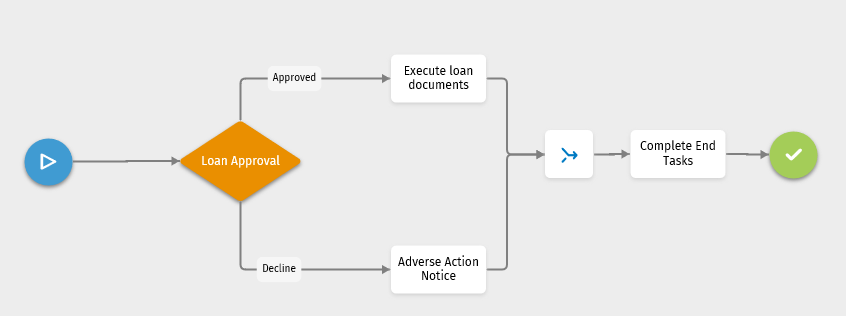
In Example 1, the process has two decision points: Approved and Decline. Both decision points merge into a single gate.
- If Ignore Unreachable Paths is selected, the gate will open, and the process will continue after either the 'Execute loan documents' or 'Adverse action notice' task is completed and the other option becomes unreachable.
- If Ignore Unreachable Paths is not selected, both the 'Execute loan documents' and 'Adverse action notice' tasks must be completed for the gate to open and process to continue. However, because only task can be completed, the gate would never open. The process would be blocked, preventing the workflow process from completion.