Publishing Window
The Publishing window is displayed while your content is actively being published to your
previously selected location.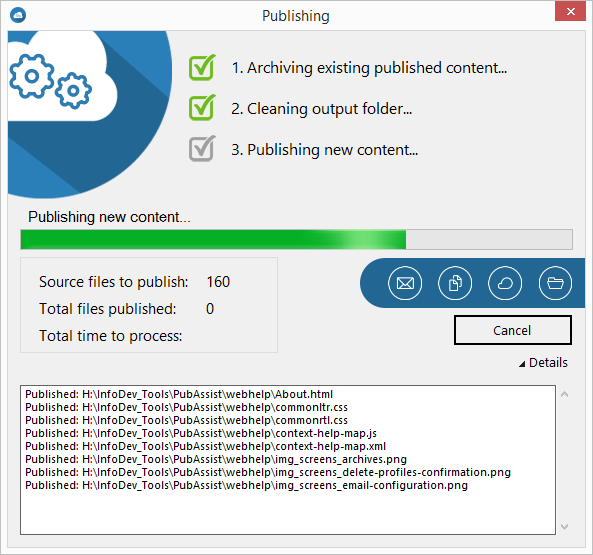
There are three major ordered steps to the publishing process:
- Archive existing content: During this phase, any existing content in the output lolcation is archived (zipped) and palced in the Archive location, viewable from the View Archives Screen.
- Delete all files in the output folder: If any files exist, this part of the process deletes all files in the output folder, ensuring that the location is free from any previous files.
- Publish new content: Finally, the new content is published to the output folder.
During publishing, the progress is indicated by both the progress bar in the middle of the window as well as the check boxes located at the top.
If not already displayed (by setting the option in Options) clicking the Details link expands the Details text box. All files are shown in the log as they are published.
When publishing is finished, the action buttons are enabled, allowing you to perform optional
post-publish actions.
 - displays the
Email Configuration screen, allowing you to notify your team of the
successful publish.
- displays the
Email Configuration screen, allowing you to notify your team of the
successful publish. - copies the
URL location of published content (the URL on the InfoDev Help server).
- copies the
URL location of published content (the URL on the InfoDev Help server). - displays a
context menu, allowing you to verify the published content. This allows you to select from:
- displays a
context menu, allowing you to verify the published content. This allows you to select from:- Default browser
- Microsoft Internet Explorer
- Google Chrome (the location of Chrome needs to be set in Options).
 - opens the
published location within Windows Explorer.
- opens the
published location within Windows Explorer.