Main Screen
The main screen is, not suprisingly, where the majority of PubAssist functions are
accessed.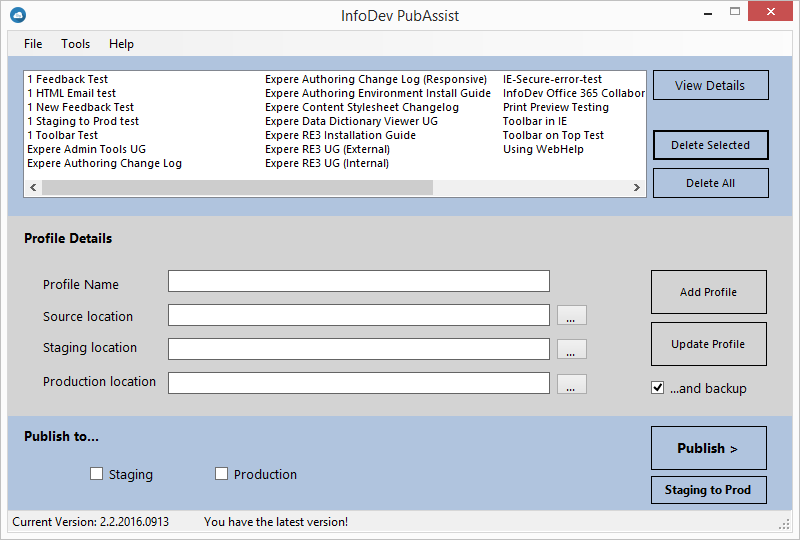
Menu Options
- : closes PubAssist.
- : displays the View Archives Screen.
- : displays the profiles xml file in the default application for XML files.
- : allows you to backup the Profiles XML file to the location of your choosing.
- : allows you to restore a previously saved profiles backup.
- : displays the Options dialog.
Profile List
The Profile List section of the screen displays all profiles that you have previously created. Clicking a profile in the list populates the profile details within the Profile Details section.
The View List/Details button allows you to toggle between viewing the profiles in List mode or Details mode.
When a profile is selected, you can click Delete Selected to delete the selected profile from the list.
All profiles can be deleted simultaneously by clicking Delete All. You will be prompted
with a dialog to verify the action.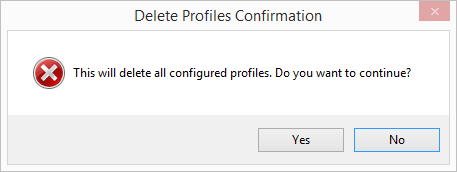
Profile Details
This section is provided as a way to create a new profile or edit the details of an existing profile. Clicking a profile in the Profile list populates the profile details in this section.
When finished entering profile details for a new profile, click Add Profile to save the profile to the Profiles list.
To update a profile, simply select the profile from the Profiles list, modify the appropriate details within the Profiles Details section, and click Update Profile.
To remove this prompting, clear the ...and backup option
.Publish to
This section allows you to select the environment in which to publish; Staging or Production. Select the desired environment before clicking Publish.
Staging to Prod
The Staging to Prod button allows you to publish files directly from a profile's staging location to its production location.