Bulk Deleting
You can delete all Policies, Organizations or Products simultaneously for a chosen
Content Source Alias.
Note: This procedure deletes ALL configured
policies, organizations and products from an alias. To remove only a selection of
these, refer to:
CAUTION: Deleted content is not retained and is
irretrievable.
Perform a Bulk Deletion
To perform a bulk deletion:
- From the navigation, select Delete.
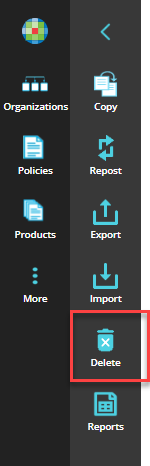
- On the Delete Activity for Default Data page select the + SELECT ALIAS button. The Select Alias dialog is displayed.
- Select the desired Content Source Alias, then select the SELECT button. All policies, organizations and products configured for your selected alias are displayed.
- Select the DELETE button. A confirmation message with the number of items to be deleted is displayed.
- Select DELETE to confirm your choice. Clicking CANCEL returns you to the previous page without deleting any items.
Deleting a Bulk Delete record
All records of previous bulk deletions are visible on the Delete Activity for Default
Data screen. This screen provides the ability to delete those records.
CAUTION: Deleted records are not retained and are
irretrievable.
To delete a bulk delete record:
- From the navigation, select Delete.
- On the Delete Activity for Default Data page, hover over the record you wish
to delete and select the More button and then select
Delete.
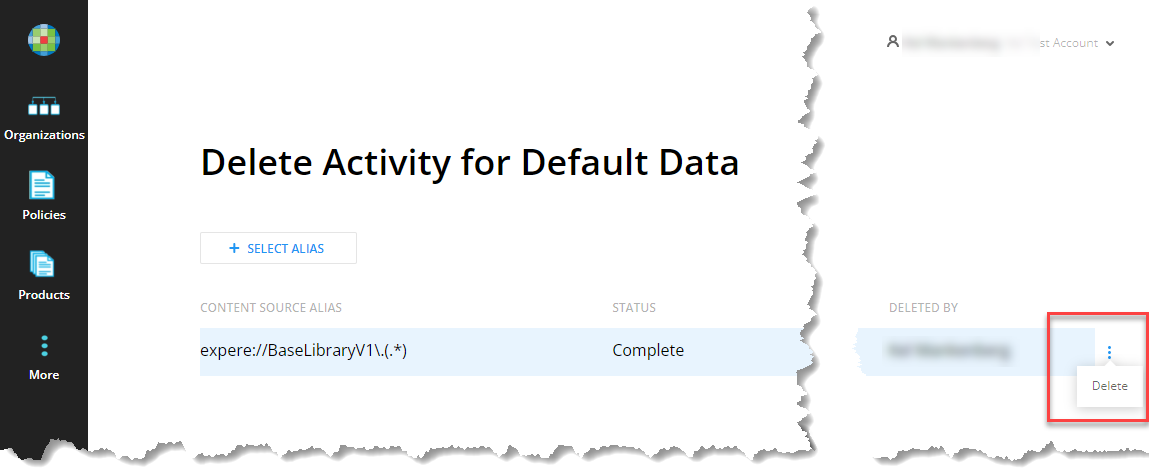 A confirmation message is displayed.
 - Select Delete to delete the record.The record is deleted and you are returned to the Delete Activity for Default Data page.
Bulk Delete in the Audit Report
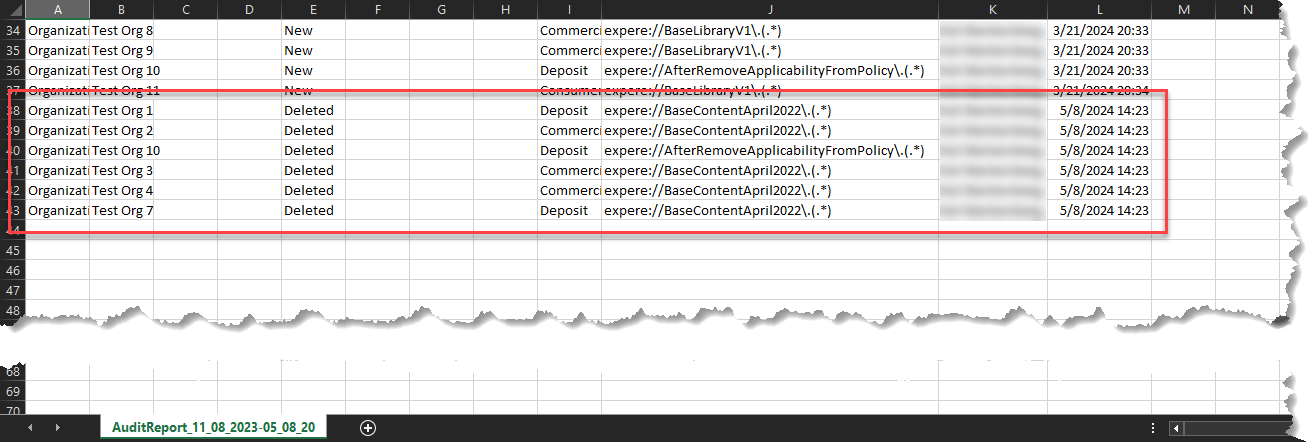
Bulk Delete actions are recorded in the Default Data Audit History Report. The actions in the report include:
- Alias
- Status (Failed, Complete, or In Progress)
- Time
- The name of the user performing the bulk delete
Multiple report records can exist for an Alias name (after an Alias has
been repopulated).