eNote Upload Workflow Outline
The Upload workflow is used to upload documents from Expere to eOriginal. Documents are uploaded based on various transaction indicators.
How do we identify when documents should be uploaded to eOriginal?
There are two primary transaction parameters which will drive the upload functionality. The first being if an eNote is selected, and the second being the following transaction data point and its setting.
• Txn/EOriginalUploadInd- 0 = never upload documents to eOriginal
- 1 = only upload documents to eOriginal
Note: In the transaction, ifEOriginalUploadInd element= 0, only eNotes are uploaded to eOriginal. As a result, no other documents are sent to eOriginal
Additionally, users must specify whether their transaction is either an eNote or
non-eNote transaction using the /Txn/EOriginalUploadTransactionType
schema value:
- 1 = eNote Transaction
- 2 = Non eNote Transaction
How do I upload documents?
The upload process is driven off the data points above. If you have additional documents to upload, use the eOriginal Command Center.
For more information, refer to the eOriginal user documentation.
Upload Workflow
This section explains the Upload workflow between applications when using a Select and Generate call originating from Document Generation Services. Users could initiate the transaction from Expere Document Services as well.
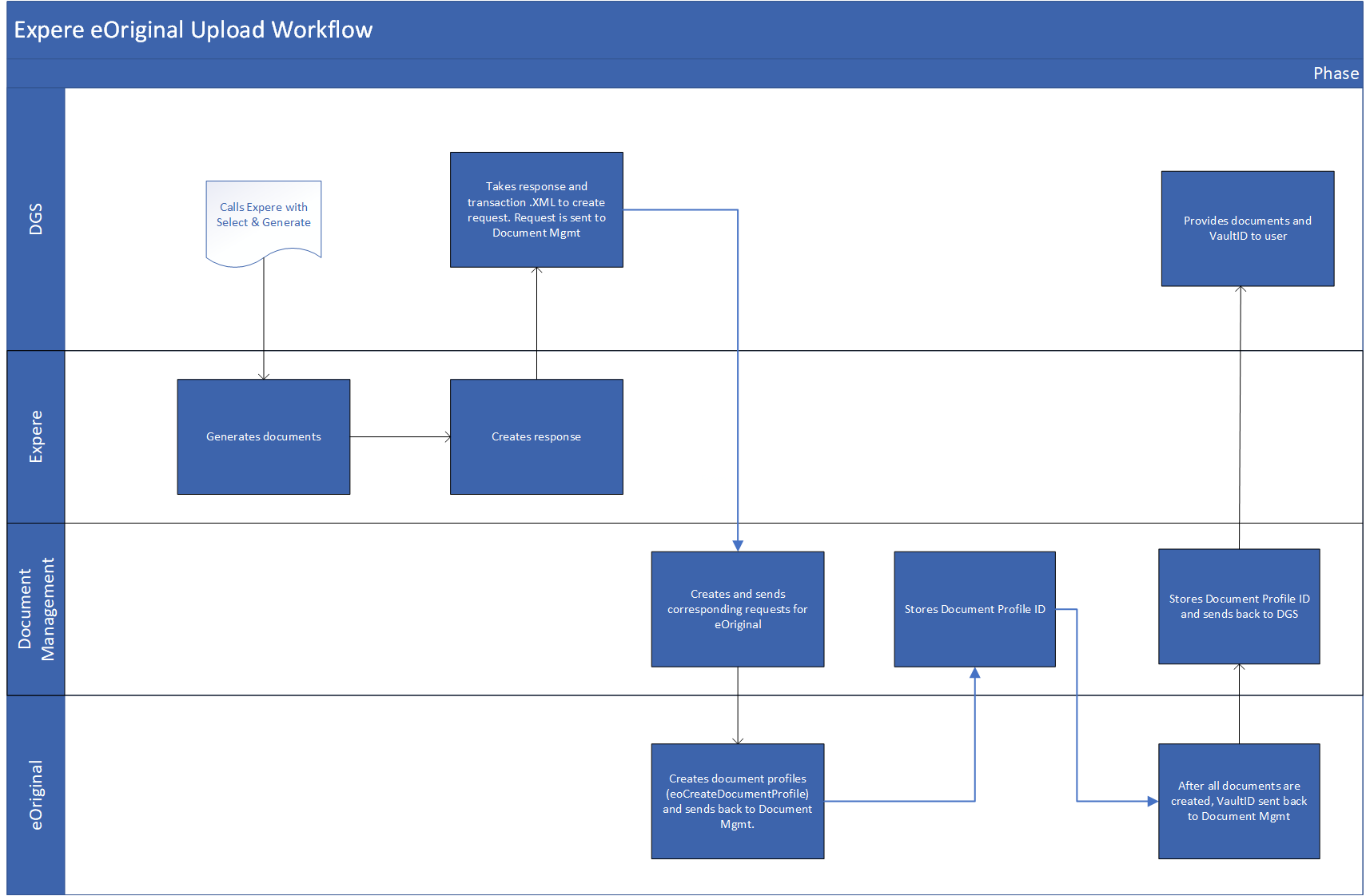
- The user submits the transaction containing
Txn/EOriginalUploadInd= 1 and/Txn/EOriginalUploadTransactionType= 1 or 2; Document Generation Services (DGS) contacts Expere through a Select and Generate request. - After submitting the transaction, Expere generates the documents and returns a response file to DGS.
- DGS uses the Expere response and transaction .XML to create a request for Document Management.
- DGS sends a request to Document Management.
- Document Management uses the request from DGS to create and send subsequent request(s) to send to eOriginal.
- eOriginal creates document profiles and sends them back to Document Management which then stores the Document Profile ID.
- After all documents are created with their corresponding fields, eOriginal sends the VaultID back to Document Management which then sends it back to Document Generation Services.
- Document Generation Services provides documents and the VaultID to the user.
Enhanced support
Expere supports the following FillableFieldSet fields when uploading documents to an eOriginal transaction:
- Initials
- Checkboxes
- Single line text fields
- Multi-line text fields
- Mutually exclusive checkboxes Note: Expere only supports two related, or dependent, checkboxes at this time.
Signer Roles
Parties who sign an eNote will see a role of Borrower in the eOriginal Command Center; all other parties will see a Signer role.
Signing the document
Consider the following when signing the document:
- After signing the document, the date will autopopulate in the corresponding date
field. This is accomplished by providing a "true" value in the
<ESignatureDateSupport/> element. See
below:
<ESignatureAndFieldSupport>
<ESignatureDateSupport>true</ESignatureDateSupport>
</<ESignatureAndFieldSupport>
Viewing documents
Documents that can only be viewed by a certain party will contain an ID that correlates to that party; therefore, a party may only view and electronically sign documents that are applicable to them.