Validating Transactions
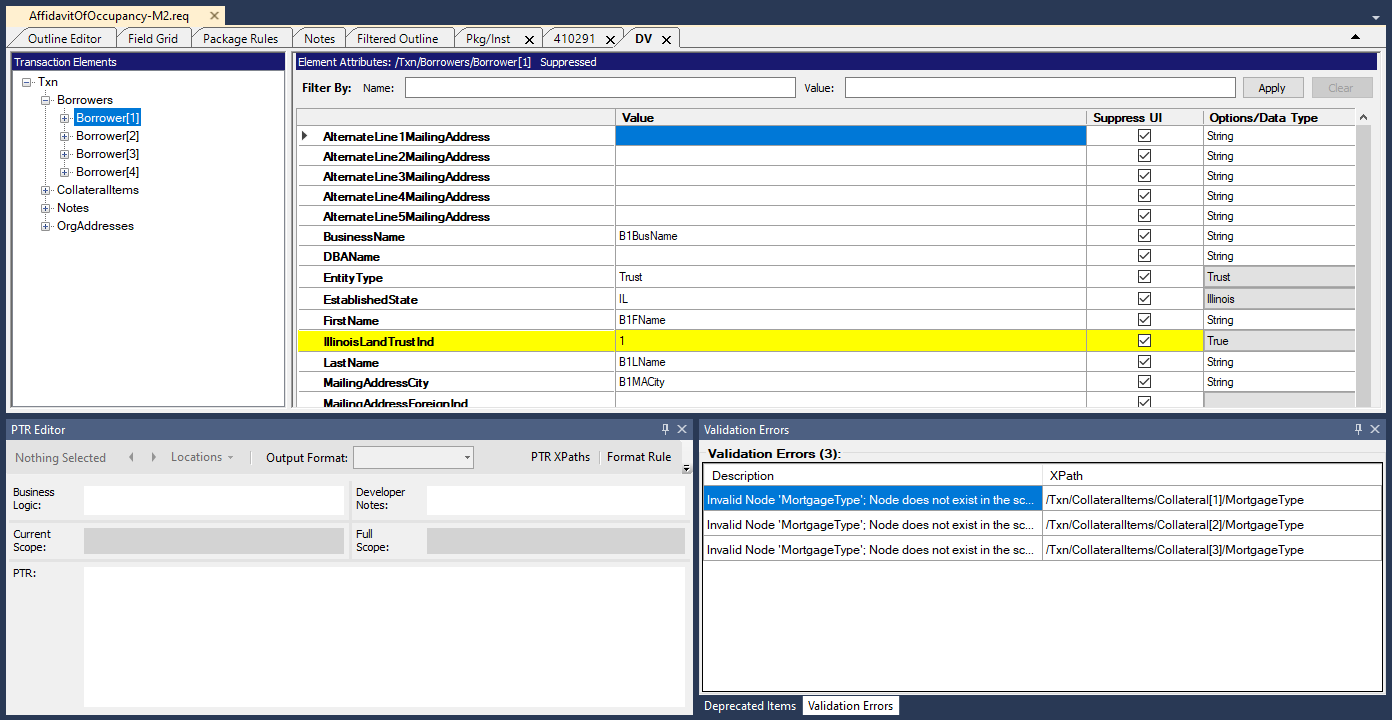
The results of the validation are presented in a Validation Errors pane displayed directly under the document tab. In the list of validation errors, you can select an error to apply focus to the related element in the Transaction view. For more information, refer to Working with Transactions.
You can filter the list of Element Attributes by typing text in the Name or Value fields (case-sensitive) and selecting Apply. Selecting Clear clears the text you entered and again displays the entire unfiltered list.
The Deprecated Items pane is available exclusively for Transaction tabs.
Transaction Elements Actions
Selecting a currently visible item in the Transaction Elements pane displays its associated element attributes, if applicable, within the Element Attributes pane.
Double-clicking the element displays (expands) or hides (collapses) any immediate child elements.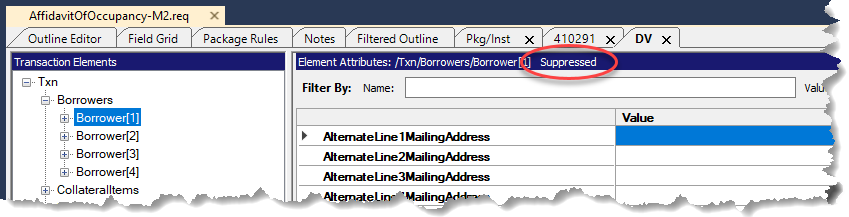
Context Menu
Right-clicking an item in the Transaction elements pane displays the context menu. The following table describes each menu item.
| Menu Item | Description |
|---|---|
| Collapse Child Nodes | Hides all child nodes (recursively) of the selected nodeExpand Child NodesShows all child nodes (recursively) of the selected node |
| Populate this Element from File... | Allows you to browse for an existing XML file containing data for the element. For more information, refer to Populating an element from a file. |
| Populate this Element and its Children from File... | Allows you to browse for an existing XML file containing data for the element and its children |
| Add Child Element | Provides a schema-aware list of elements that can be inserted as
children of the selected element. The following example illustrates how the
Add Child Element list is filtered when being applied to the
MortgageBroker element.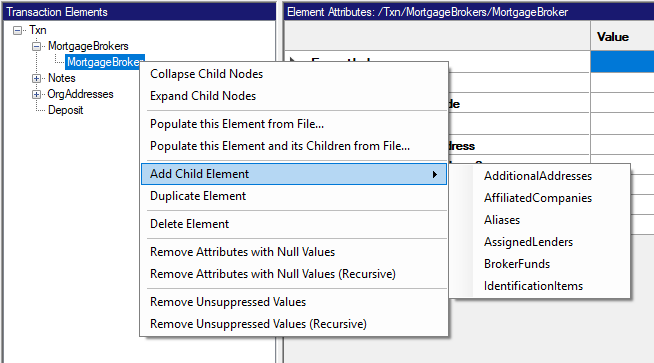 Note: You can add custom element and
attribute nodes to your Transaction tree. For more information, refer to
Adding Custom Transaction Nodes. |
| Duplicate (Ctrl+D) | Allows you to duplicate the selected child node. When a duplicate is
made, both the original element and the duplicate are appended
numerically, as shown in the following example. 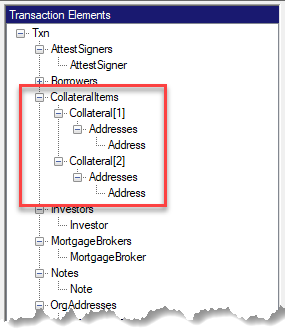 Note: The Duplicate Element
command is not available for top level
elements. |
| Copy (Ctrl+C) | Copies the selected node(s) to the Clipboard. |
| Paste (Ctrl+V) | Pastes previously copied element(s) from the Clipboard. If the elements are not valid for the selected node, this option is disabled. |
| Delete (Del) | Allows you to delete the selected element. All children of the selected element are also deleted. |
| Remove Attributes with Null Values | Removes all attributes of the selected node that contain null
values. A message containing the results is displayed when complete. |
| Remove Attributes with Null Values (Recursive) |
Removes all attributes of the selected node and children nodes that contain null values A message containing the results is displayed when complete. |
|
Remove Unsupressed Values |
Removes all unsuppressed values of the selected node A message containing the results is displayed when complete. |
|
Remove Unsupressed Values (Recursive) |
Removes all unsuppressed values of the selected node and all its children A message containing the results is displayed when complete. |
Populating an element from a file
Requirements Editor allows you to populate the attributes of an element, or an element and its children, from an existing xml file.
For more information, refer to Populating an element from a file.
Deprecated Items
Deprecated items within a transaction appear within the Deprecated Items pane.