Create a New Static Requirement File
-
In the File menu, select .
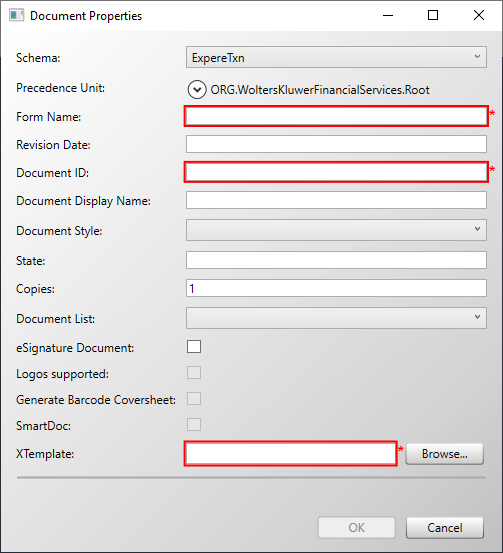
The Document Properties dialog box opens.
-
Complete the Document Properties by filling in the text boxes and
lists with information for the requirements document. For details, refer to
Document Properties.
-
Click OK.
The static requirement file is opened in the Requirements Editor in the Outline Editor view as NewFileNN.req.
- In the Requirements Editor, save the file by clicking File > Save. The best practice is to use the form name as the REQ file name; the target file name will, most likely, be defined in the requirements.