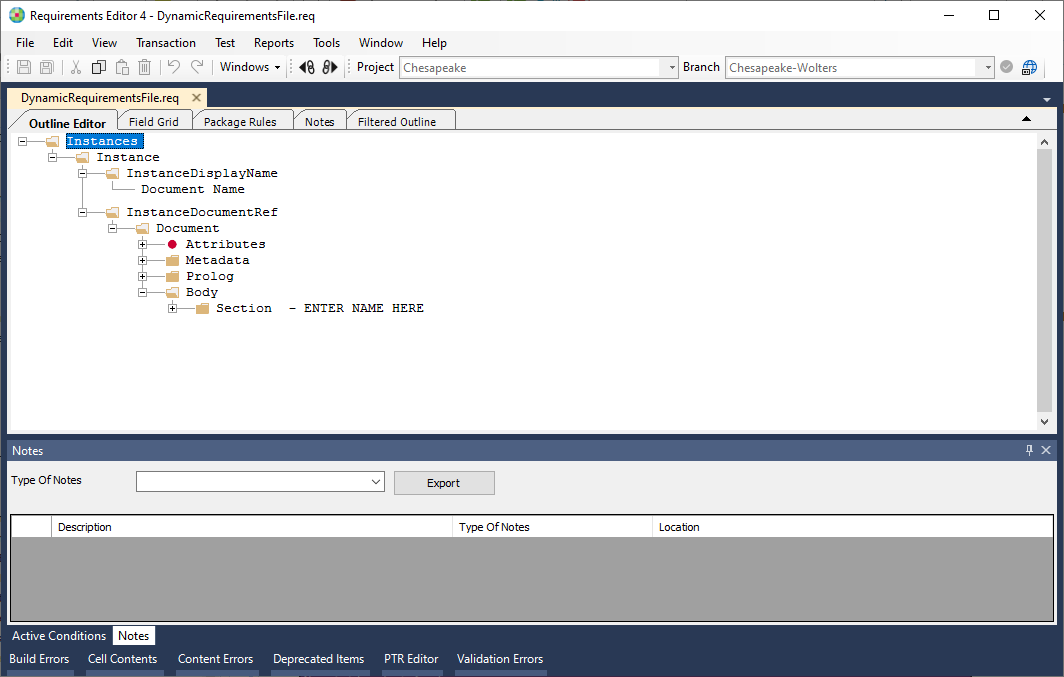
Create a New Dynamic Requirements File
-
In the File menu, select .
The Document Properties dialog box opens.
-
Complete the Document Properties by filling in the text boxes and
lists with information for the requirements document. For details, refer to
Document Properties.
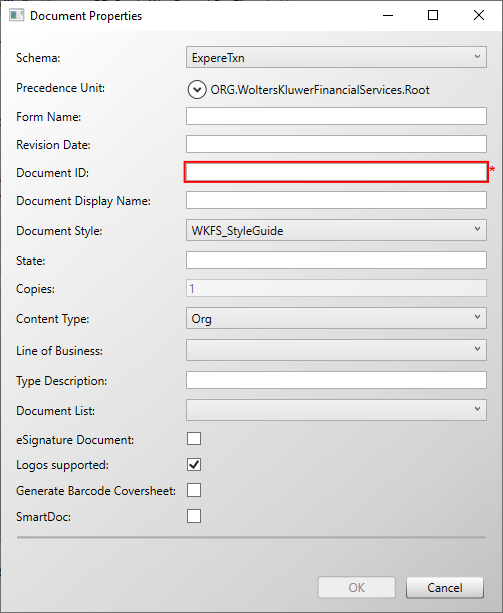
A dynamic requirement file document must have a Document ID defined in order to create the file.Note:- Line of Business and Type Description appear only if
the Content Type is set to Policy or Org. Within the
organizations.xml file:
- if the SuppressDD attribute value is set to true, the LOBs are not displayed in document Properties.
- Selecting Document List indicates that the document has been
authored to list all of the documents that apply to the
transaction.
- You are able to author Document List on a Dynamic document. The dynamic document will present any Static or Dynamic document name in the list per the request.
- Selecting eSignature Document indicates the document is an eSignature document.
- Line of Business and Type Description appear only if
the Content Type is set to Policy or Org. Within the
organizations.xml file:
-
Click OK.
The dynamic requirement file is opened in Requirements Editor in the Outline Editor tab as NewFileNN.req.
-
In Requirements Editor, save the file by selecting . The best practice is to use the form name as the REQ file name;
the target file name will, most likely, be defined in the requirements.