Create a New PDF Requirements File
- In the File menu, select New.
-
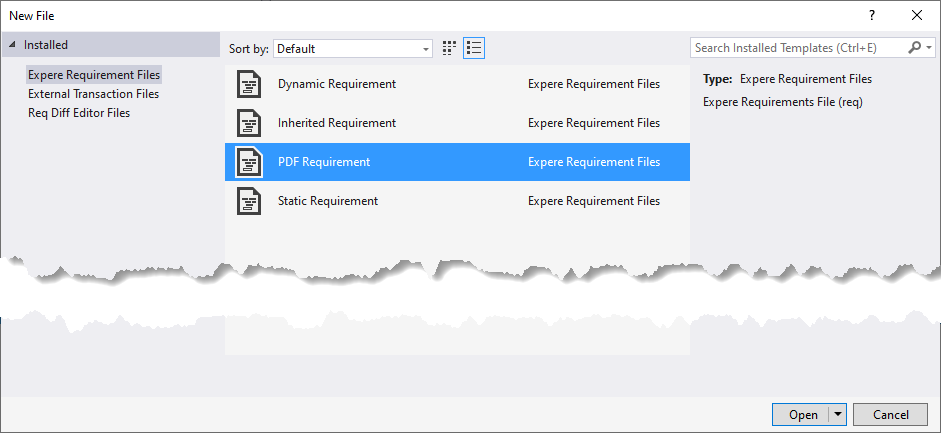
In the New File dialog box, select Expere Requirement Files and
then select PDF Requirement from the list of available options, then
select Open.
The Document Properties dialog box opens. -
Complete the file by filling in the text boxes with information from the
requirements document. For details, refer to Document Properties.
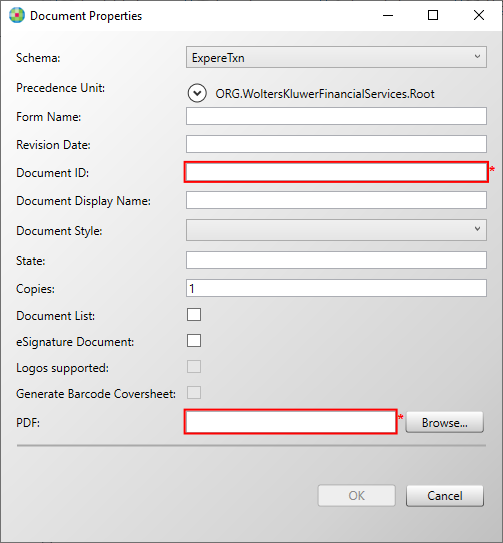
A PDF requirement document must have the Document ID and a file path to the PDF defined in order to create the file.Note:- If you do not supply the path to a PDF file within this window,
you will be presented with a prompt to do so in the Req
window.
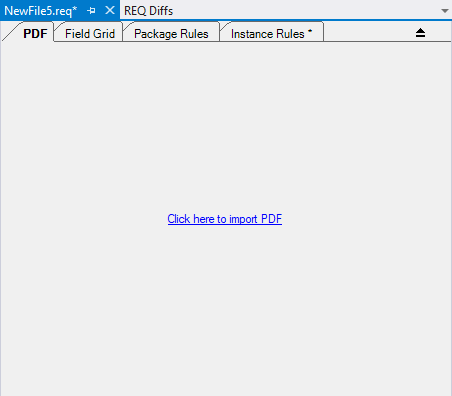
- You can import a PDF template into the new PDF requirements document. For details, refer to Importing a PDF.
- If you do not supply the path to a PDF file within this window,
you will be presented with a prompt to do so in the Req
window.
- Select OK.
- In Requirements Editor, save the file by selecting File > Save. The best practice is to use the form name as the REQ file name; the target file name will, most likely, be defined in the requirements.