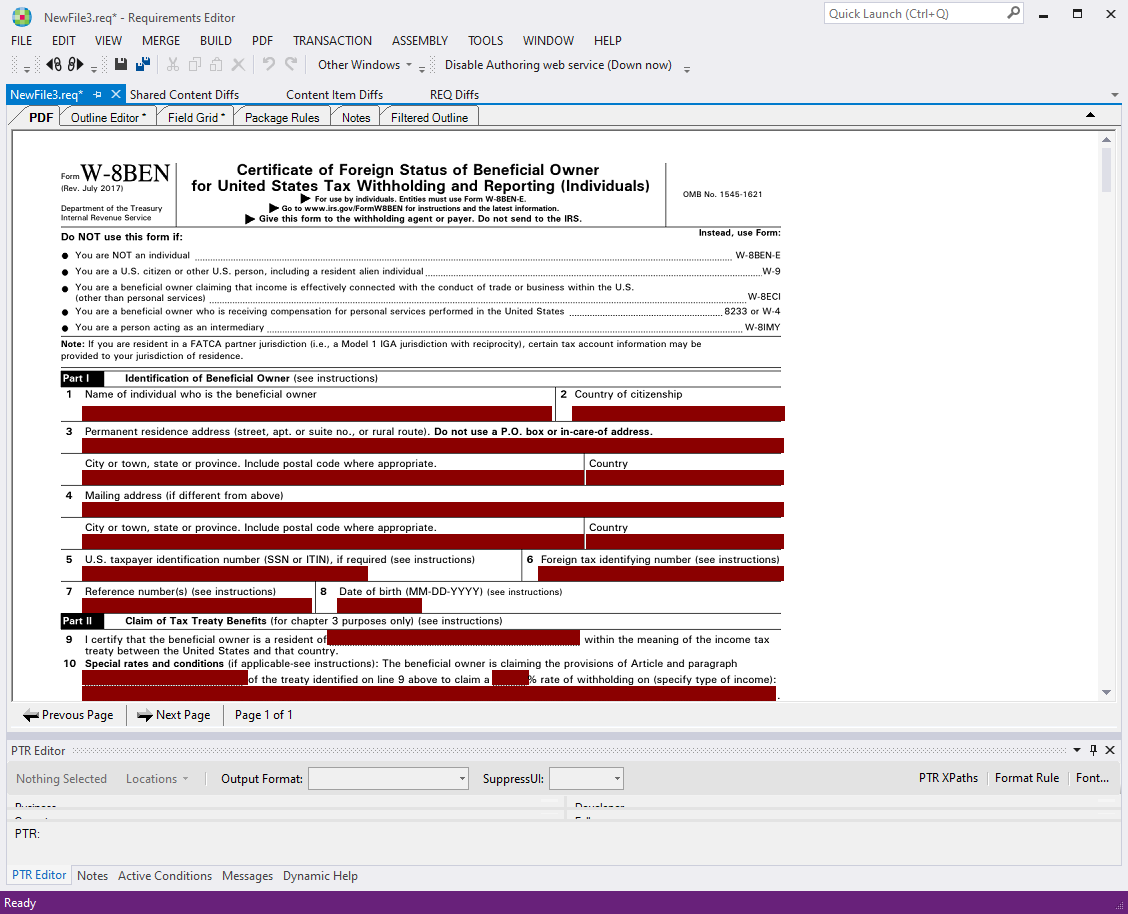
Importing a PDF
To import a PDF:
-
Select
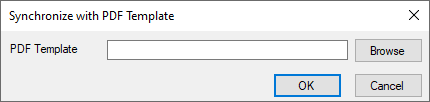
The Syncronize with PDF Template dialog is displayed.
-
Select Browse to locate and select the PDF to which you wish to
syncronize the requirements document, then select OK.
The Field Changes window is displayed.
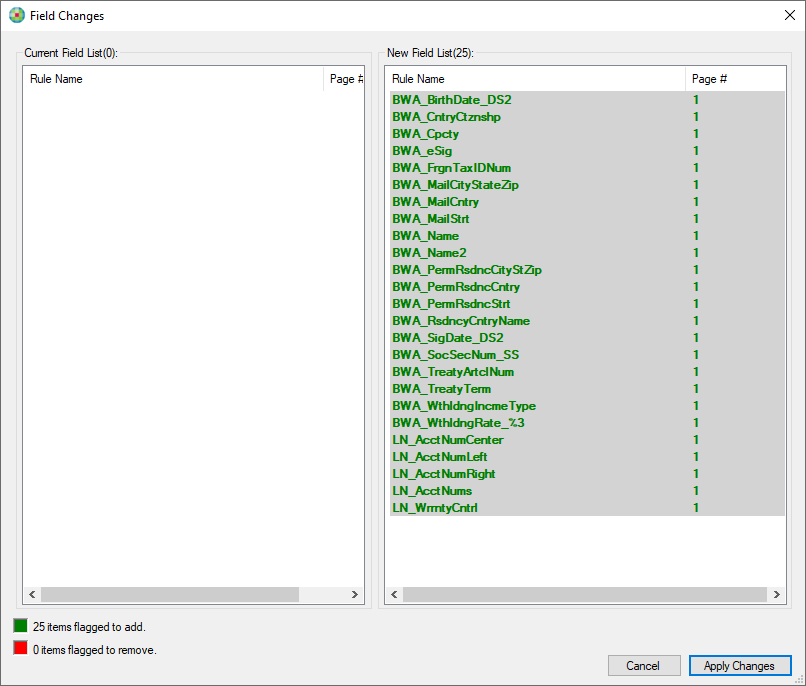 The New Field List section displays the new fields that will be synconized to your PDF requirements document. By default, the entire list is selected but you can select as many as desired.Note: If there are multiple fields with the same name, the following message appears, prompting you to resolve the issue: This PDF contains one or more field names that are duplicated, please correct this and then import the PDF again.
 - Select Apply Changes.