DOCUMENTS Drawer
The DOCUMENTS Drawer presents a list of documents to be completed for a transaction. The list of documents in the drawer are derived from the phase selected and data entered on the DOCUMENT OPTIONS view.
The DOCUMENTS Drawer allows users to perform the following:
- Select a specific document to complete data entry
- Change the status for data entry completion
- Select documents to generate a PDF
- Change the phase for the transaction
- Filter on documents which contain required or optional data points (or No Data Entry documents)

Click the DOCUMENTS tab at the top of the DOCUMENT DISPLAY section to open the DOCUMENTS Drawer; the currently selected document appears in bold. When expanded, the user can access all selected documents.

Selecting Documents
A document name link appears when hovering over a desired document. Click the document name link to display the document for data entry.
Selecting Document for PDF Creation
To select/deselect documents for creation, users can select documents individually or use the Select All checkbox to select all documents for creation.
Filtering on optional and/or required documents
If an overlay dictionary with a "RequiredUIField" flag set to "1" and SupportedRequiredFields flag is set to "true" have been passed in with the BeginSession input, the Document Drawer displays an Optional and Required checkbox next to the Select All checkbox. This allows users to filter on documents within a particular package that contain either optional or required data points, or both.
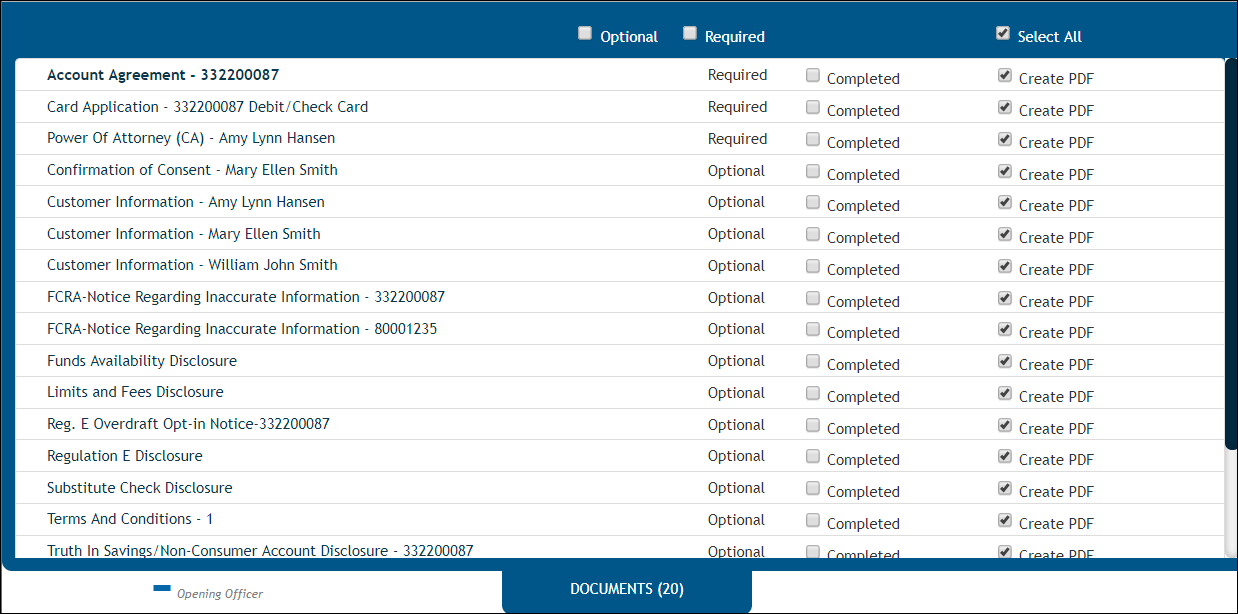
For example, clicking the Required checkbox displays only those documents that contain required data points.
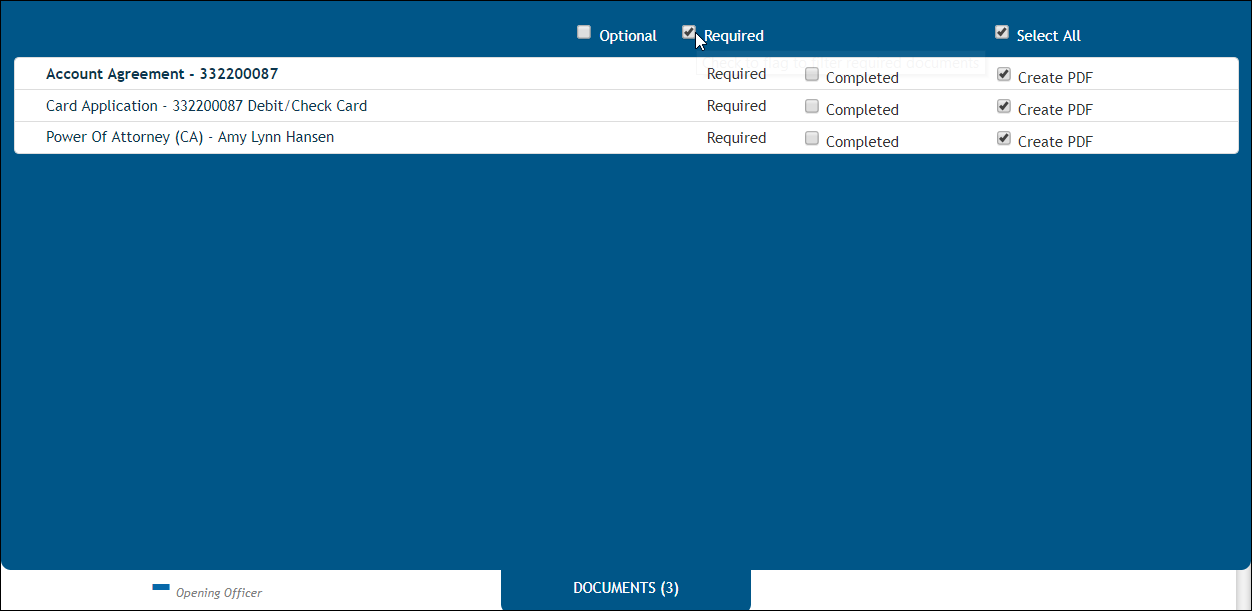
Select the desired document to enter required data points.
- Users may filter on optional and/or required documents, or those documents that contain no data entry.
- Users are not restricted to one category of document; you may select both the Optional and Required checkboxes; selecting both checkboxes removes those documents that do not contain any open data filed(s) for user entry, categorized as "No Data."
- During the first DocViewer data entry session, documents remain in the state in which they were initially launched. For example: if a document contains required data, the document is listed as required and will not be changed to optional until exiting DocViewer.
- During subsequent DocViewer data entry sessions, documents which were originally labeled as Required are updated to Optional if all required field requirements have been satisfied.