Inquiry Summary Actions
Actions
The following actions can be accessed by selecting  at the
top of the Inquiry Summary page.
at the
top of the Inquiry Summary page.
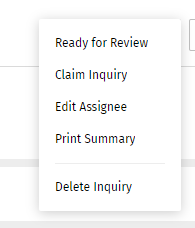
Ready for Review
Select Ready for Review to identify the inquiry as ready for review. This action is only available for a new inquiry. The status changes to Inquiry ready for review.

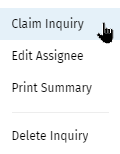
Claim Inquiry
Select Claim Inquiry to assign the inquiry to yourself.
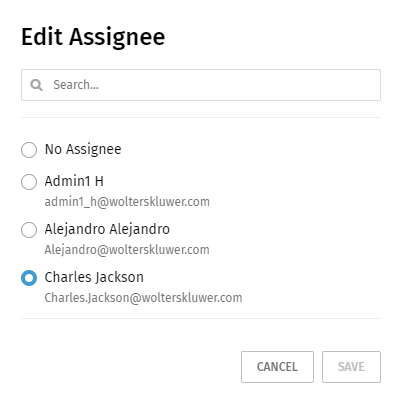
Edit Assignee
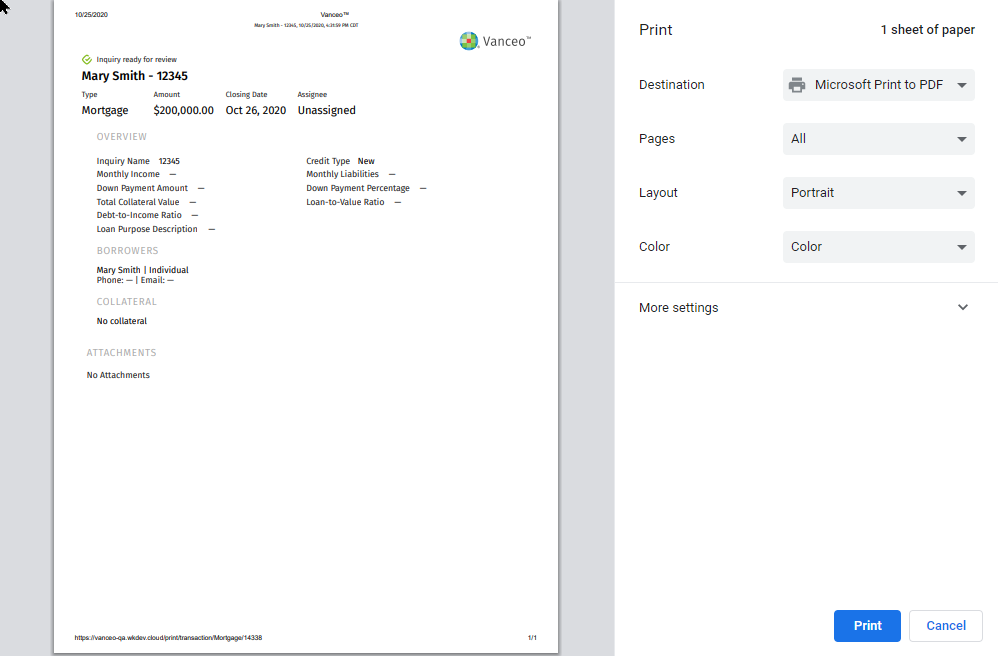
Select Edit Assignee to change the person assigned to the inquiry. Select or search for a person to designate as an assignee. To un-assign the inquiry, Select None. Select Save. Select this option to print a summary of the Details page. After selecting, another browser window opens with a preview of the document and print options.
Print Summary
Select Print Summary to print a summary of the Details page. After selecting the option, another browser window opens with a preview of the document and print options.
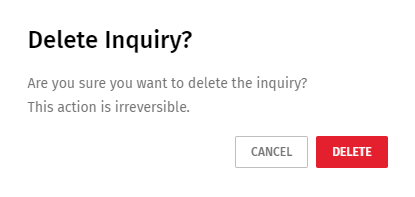
Delete Inquiry
Select Delete Inquiry to delete an inquiry. Select Delete on the confirmation page.