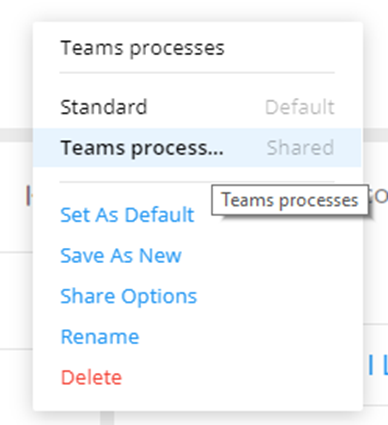
Assigning an Owner
Assigning an Owner to the Shared View
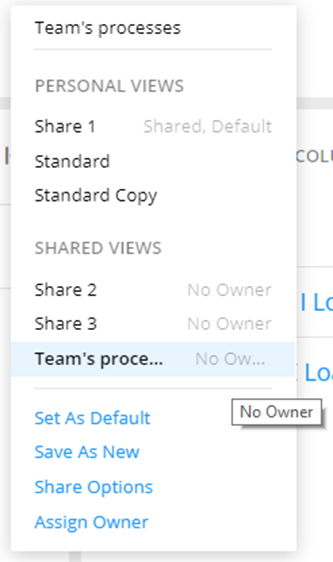
- Select the shared view with the No Owner label.Note:The Assign Owner is present in the list.
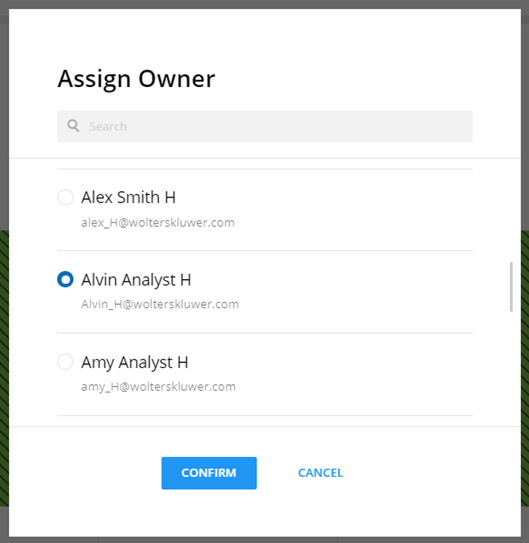
- Select a user to assign as an owner to the view.Note:Users with Shared Grid Views and Share Report Views permissions display in the list. Use Search to find the a user. Only a single user can be assigned.
Note:
- The selected user becomes the new owner of the view. In the example above, the view will now be owned by Alvin and the view will display in his Personal Views section.
- All previous sharing settings are retained.
- All recipients will now see Alvin as the owner of this view.
- If the previous owner is re-activated in the system, then
all his views will be owned by him as well. That means
that there will be 2 owners now.