Completing in CASH Suite
- Open CASH Suite.
- Open a Rent Roll by one of the following options:
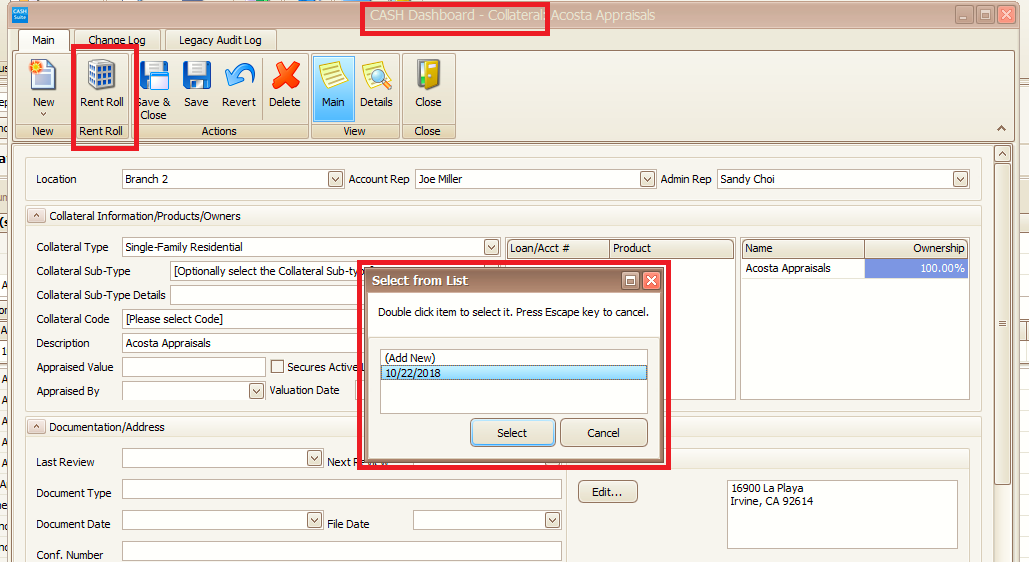
- Navigate to the Collateral Details page and select Rent Roll. Select a Rent Roll
from the list.
- Select the link on the Enter Rent Roll integrated task card in CASH Workflow to open the appropriate rent roll.
- Navigate to the Collateral Details page and select Rent Roll. Select a Rent Roll
from the list.
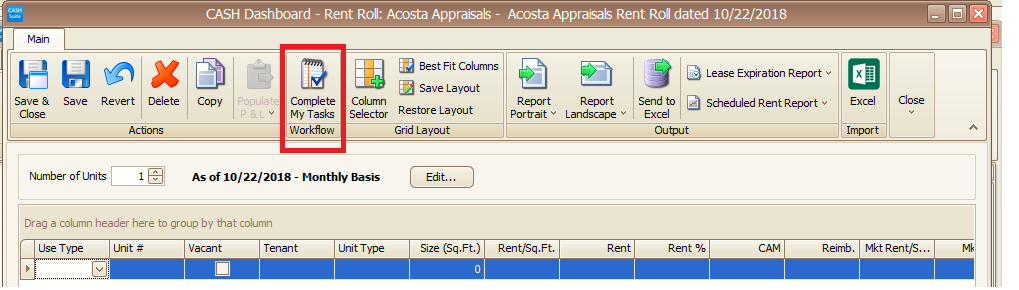
- After the Rent Role is open, select Complete My Tasks.
- Select appropriate tasks. Select the plus sign (+) to view the items for the task.
After work is completed, select the tasks. If requirements for other tasks are met, select
these items to mark them complete. Note:To see all CRE/Rent Roll tasks, select Show all. Expand the task to see all items.
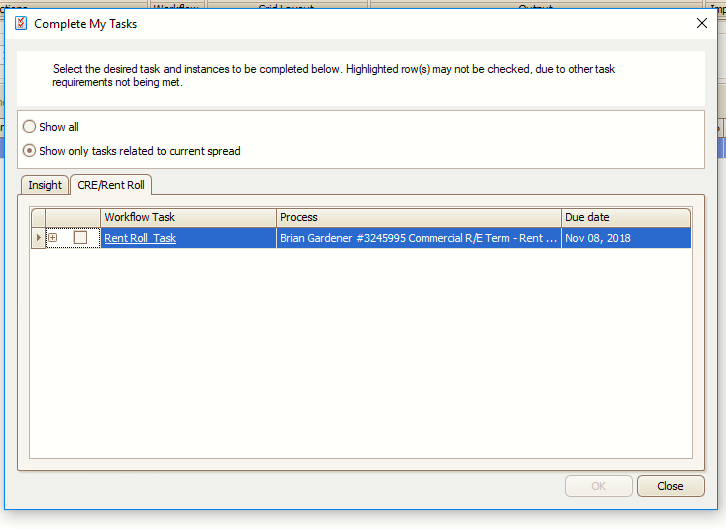 Note:After selecting the Rent Role link in CASH Workflow, Show only tasks related to current spread displays as selected. Users can complete only the tasks that are assigned to them. Tasks must have all requirements met before completing a task. Hovering on a task name displays missing requirements. Selecting the task name will mark the task and all items for the task complete at the same time.