Enabling Macro Choices in Office
Microsoft Office macros must be enabled for portions (mostly Credit Memo and
Financial Analysis) of TSoftPlus to run correctly. All Office macros from all sources
can be enabled to run (not recommended) or you can enable only macros that are digitally
signed.
Note:
If you have upgraded from Office and you enabled
digitally signed macros in Office and accepted Wolters Kluwer as a trusted
publisher, you do not need to repeat the steps below.
Enabling Digitally Signed Macros in Office
To enable only macros that are digitally signed you must configure your Trust Center settings first, then tell Microsoft Office to trust the digitally signed macros published by Wolters Kluwer as part of TSoftPlus.
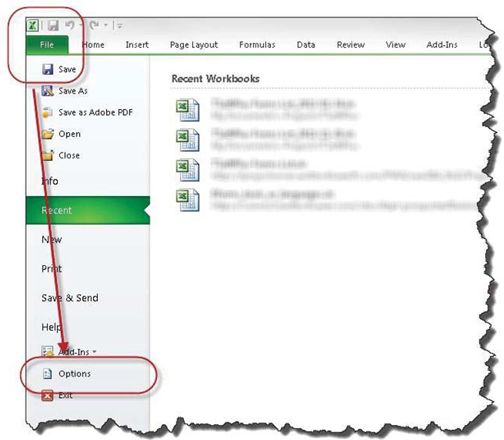
- Click the File tab, and then click Options.
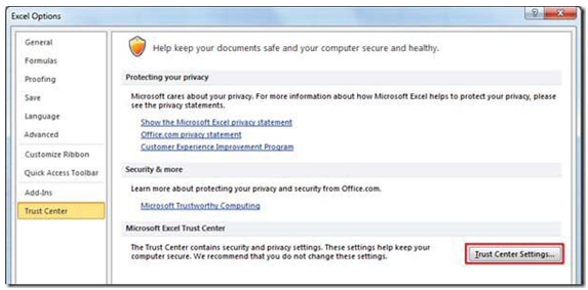
- Click Trust Center, click Trust Center Settings, and then click
Macro Settings.
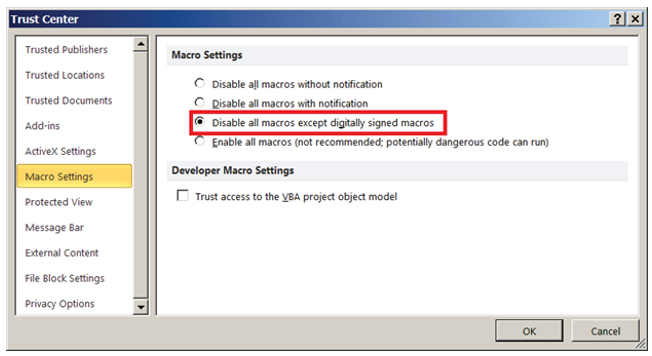
- Under Macro Settings, click Disable all macros except digitally signed
macros.
- Open the Financial Analysis spreadsheet.
- Enable Editing.

- Choose File, Enable Content.
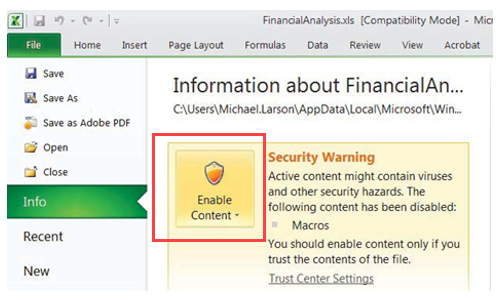
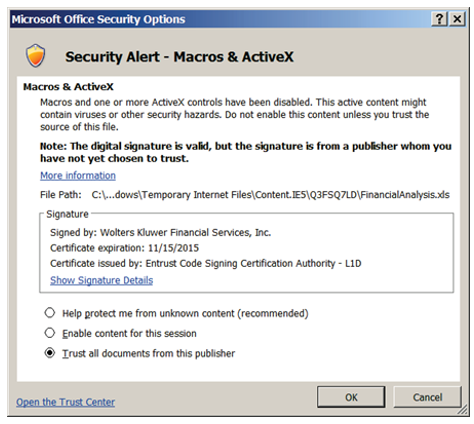
- Choose Advanced Options under Enable Content.
- Select Trust all documents from this publisher and click
OK.
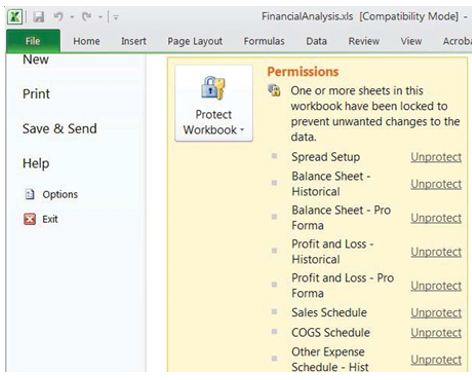
- After returning to Financial Analysis, choose File from the
Excel menu. The detailed list of permissions allowed by the digitally
signed macro is displayed.