Completing a Task on the Task Details Page
Tasks are completed as part of a process. After a task is completed, the workflow moves to the next task in the process.
- Open the Tasks Details page. Select Accessing the Task Details Page for Help information.
- Complete an active data card.
- Decision data card: Select Select and select a decision (Decline or Proceed). Select Confirm.
- Required Data data card: Enter Information on the data card.
-
Required Document data card
- Add a document: Select + Add Document. Browse to the file to attach. Select the file and select Open. Select Done to continue. The file is stored in the Unsorted folder on the Requirements Documents card.
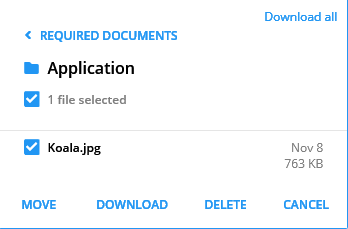
- Move a document: Select the document folder. Select the document. Select Move. Select a placeholder and select Save.
- Download a document: Select the document folder. Select the document. Select Download. Open or save the document.
- Delete a document: Select the document folder. Select the document.
Select Delete. Select Delete to confirm the
deletion.
- After completing the data card, save or mark the task complete.
- If the task is not complete, select Save at the top right of the Task Details page to save your work.
- If the task is complete, select Complete at the top right of the Task
Details page.

- Select the Tasks Available link to continue with another task, or select
 to return to the
Dashboard.
to return to the
Dashboard.