Scenario 2: Importing a new process template from Wolters Kluwer
How do I import the template?
- Log in to the account.
- Navigate to the Process Templates grid.
- Select
 at
the top of the Process Templates grid.Note:You must have the 'Manage Process Templates' permission assigned in Security Administration to import a template.
at
the top of the Process Templates grid.Note:You must have the 'Manage Process Templates' permission assigned in Security Administration to import a template. - Select the exported json file for the process template.
- Select Open in the standard file selection dialog box.
- After the import operation is completed, select
 to save
the log file with the details of the import operation. You cannot download
the file later. You must download at this step if you want to save the file.
If you don't want to download the file, select
to save
the log file with the details of the import operation. You cannot download
the file later. You must download at this step if you want to save the file.
If you don't want to download the file, select  to close the
import.
to close the
import.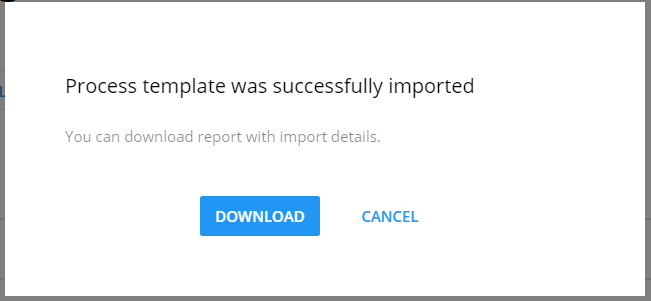
Note:
The imported process template will always be saved with a Saved status to
allow edits to the imported process template prior to activation. During
activation, the status will change from Saved to Ready and the template will be
available for use.
What data is imported with the process template?
The following data is imported:
- Roles used in the process template.
- Dispositions used in the process template.
- Data views (summary card, data card) used in the process template.
- Custom fields used in the process template. (Custom fields can be used in both data views and required documents for tasks).
- Document categories used in the process template by custom fields of the Document type).