User Scenario: New Automated Underwriting Service Request
This scenario begins after Lenny Lender at Fiscus Bank has collected sufficient application data about Ken Customer, a single adult who wants a $300,000, 30-year, fixed-rate loan to purchase a Single Family Dwelling. Using ComplianceOne, Lenny entered information about Ken, requested and received credit services through ComplianceOne from Factual Data, entered information about the property, loan terms, closing costs, and provided Ken an upfront disclosure package that includes the loan application (Uniform Residential Loan Application, Loan Estimate, and additional disclosures.
The loan application is ready for underwriting. Because, Fiscus Bank is an approved Desktop Underwriter seller, Patty will request automated underwriting results from Fannie Mae Desktop Underwriter solution from within ComplianceOne.
Patty follows this process:
- Patty selects Automated Underwriting on the ComplianceOne Services menu.
- Patty completes the following data entry on the Fannie Mae Desktop Underwriter page.
- After entering all data, Patty selects Submit.
- ComplianceOne sends the new automated underwriting request (plus Merged Credit) service request to Desktop Underwriter page in ComplianceOne.
- Patty views and/or prints the Findings, selects Save, and is returned to the ComplianceOne page she was on before the service was initiated.
View 1
This view shows Automated Underwriting selected in the Services menu.
Selecting  in ComplianceOne displays available business-to-business and data
import/export services.
in ComplianceOne displays available business-to-business and data
import/export services.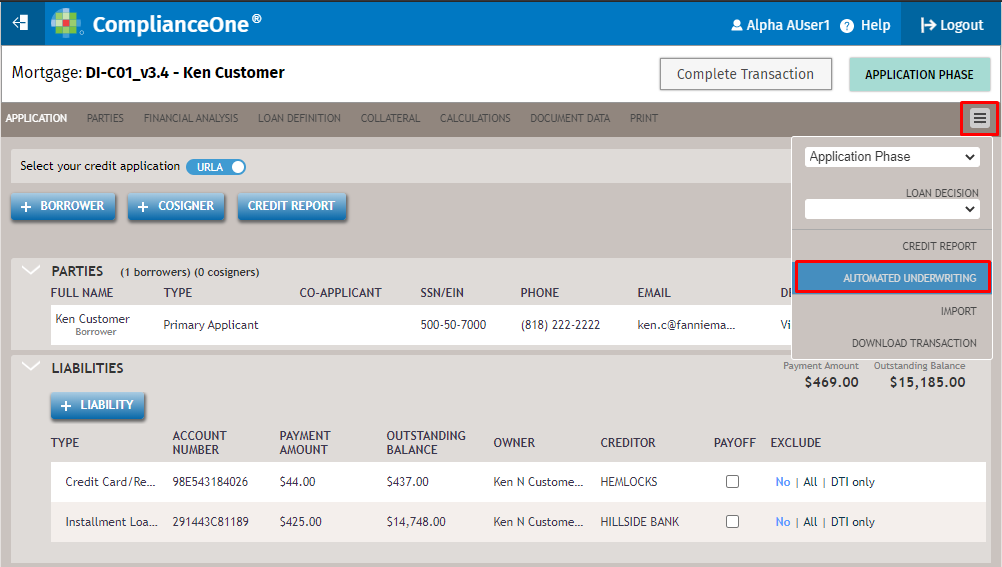
View 2
This view shows the Desktop Underwriter Interface view after selecting
Automated Underwriting in the Services menu. The Automated
Underwriting Criteria section and Validation Services section is
expanded.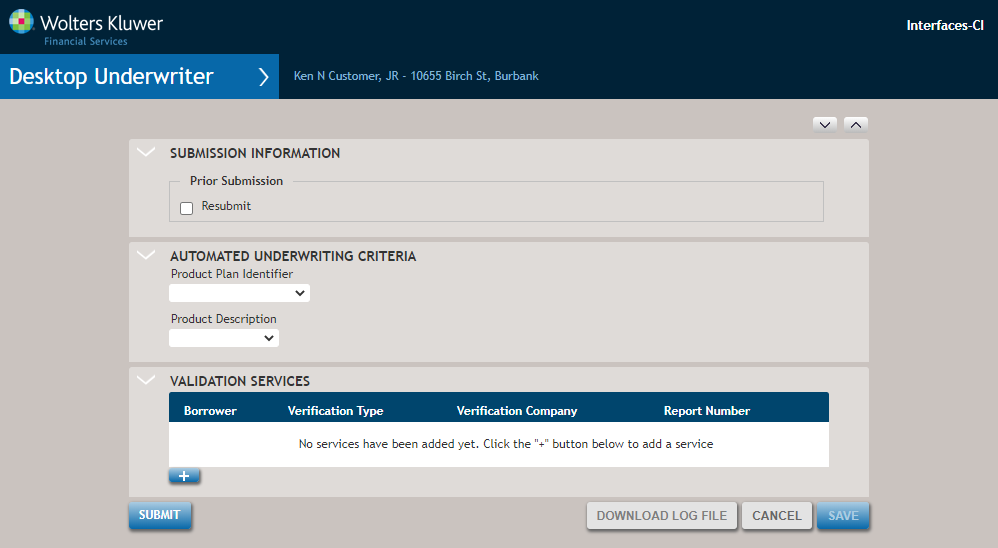
- Submission Information: This section displays data only after an initial automated underwriting service request has been successfully saved. For more information, select User Scenario – Resubmission of Automated Underwriting Service Request.
- Automated Underwriting Criteria: This section contains conditionally required data items not previously collected in ComplianceOne. Complete the item if it applies to the specific loan being submitted for underwriting services.
- Product Plan Identifier (conditionally required): The option selected in the drop-down list identifies the varying loan payment/rate change characteristics of variable rate mortgages. ComplianceOne supports generic codes of ARM plans allowing more AUS flexibility for the lender. Select the option that best describes the ARM for underwriting services.
- Product Description (conditionally required): Select Affordable LTV in the Product Description field, which will result in DU calculating the LTV, CLTV, and HCLTV ratios based solely on the appraised value for purchase transactions (and not the lesser of the sales price or appraised value).
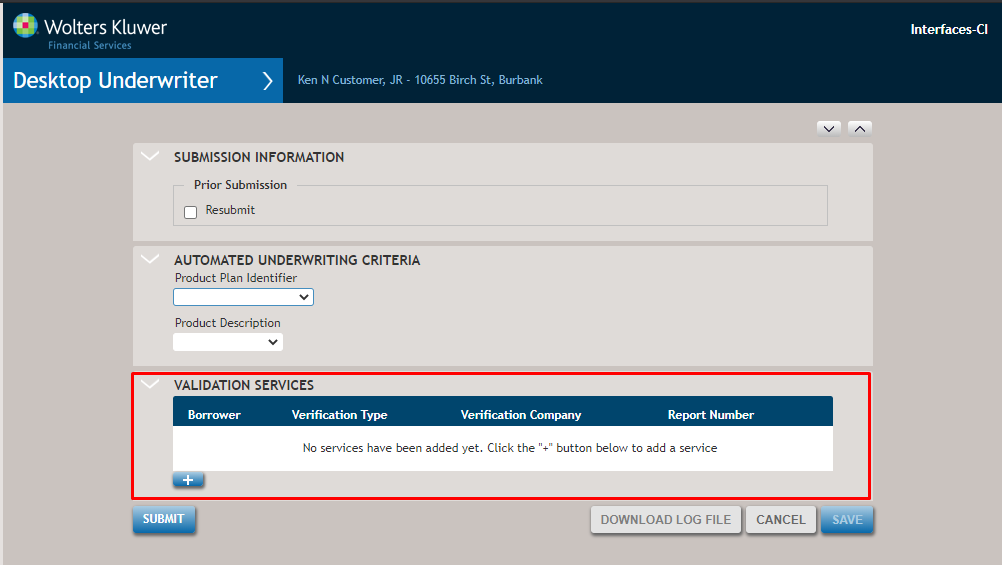
View 3
This view shows the Validation Services section before adding asset, income and employment information. The Validation Services section collects information about asset, income and/or employment services you may have obtained outside of ComplianceOne.
View 4
This view shows the Validation Services section after adding information about asset, income and employment services.
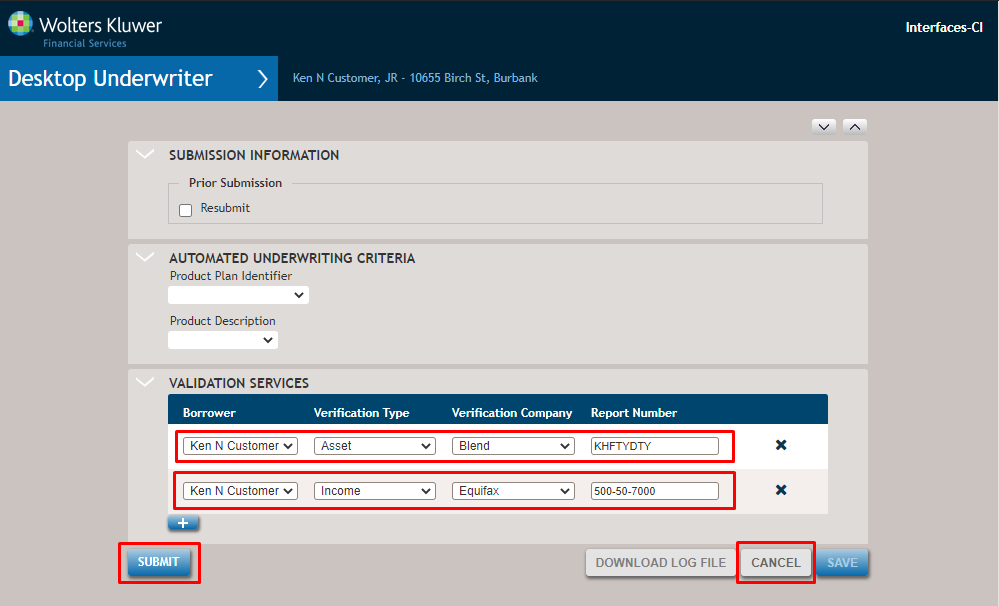
Select  to add
a new row. All items in a row must be completed for a for a successful
submission.
to add
a new row. All items in a row must be completed for a for a successful
submission.
- Borrower: Select the applicable borrower in the list.
- Verification Type: Select Asset, Income or Employment in the list.
- Verification Company: Select the external service provider used for the asset, income or employment services.
- Report Number: Enter the unique report number from the service provider.
- Submit: Select Submit to send the service request to Desktop Underwriter. After a successful service submission, an Automated Underwriting Findings section displays with findings that can be viewed and printed by the user. See View 5 for more information.
- Cancel: Select Cancel to return to ComplianceOne and save the verification data entered on the Desktop Underwriter page.
View 5
This view shows the Automated Underwriting Findings section that displays after a successful submission of the request to Desktop Underwriter for automated underwriting and merged credit services.
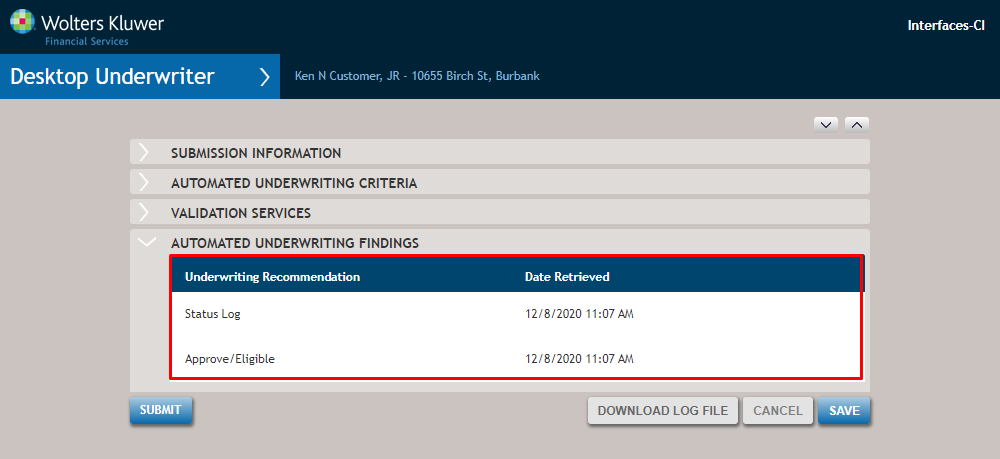
- Status Log: Double-click on a row to show the Loan Application Data Warnings from the service response results based upon the loan submitted for underwriting.
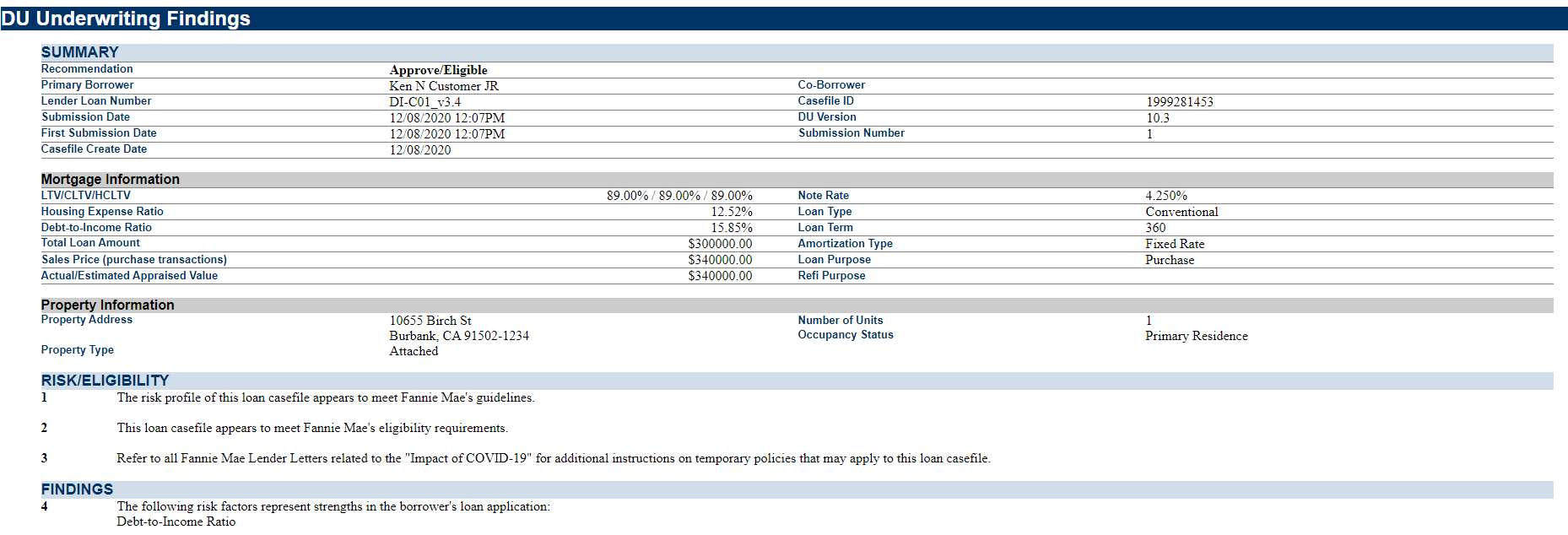
- View and/or Print Findings Report: Double-click on a row
with the DU Underwriting Findings to view a separate window with
findings and access to printing.
- DU Underwriting Findings dynamically display
information depending on the loan and service
request information sent to Desktop Underwriter. The
report may contain the following areas of
information:
- Summary with Borrower Information
- Mortgage Information with calculated values
- Property Information
- Risk/Eligibility results
- Findings results
- Verification Messages/Approval Conditions with details for Employment, Income and Assets; Credit & Liabilities; Property & Appraisal
- Underwriting Analysis Report
- DU Underwriting Findings dynamically display
information depending on the loan and service
request information sent to Desktop Underwriter. The
report may contain the following areas of
information:
- Save: Select Save to save verification data and response data such as Casefile ID (for use in resubmissions) and to return to ComplianceOne.
- Download Log File: Select Download Log File to download an XML file of the service request and/or response. Generally, this XML file is used by Wolters Kluwer Support Services when troubleshooting customer issues.