Recipients Grid
The Recipients grid displays on the Print page after Use WK E-Sign is selected on the Print page. The grid includes recipients depending on your WK E-Sign Fulfillment options selected. With all selected options, the borrowers and co-signers default from Parties. For Interactive Signing, the parties display based on the transaction details, the transaction phase, and the auto-selected documents after you have created documents.
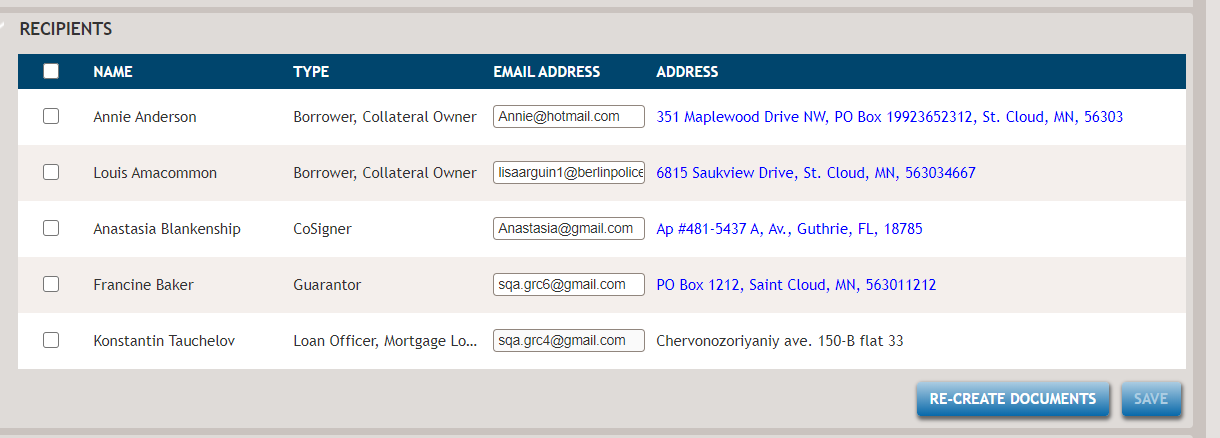
On the Recipient’s grid, select the parties who should receive the package(s). Review and make
changes as needed.
- The email and mailing addresses will default from Parties. If
information is missing, or incorrect, edit the email and mailing
addresses. Each party must have an email and mailing address before
sending the package to fulfillment. Add or change an email address
directly in the grid. For Help information on adding a physical
address, select Adding Addresses to a Party for Help
information.Note: Addresses entered or changed will change the applicant's information in Parties and other areas such as Collateral that use Party information.Note: Each party must have a unique email address. Duplicate email addresses are not allowed across parties.
- If you are not using Interactive Signing, you may add recipients or third parties. For Help information, select Adding Recipients and/or Third Parties.
- In rare circumstances when you are using Interactive Signing,
 may
display next to a party and indicate parties are combined. If any of
your parties entered in Document Data have a first and last name that
match another party from Parties, Administration or Document Data,
ComplianceOne will assume the parties are the same and combine them.
The email and mailing addresses for the parties will be combined and
one email address will be used for applying the signature on
documents. If ComplianceOne has incorrectly combined the parties,
hover over at the right of the recipient to split
the parties and display
may
display next to a party and indicate parties are combined. If any of
your parties entered in Document Data have a first and last name that
match another party from Parties, Administration or Document Data,
ComplianceOne will assume the parties are the same and combine them.
The email and mailing addresses for the parties will be combined and
one email address will be used for applying the signature on
documents. If ComplianceOne has incorrectly combined the parties,
hover over at the right of the recipient to split
the parties and display  . Verify each party has a unique email
address, save, and recreate documents.
. Verify each party has a unique email
address, save, and recreate documents. To recombine the parties, select
next to each party you want to
combine. After the Combine option displays, select
Combine and recreate documents. Note: If you are using Interactive Signing and make any changes, you must select Re-create Documents so the signature will print to the appropriate documents.
The Recipients Grid displays information according to the following selections.
- When Electronic Delivery and Additional Authentication Required are selected
in Fulfillment Options, the grid displays challenge questions in
addition to name, type, email address, and address information.

- When Electronic Delivery is selected and Additional Authentication Required is not selected in Fulfillment Options, the grid displays name, type, email address, and address. You must enter the email and mailing address for each party before you send the package to fulfilment.
- When Direct to Paper is selected in Fulfillment Options, the grid displays name, type, and address. You must enter a mailing address for each party you are sending a paper package.
- After Interactive Signing is selected, documents must be created to display the Recipients grid. The Recipients grid is based on the created documents and will include all parties that apply to the documents that have e-signing capabilities other than borrowers and cosigners, such as guarantors, collateral sellers and owners, loan officers, real estate brokers, and others. If physical or email address information is added or changed, the documents must be recreated.