Forgot Password: All Users
To change a user password using the Forgot Password feature, perform the following procedure:
- From the OPPSA Login page, click Forgot Password (below the Password field).
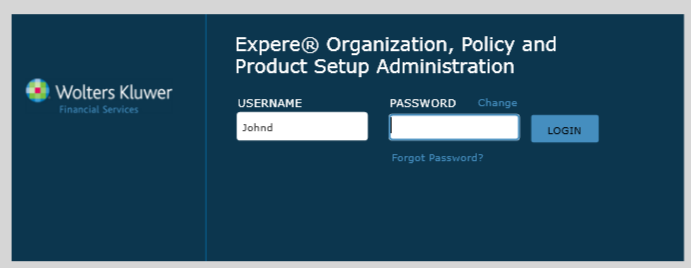
- Enter or edit the username. If the Username was entered on the Login page, the value will default and can be modified if entered incorrectly.
- Click Submit to proceed.
- Click Cancel to exit the Forgot Password workflow and return to the Login page.
- Enter the Answer for the Challenge Question displayed.
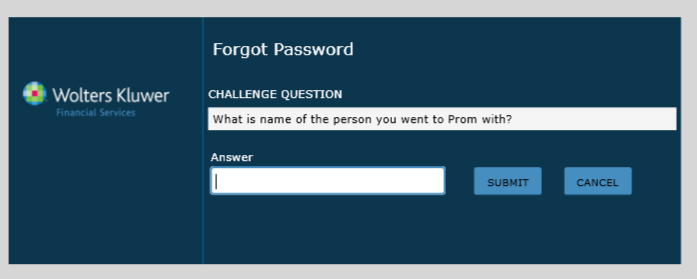
- Click Submit to proceed.Note: User account will be disabled after three (3) failed attempts of providing challenge answer. Contact your system administration to enable your user account.
- Click Cancel to exit the Forgot Password workflow and return to the Login page.
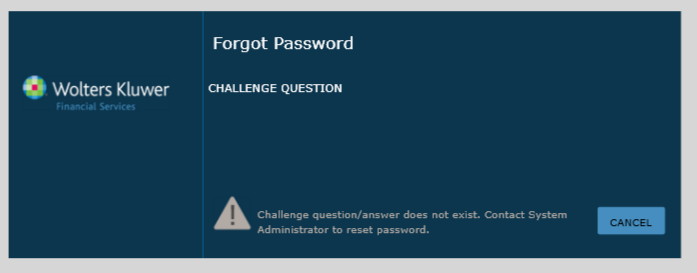
- If a Challenge Question and Answer do not exist, the Forgot Password feature cannot be used. The user must contact the System Administration to reset their password so the user can successfully login and manage their Profile information.
- Click Submit to proceed.
- Enter NEW PASSWORD and CONFIRM PASSWORD.Note: See password requirements in User Login: All Users section.
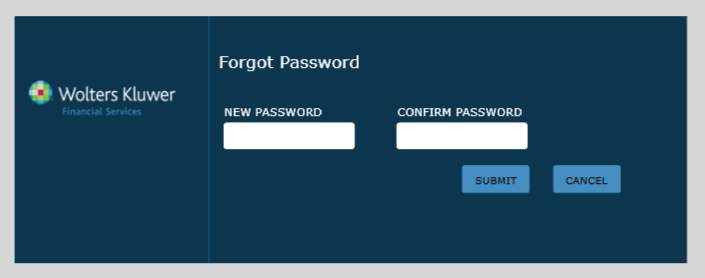
- Click Submit to proceed. Upon successful validation of password requirements, the user is returned to the Login page to enter the new password created.
- Click Cancel. The process cannot be canceled at this time as a systematic temporary password has been established for the authentication service. A message displays to provide new password information.