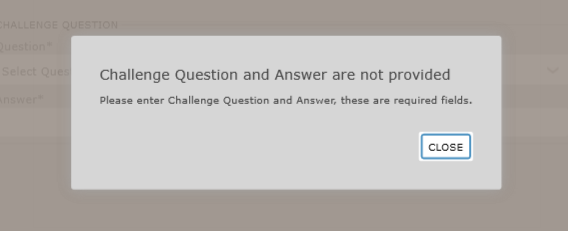
Change a User Password: All Users
To change a user password, perform the following procedure:
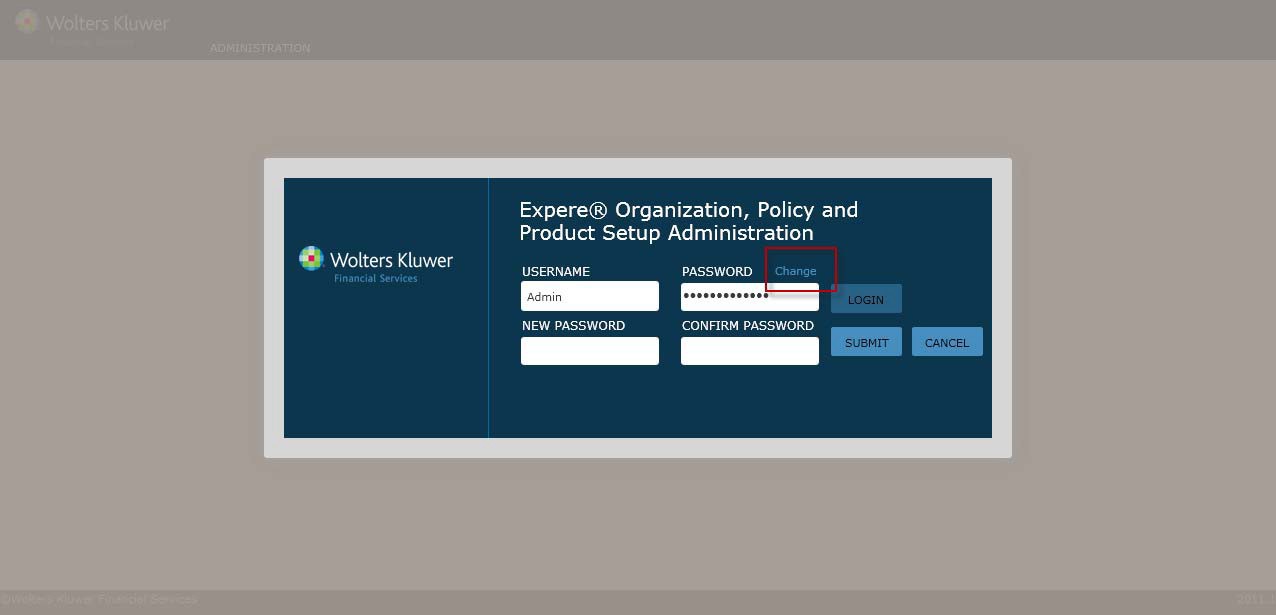
- From the OPPSA Login page,click Change (next to the Password field).
Note: Passwords can also be changed using the Change Password function available on the Manage My Profile: All Users page. - Complete the following fields:
- New Password
- Confirm Password
- Perform one of the following:
- Click Submit to finalize the password change and display the Organizations page.
- Click Cancel to exit the Change Password page and return to the Login page.