Accessing and Editing the Inquiry Summary
Accessing the Summary Page
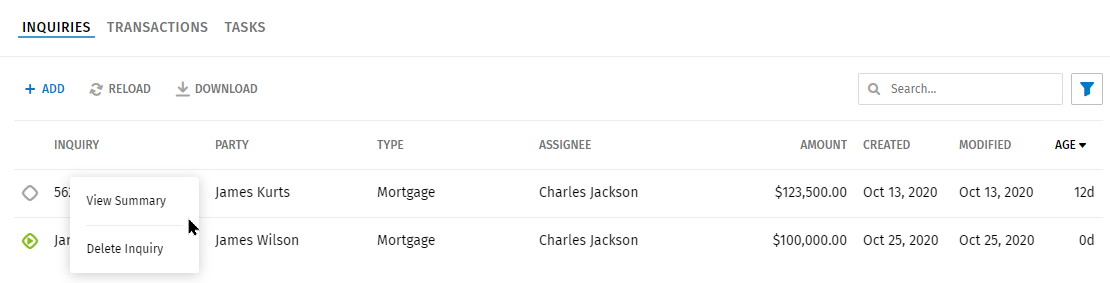
The Summary page provides detailed information about an inquiry. The Summary
page can be accessed by selecting  next to
the Inquiry name in the grid and selecting View Summary or selecting
an inquiry on the grid.
next to
the Inquiry name in the grid and selecting View Summary or selecting
an inquiry on the grid.
Name Section
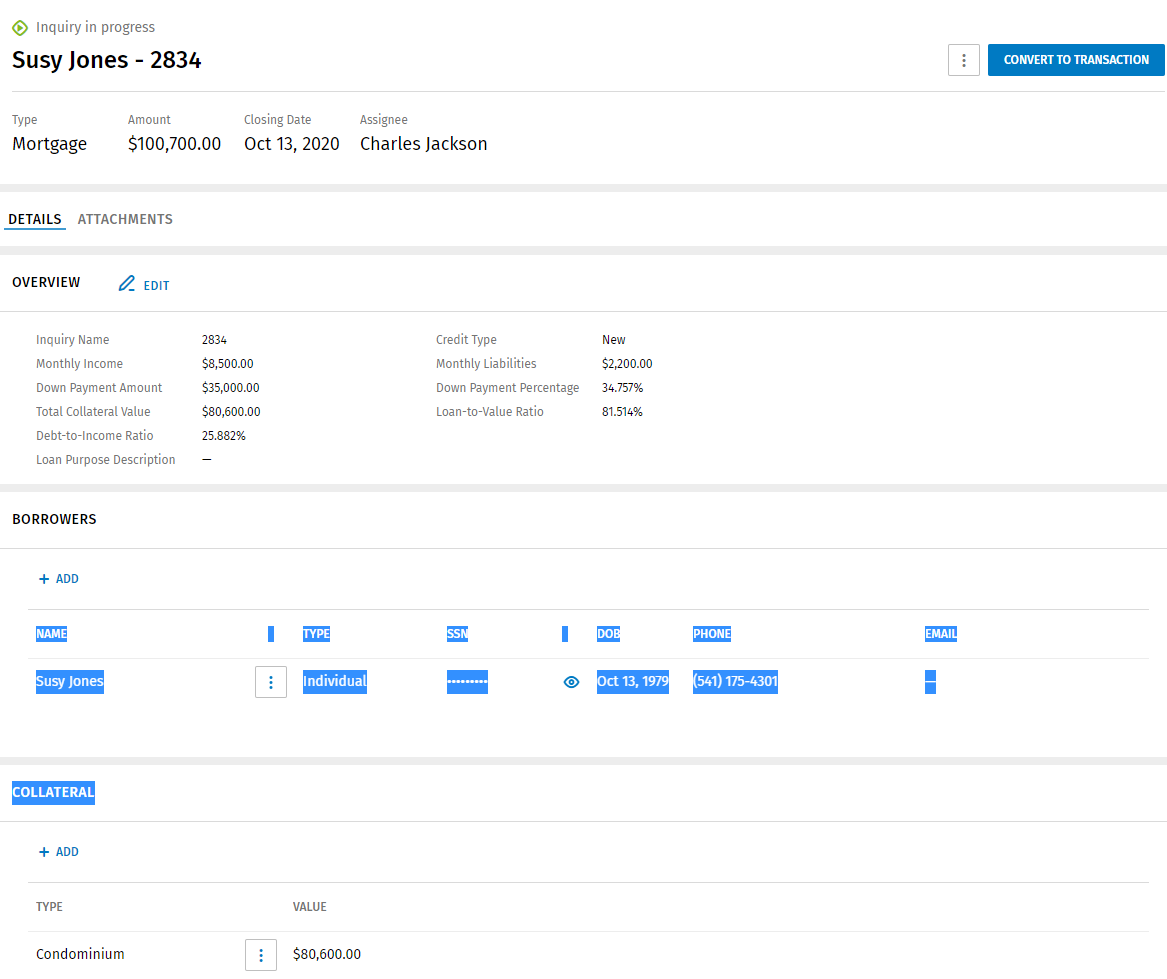
Name information includes:
- The primary party name and inquiry name. To change the party name, edit the name of the borrower. To edit the inquiry name, edit the name in the Overview section.
- The status of the inquiry (New Inquiry, in progress)
Header Section
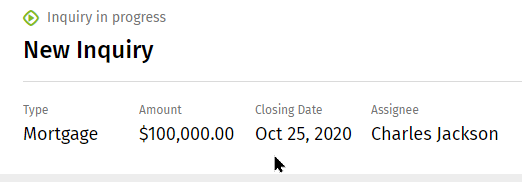
The header includes type, amount, closing date, and assignee information.
Edit the information in the header by selecting the Amount, Closing Date, and Assignee items and entering information as applicable. The Type cannot be edited.
Overview Section
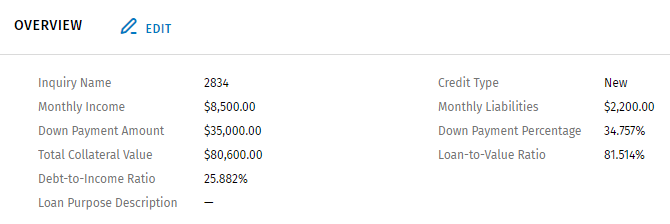
The Overview section includes loan details.
- Select Edit in the Overview section. Select Edit to
add or change information.
Borrowers Section
Borrowers can be added, edited, or deleted in the Borrowers section.
- Add borrowers as needed. To add a borrower, select +Add in
the Borrowers section.
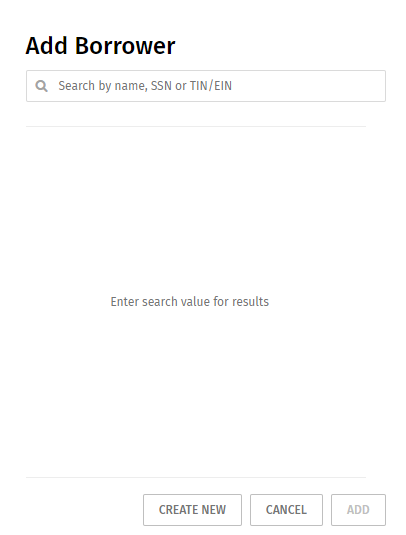 Search for or create a new borrower. Select Add.
- To search for a borrower, enter a name in the Search box. Select a borrower from the list.
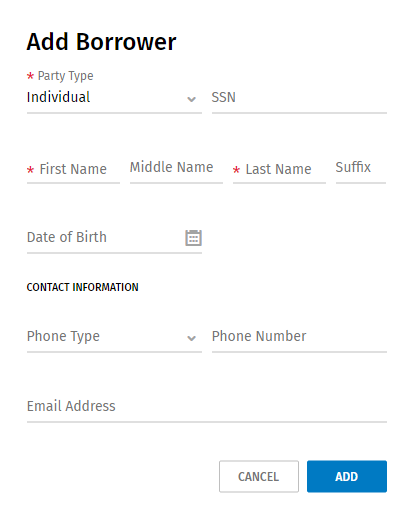
- To add a new borrower, select Create New.
Complete the Add Borrower page.
Note:
To edit or delete a borrower, select
next to a borrower name and select Edit or
Delete.
next to a borrower name and select Edit or
Delete.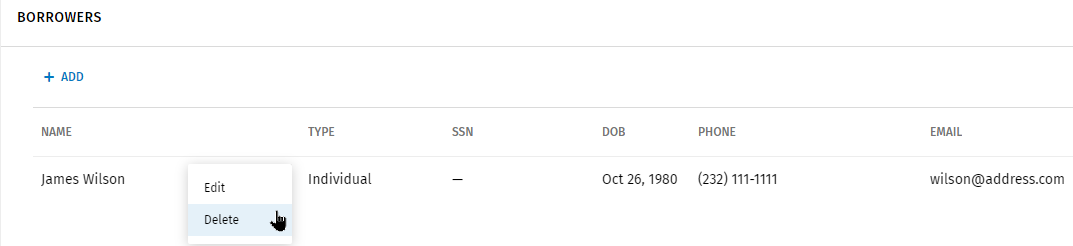
Collateral Section
Collateral can be added, edited, or deleted in the Collateral section.
To add collateral:
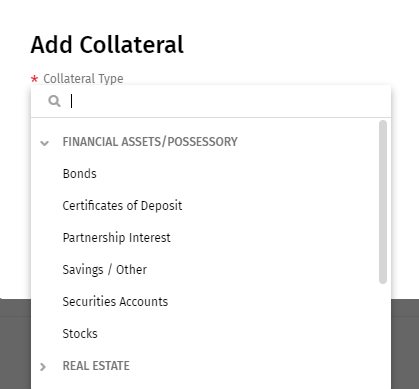
- Select +Add in the Collateral section.
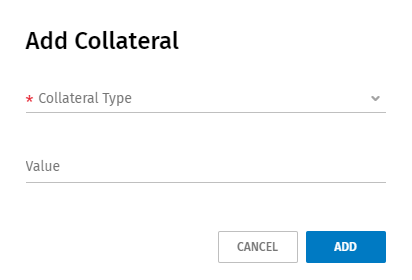
- Select the arrow next to Collateral Type. Select a type from the
list or search for collateral.
- Enter a value.
- Select Add.
Note:
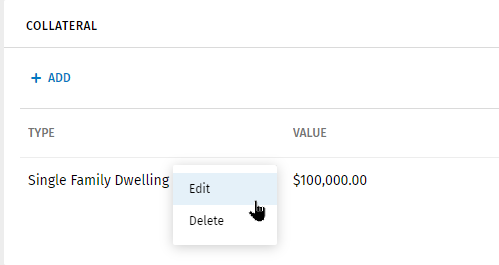
- To edit or delete collateral, select next to a borrower name and
select Edit or Delete.
Convert to Transaction
Select Convert to Transaction to convert the transaction to an inquiry. Select Converting an Inquiry to a Transaction
