Customizing an Inquiries Grid View
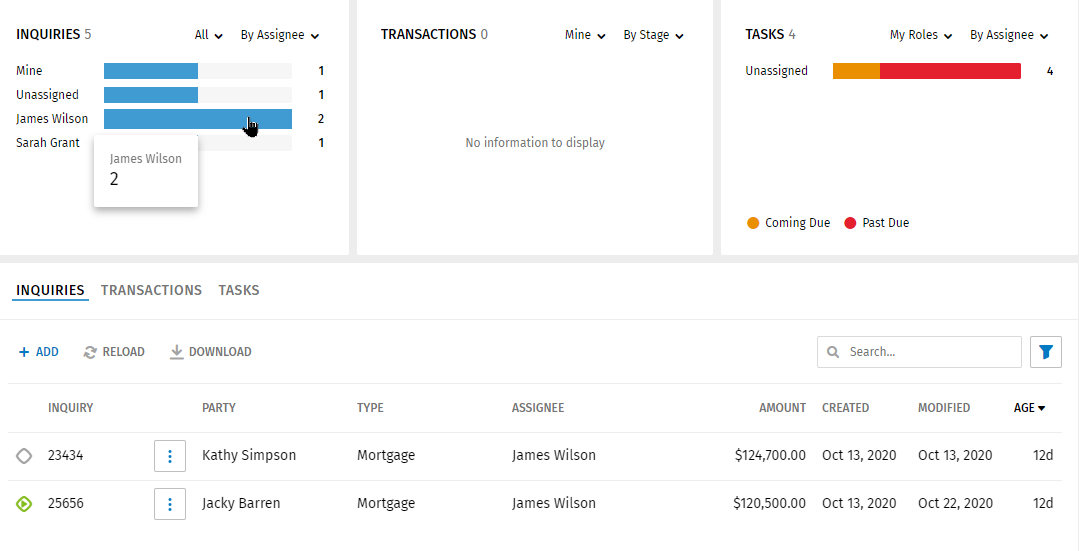
The Inquiries grid can be customized to display information as needed by different
users. The grid can be filtered, sorted, and searched. The grid can also be
changed by selecting colors/sections on the Inquiries graph. After customizing a
view of the grid, the custom view can be saved and shared with other users. Select
Custom View for Help information on creating
custom views.
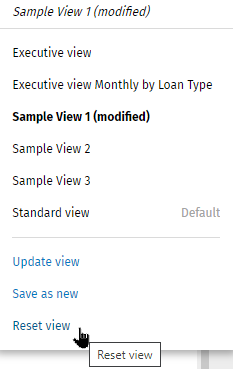
Note: To reset a view while making changes, select Reset View
in the Views list.
Filtering the Grid
- To filter the grid, select the filter icon in the right pane.
 .
. - Select options in the filters as applicable. The grid changes to match
the filter selections.
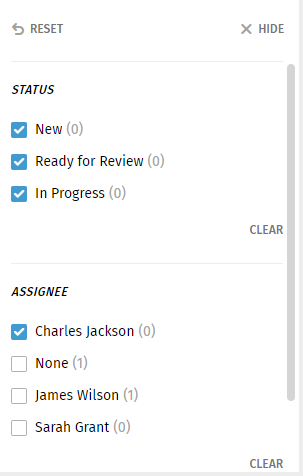
- Select Hide to close the filter pane.
- Select Clear to clear a specific filter.
Sorting the Grid
Select a column heading to sort the grid. Select the arrow to the right of the heading to sort the column in a ascending or descending column order.

Searching the Grid
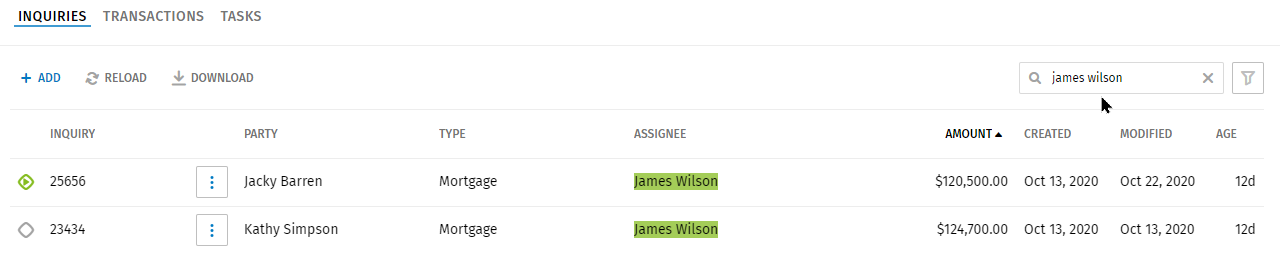
Enter a search term in the Search box. The grid displays the results in the grid. Select Custom View for Help information on creating custom views.
Selecting Graph Colors/Section to Customize the Grid
Select a color/section on the graph to displays inquiries for the section/color in the grid. Example: Selecting James Wilson in the graph displays all the inquiries assigned to James Wilson.