Downloading the latest version
When you start Revision History Creator, it automatically checks to see if a newer version is available.
If a new version is available, you are presented with a message in the status bar
asking you to download the new version.
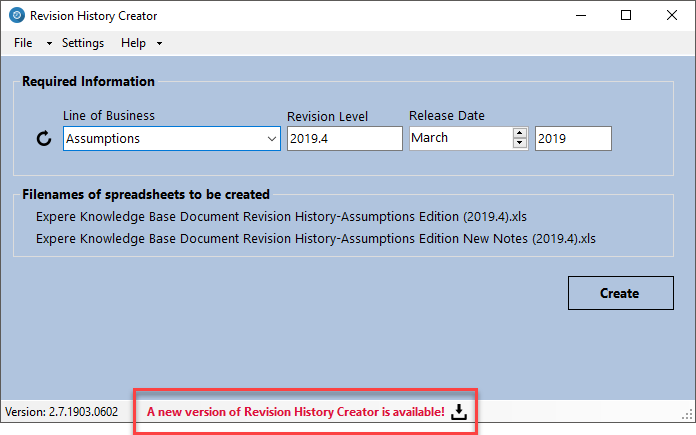
Click the download icon directly to the right of the message to immediately download the new version, and automatically run the installation.
To manually check for a new version:
Click the Check for Update link located at the bottom of the main
window.
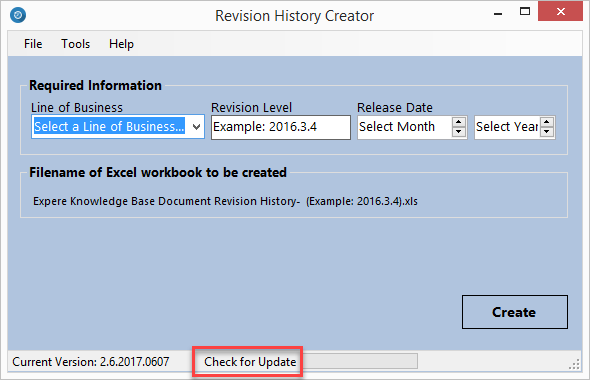
If an update is available, you will be presented with a message, as
shown in the first image above.