PDF Form Field Name Guidelines for FillableCheckbox
This section outlines the naming logic within a FillableCheckbox
container for a checkbox and radio button when using with either Dynamic, Static, or
Embedded PDF documents.
Note: Expere will not generate a form field nor return a
<FillableFieldSet/> container in the response file when no ID
(for example: (RembrandID, SignerID, '*') is specified for Fillable Fields or Fillable
Checkboxes.Checkbox
A
FillableCheckbox element without a GroupID consists of the
following naming convention:
SS+TAG{"tagName": "Enter FillableCheckbox FieldName", "type": "CHECKBOX", "role": {"type": "Signer", "num": 1}, "required": true}For example: SS+TAG{“tagName”: “MyCheckbox_Name”, “type”: “CHECKBOX”,
“role”:{“type”:”Borrower”, “num”: 1}, “required”: false}
Guidelines
| SS+TAG | This is a required prepend to the name |
| "tagName": "Enter FillableCheckbox FieldName", | "Enter FillableCheckbox FieldName" is the authored
"FieldName" value and is used for the tagName. Note: the "tagName" value must be
unique. |
| "type": "CHECKBOX", | "CHECKBOX" is the value used with the
FillableCheckbox element. |
| "role": {"type": "Borrower", | |
| "num": | Set to the integer, starting with 1, for the corresponding responsible party. Expere will assign the integer sequentially to each unique party. if signer is identified with wildcard; it will get assigned to the first non-wildcard / non-null signers. See Additional "num" notes for more information. |
| "required": true} | The "true" or "false" value is extracted from the
Mandatory element. |
Sample response snippet
<r:FillableCheckbox>
	<r:Id>MyCheckboxID</r:Id>
	<r:EmailAddress>Checkboxemail@email.com</r:EmailAddress>
	<r:FieldName>SS+TAG{“tagName”: “MyCheckbox_Name”, “type”: “CHECKBOX”, “role”:{“type”:”Borrower”,  “num”: 1}, “required”: false}</r:FieldName>
	<r:ToolTip>MyCheckboxToolTip</r:ToolTip>
	<r:Checked>false</r:Checked>
	<r:PageNumber>2</r:PageNumber>
	<r:XCoordinate>121.67</r:XCoordinate>
	<r:YCoordinate>747.22</r:YCoordinate>
	<r:Sequencing>12</r:Sequencing>
	<r:Mandatory>No</r:Mandatory>
</r:FillableCheckbox>
Radio button
A
FillableCheckbox element with a GroupID consists of the following
naming convention:
SS+TAG{"type": "RADIO_BUTTON", "tagName": "Enter FillableCheckbox GroupID", "label":"Enter FillableCheckbox FieldName", "role": {"type": "Borrower", "num": 1}}For example: SS+TAG{“type”: “RADIO_BUTTON”, “tagName”: “RadioGroupID”,
“label”: “Option1Name”, “role”:{“type”:”Borrower”, “num”: 1}}
Guidelines
| SS+TAG | This is a required prepend to the name |
| "type": "RADIO_BUTTON", | "RADIO_BUTTON" is the value used with the
FillableCheckbox element. |
| "tagName": "Enter FillableCheckbox GroupID", | "Enter FillableCheckbox GroupID" is the "GroupID" value and is used for the tagName. |
| "role": {"type": "Borrower", | |
| "label": "Enter FillableCheckbox FieldName" | The value for "Enter FillableCheckbox FieldName" is derived
from the authored "FieldName" value. Note: the "label" value must be unique. |
| "num": | Set to the integer, starting with 1, for the corresponding responsible party. Expere will assign the integer sequentially to each unique party. if signer is identified with wildcard; it will get assigned to the first non-wildcard / non-null signers. See Additional "num" notes for more information. |
Sample response snippet
<r:FillableCheckbox>
	<r:Id>Option1ID</r:Id>
	<r:EmailAddress>radioemail@email.com</r:EmailAddress>
	<r:FieldName>SS+TAG{“type”: “RADIO_BUTTON”, “tagName”: “RadioGroupID”, “label”: “Option1Name”, “role”:{“type”:”Borrower”,  “num”: 1}}</r:FieldName>
	<r:ToolTip>Option1Tooltip</r:ToolTip>
	<r:Checked>false</r:Checked>
	<r:PageNumber>2</r:PageNumber>
	<r:XCoordinate>161.39</r:XCoordinate>
	<r:YCoordinate>729.22</r:YCoordinate>
	<r:Sequencing>13</r:Sequencing>
	<r:GroupID>RadioGroupID</r:GroupID>
	<r:Mandatory>No</r:Mandatory>
</r:FillableCheckbox>
<r:FillableCheckbox>
	<r:Id>Option2ID</r:Id>
	<r:EmailAddress>radioemail@email.com</r:EmailAddress>
	<r:FieldName>SS+TAG{“type”: “RADIO_BUTTON”, “tagName”: “RadioGroupID”, “label”: “Option2Name”, “role”:{“type”:”Borrower”,  “num”: 1}}</r:FieldName>
	<r:ToolTip>Option2Tooltip</r:ToolTip>
	<r:Checked>false</r:Checked>
	<r:PageNumber>2</r:PageNumber>
	<r:XCoordinate>173.51</r:XCoordinate>
	<r:YCoordinate>729.22</r:YCoordinate>
	<r:Sequencing>14</r:Sequencing>
	<r:GroupID>RadioGroupID</r:GroupID>
	<r:Mandatory>No</r:Mandatory>
</r:FillableCheckbox>
<r:FillableCheckbox>
	<r:Id>Option3ID</r:Id>
	<r:EmailAddress>radioemail@email.com</r:EmailAddress>
	<r:FieldName>SS+TAG{“type”: “RADIO_BUTTON”, “tagName”: “RadioGroupID”, “label”: “Option3Name”,  “role”:{“type”:”Borrower”,  “num”: 1}}</r:FieldName>
	<r:ToolTip>Option3ToolTip</r:ToolTip>
	<r:Checked>false</r:Checked>
	<r:PageNumber>2</r:PageNumber>
	<r:XCoordinate>173.51</r:XCoordinate>
	<r:YCoordinate>729.22</r:YCoordinate>
	<r:Sequencing>14</r:Sequencing>
	<r:GroupID>RadioGroupID</r:GroupID>
	<r:Mandatory>No</r:Mandatory>
</r:FillableCheckbox>
Example screen shots
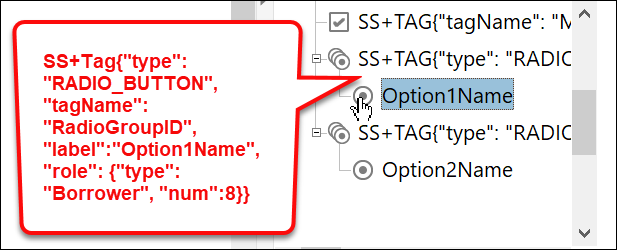
Note: In the PDF, the radio button fields will have a top level
element following same naming convention as appears in the PDF; for example:
SS+ FillableCheckbox with a GroupID Format: SS+TAG{“type”:
                    “RADIO_BUTTON”, “tagName”: “RadioGroupID”, “label”: “Option1Name”,
                    “role”:{“type”:”Borrower”, “num”: 1}}
Additionally, a child element
will appear in the PDF below the top level naming convention using the value of
the FieldName in the REQ file; for example:
"Option1Name."
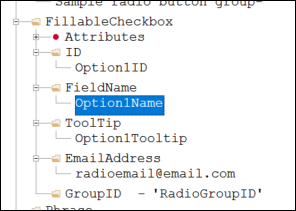
Authored in the REQ file:
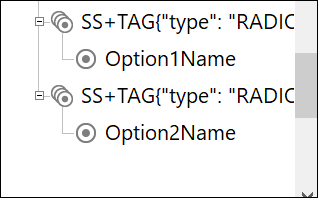
Displayed in the PDF file:
PDF Form sample
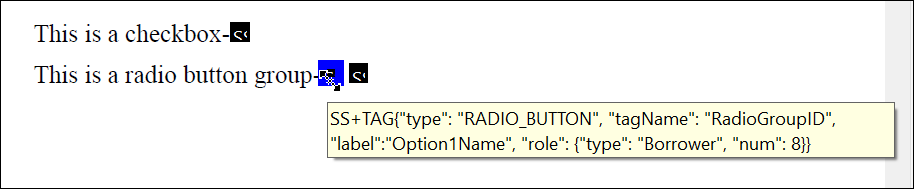
Sample form name in Prepare Forms panel