Using Assembly
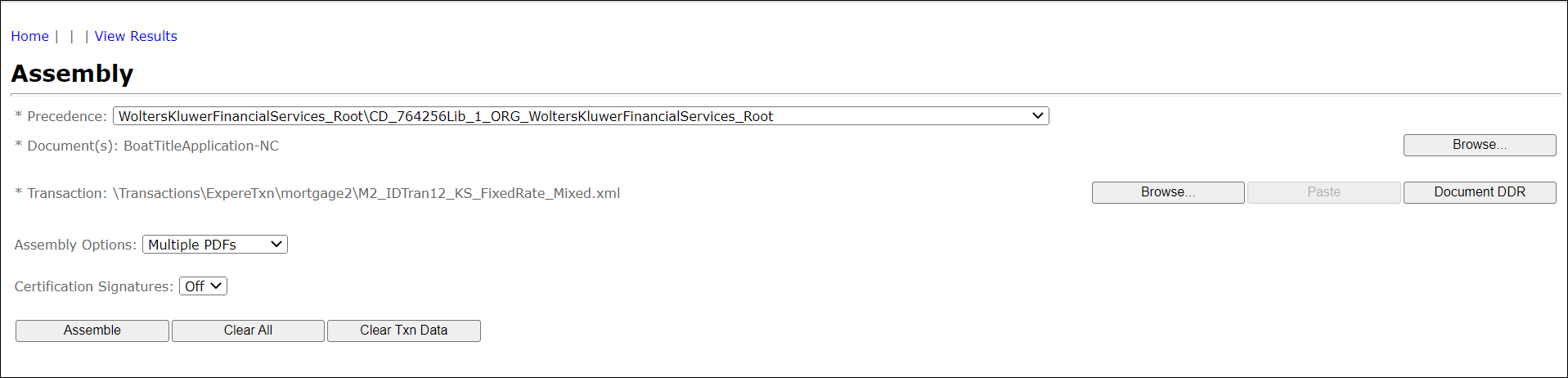
- Select the Precedence level to use in document assembly from the Precedence list.
- From the Document(s) box, click the Browse button. Select a phase, then a document. Click OK.
- From the Transaction box, select from the following:
- Click the Browse button to access the Browser. Select an item/line of business to open its available documents. Click OK. Note: For information on using Browser, see Expere Testing System Browser.
- Click the Paste button to display a text box for pasting in existing transaction data.
- Click the Browse button to access the Browser. Select an item/line of business to open its available documents. Click OK.
- Click the Document DDR button to display the document data items for a new transaction; click one of the following:
- VMPMISMO DDR
- ExpereTxn DDR
Note: Verify you have a selected a document with the Browse function. - On the Assembly page, enter data in the transaction fields.
- Click the Store Session Data button.
- Select an option from the Assembly Options dropdown. See Assembly Options for more information.
- Select one of the following from the Certification Signatures dropdown:
- Off (Default)
- On
- Click the Assemble button. The screen updates the results. The Document Viewer displays the link to the assembled document(s).

- Click one of the following to save the results:
- Save Baseline
- Save Target
The Expere Browser allows users to save the results within the server folder structure.