About Internal References (XREF)
Use an Xref to reference sections or identified targets within the same document. The reference can be by section number, section title, both number and title, or page number where the section begins. To insert an Xref, right-click at the location in the text where the reference needs to be added. A window opens with options for Add Rule and Add Xref. Select Add Xref.
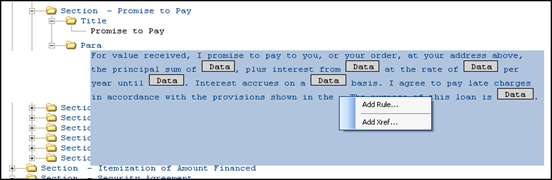
The Xref now appears in the content as Xref – Unlinked.
Note: Link
references have a background color of RGB(185, 241, 255) 
- To point to the section to reference content, right-click on the Xref element and select Link. . .. The list of sections populates from the name provided when authoring the section (not the actual title, but the name that appears to the right of the section element). The name of the section will now appear in the Outline Editor view.
- Select the “style” for the reference. These options appear when
you right-click on the Xref:
Title Replaces the Xref with the actual Section Title element contents during publishing (not necessarily the same as the Section Name). The word ‘section’ is not added so it should be authored in the content, if needed. Number Replaces the Xref with the Section number during publishing. Number and Title Replaces the Xref with both the section number and the title during publishing. Section Page Number Replaces the Xref with the page number that the linked Section Name appears on. For example: The Property Description appears on page ##. Last Page Number Replaces the Xref with the page number of the last page. Link is not necessary for this option. Current Page Number Replaces the Xref with the current page number. Link is not necessary for this option. Delete Xref Removes the Xref element from the content. - Use an XrefTarget to reference content at a more specific place within a section (for example one sentence or a data item).
- To create an XrefTarget: select and right click Wrap in
‘XrefTarget’ Tag from the list. The XrefTargetName prompt
appears.
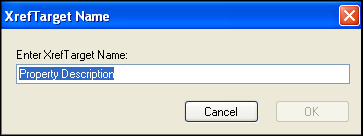
- Click OK. The Xref now appears in the Editor and is also available in the Link. . . list described above for a standard Xref. This option is typically used if you need to ensure that the page number that is produced by the Xref is the actual page where that content appears.