Using the Test Web App interface - End Session
This section explains the various fields and options within the primary Test Web App interface when running an EndSession call. The steps outline the options used during a standard EndSession call.
- To access the End Session page, either click the DONE button or the EndSession button in the upper right corner of the screen.
-
The Ending Session page appears, displaying the Session ID and
Endpoint Credentials section. Click End Session to
continue.
The End Session page appears displaying the following:
- Transaction XML
- Selected Screen
- Selected Package
- Selected Document Instance Number
- Status
- Missing Required Data
- Comprehensive Documents list
-
Transferring changes to a new session: Users can pass in a
changedDataPointsflag during a BeginSession call, so that additional modifications may be applied to a new session. The record of changes appears after submitting documents or ending a current session on the End Session page within the Changed Transaction Data section. Users can continue to apply these same changes by selecting the Transfer changes to new session button on the End Session page then submitting achangedDataPointsflag during subsequent sessions.Note: The screenshot below notes an XPath that has changed. This change will be applied to a new BeginSession call when clicking the , Transfer changes to new session.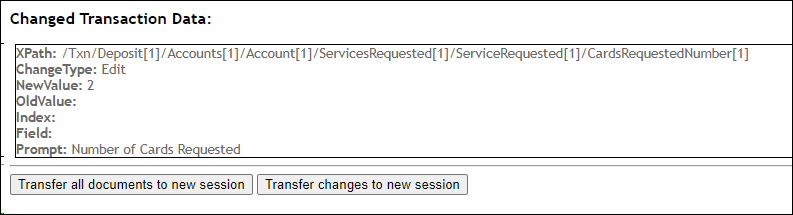
-
Click Transfer all documents to new session to move selected documents
from the Document Drawer and their statuses to a new BeginSession
call.
- Click Transfer to new session to apply changes to a new BeginSession call.