Installation
The procedure for updating an existing installation of BBE
Note: The steps below proceed through an upgrade assuming the web server and
database server are on the same machine. If your web server and database server
are separated, follow steps 1 – 10 on the database server and 1 – 9 and 11 on
the web server.
To update an existing BBE installation:
-
Confirm that your configuration file is the following location on the target
computer: C:\Deployment\BBE_CD\yourconfigfilename.txt
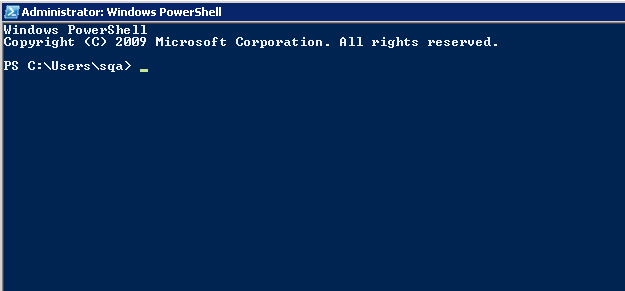
Windows displays the PowerShell terminal window:
-
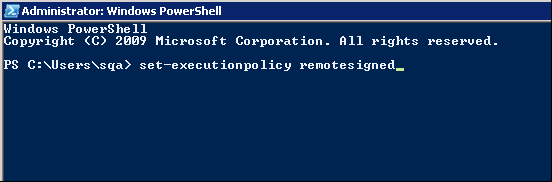
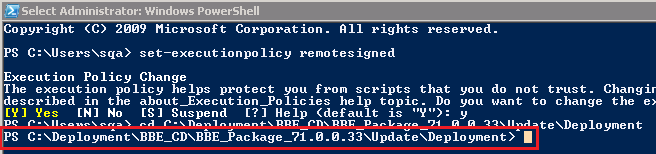
In the terminal window, enter the following command exactly as shown:
set-executionpolicy remotesigned
-
Press the Enter key.
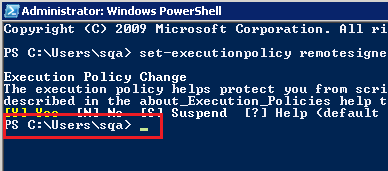
Windows displays a security message:

-
Type the letter Y for Yes and press the Enter key.
Windows displays a command prompt:
-
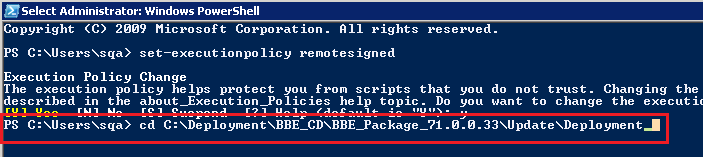
Change to the location of the deployment directory (location of the deployment
script file) by typing the following command exactly as shown: cd
C:\Deployment\BBE_CD\BBE_Package_71.0.0.33\Update\Deployment
-
Press the Enter key.
Windows confirms the file path:
-
9. Press the Enter key.
Windows runs the command:
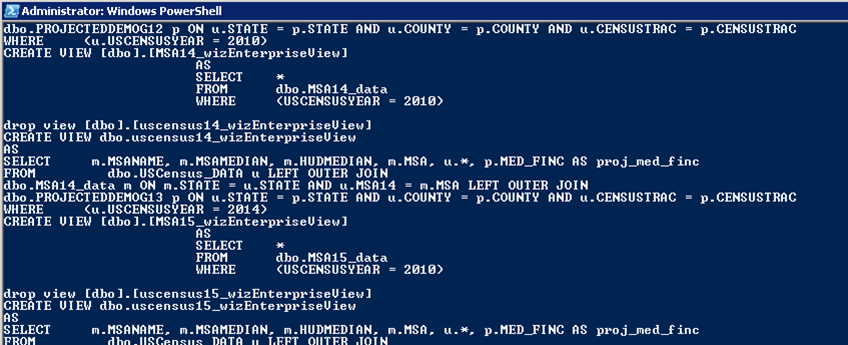 Note: The system displays the PS C: \Deployment\BBE_CD\... command prompt when the script finished.
 -
10. At the command prompt, type the following command exactly as shown:
.\main.ps1 yourconfigfilename web
Windows runs the command:
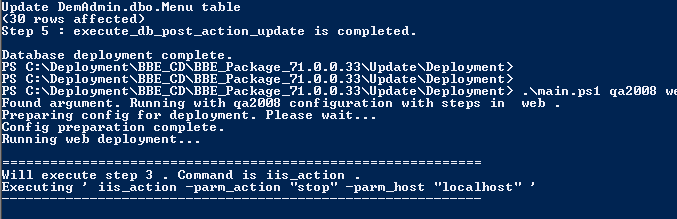 Note: The system displays a confirmation message and the command prompt when finished: