Select Document(s) for Signing
You can select individual documents to include in a package submitted for electronic signing through the SmartSign Plus integration. Use this feature to select a subset of documents from a list of all available documents to include in the package submitted for electronic signature.
The Select Packages for Signing pane is where you define what documents to include in
the submitted document package.
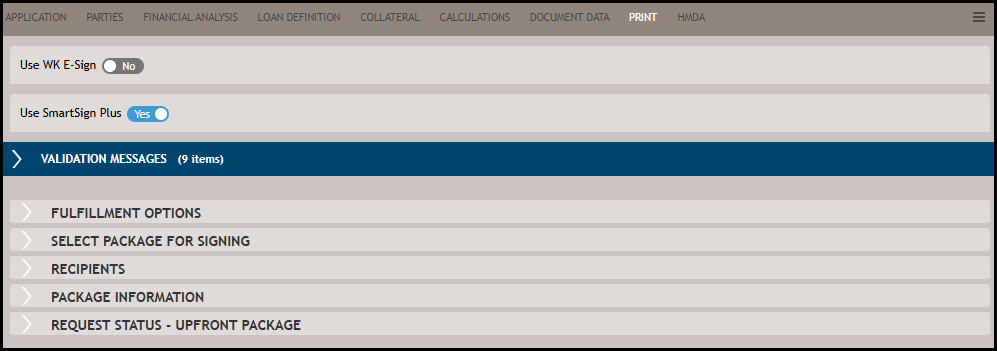
In the Select Package for Signing pane, click Create Documents to generates a
list of the documents that may be included in the selected package. Click Preview
prior to submission to SmartSign Plus to view the selected documents prior to submitting
for processing.
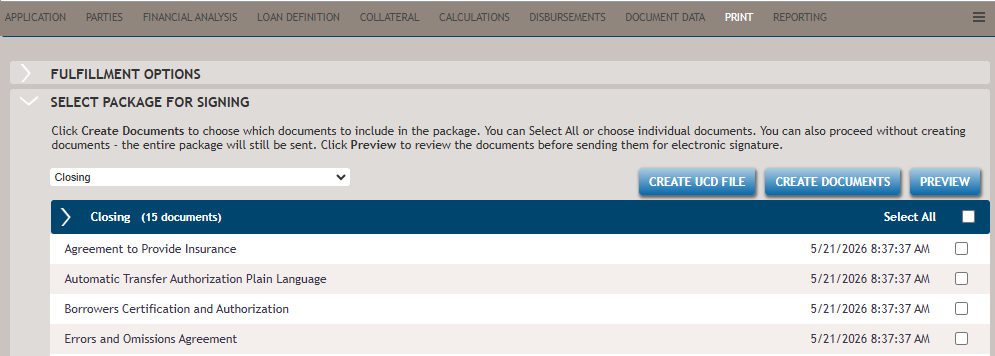
- The Create Documents option provides you the ability to include all documents in a package or to include only selected documents.
- The Preview option provides you the ability to view all (selected) documents in a package prior to submitting for processing.
-
Sending Documents for eSignature
- In the Print page, select Use SmartSign Plus
- In the Select Package for Signing pane, choose from the
following options:
- Send All Package Documents
- Send Select Documents
- In the Request Status pane, click Submit Package. This option is enabled when all
required information is entered.
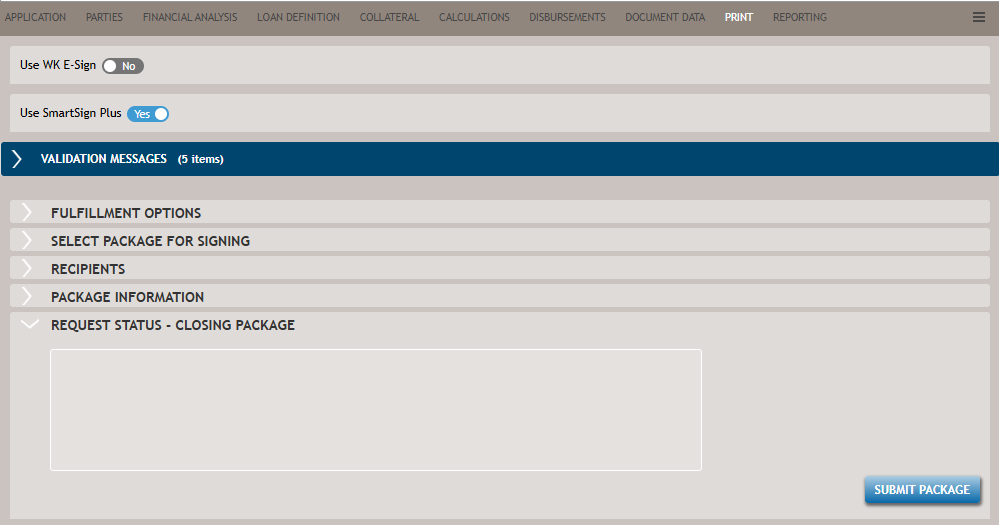
The Send All and Send Select options follow these rules:
- Send All Package Documents
- If no documents are listed in the package documents section, the entire package (and all its documents) is submitted
- If documents are listed in the package documents section, but none are selected, the entire package is submitted when you click Submit Package.
- Send Select Documents
- Only documents selected in the package documents section are included in the submission
when you click Submit Package.
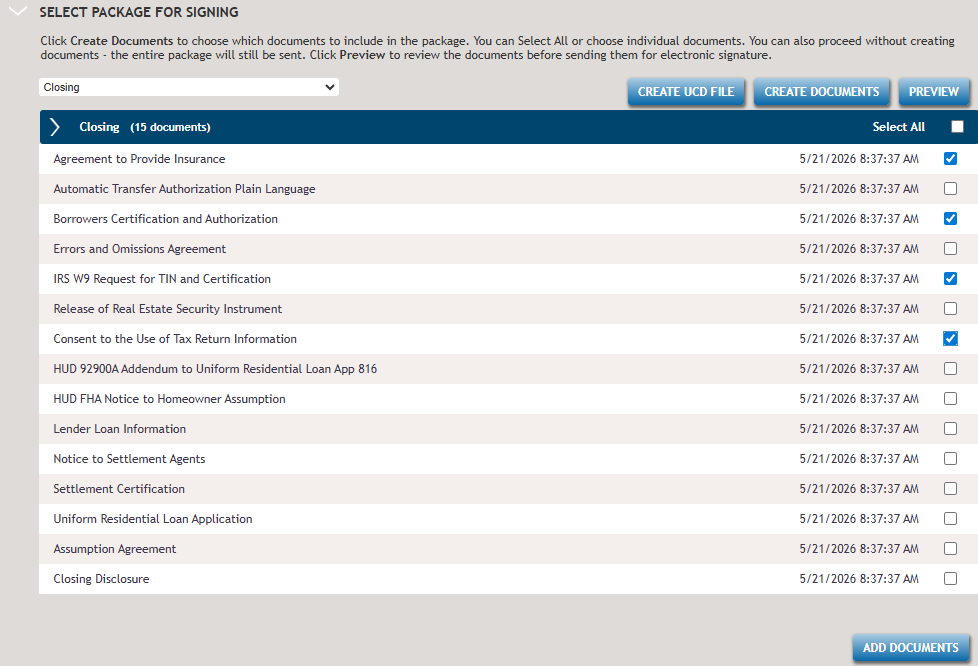
- Only documents selected in the package documents section are included in the submission
when you click Submit Package.
-
Previewing Selected Documents
- In the Print page, select Use SmartSign Plus.
- Make your document selections in the Select Package for Signing pane and click Preview.
The Preview Entire and Preview Select options follow these rules:
- Preview Entire Package
- If no documents exist at either the individual or package level, the preview is not available.
- If documents are listed but none are selected in the package documents section, a preview PDF of the package (and all associated documents) opens.
- Preview Select Documents
- Only documents selected in the package documents section are included in the preview PDF.