Package Information
The Package Information pane is where you define the package expiration details.
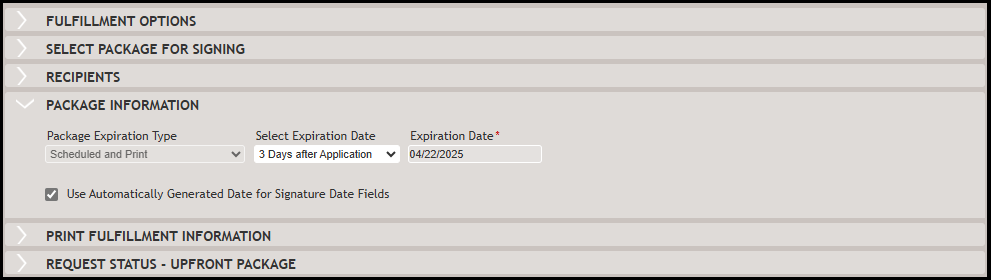
The Package Expiration Date drop-down list defines when the electronic signature must be
completed and what happens in the event the documents are not electronically signed.
:
- Scheduled and Print- select to enter expiration parameters for the package. If the package is not signed by the expiration date, it is automatically sent to the Wolters Kluwer Fulfillment Center, and subsequently printed and mailed.
- Scheduled select to enter expiration parameters for the package. If the package is not signed by the expiration date, it is retained in SmartSign Plus and given an expired status. Expired packages are NOT sent to the Wolters Kluwer Fulfillment Center.
- Never- select if the document should not expire. Documents will remain active SmartSign Plus.
The Select Expiration Date drop-down list is available when the Scheduled and
Print package expiration types are selected.
Note:
The options in the
drop-down might differ depending on the transaction phase. By selecting the specific
option, the expiration date field is automatically calculated. If the transaction phase
is application and the package type is set to “upfront” the following options are
allowed: Make
sure the expiration date is not in the past. If in the past, the package will
inadvertently be set to expired (inactive) SmartSign Plus.
- 1 Day after Application
- 2 Days after Application
- 3 Days after Application (default option)
- 1 Day after Current Date
- 2 Days after Current Date
- 3 Days after Current Date
- Custom (allows a user to override the Expiration Date)
- 7 Days before Note Date (default option)
- 1 Day after Current Date
- 2 Days after Current Date
- 3 Days after Current Date
- Custom (allows a user to override the Expiration Date)
If the Use Automatically Generated Date for Signature Date Fields option is selected, the current date is automatically inserted as the expiration date at the time the signer completes their signature. This eliminates the need for the signer to manually enter the date themselves, streamlining the signing process.
If the Package will be transferred to the Closing Center option is selected, the eOriginal SmartSign Plus integration will submit document packages to the Closing Center. This feature is avilable only to licensed accounts.
Closing Packages
If the package is closing, an additional Closing Center Assignment section is
displayed. The Assign Package To drop-down list defines the person
automatically assigned to the package in ClosingCenter. The Assign Package To
drop-down list contains all settlement agents. Use the Other options to enter an
email address directly in the section. The field is not required but will eliminate
the step of adding the closing package manually in the ClosingCenter dashboard.
