Fulfillment Options
- Electronic Delivery
- Direct to Paper
- Signature Required
- Additional Authentication Required
- Interactive Signing
- Parallel Signing
- Insert Issues Date
Electronic Delivery
Select Electronic Delivery to display Signature Required, Additional Authentication Required, and Insert Issued Date options.
Direct to Paper
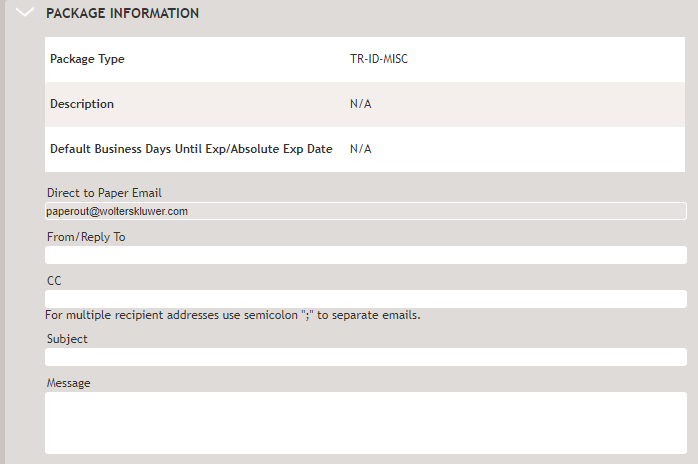
When Direct to Paper is selected, the Package Information section includes a Direct to Paper Email address that defaults to the address configured for your account.

Signature Required
When Signature Required is selected, the WK E-Sign package will require the signer to sign at the package level or interactively on each document that has an e-signable signature field.
Interactive Signing
If you are a Wolters Kluwer E-Sign licensed user, have contacted SupportLine at e-signsupport@wolterskluwer.com to request that Interactive Signing be enabled, and have enabled your organization to use Interactive Signing in Administration, Interactive Signing displays in the Fulfilment section on the Print page.
- If you select Interactive Signing in the Fulfillment Options section, you must select Create Documents to display the Recipients grid and the applicable parties. Selecting Create Documents also determines the correct signature to print on the applicable signature lines of documents.
- Review the Recipients grid and add missing email or mailing addresses as needed for each party. After adding or editing email and mailing addresses, you must save your work and select Create Documents. If you do not recreate the documents after editing addresses, the signature may not appear on the correct lines in the documents.
- The Signature Type column displays with information that indicates:
- The documents that do not include e-signatures.
- The documents that allow for e-signatures.
- The documents that allow only ink signatures.
Additional Authentication Required
This option is only available when using electronic delivery. When this option is selected, challenge questions will display and are required for each recipient listed in the Recipient's grid.When Smart Consent is configured in your WK E-Sign Administration, Additional Authentication Required is optional in the Fulfillment Options section. When Package Level Consent is configured in your WK E-Sign Administration, Additional Authentication Required will be automatically selected and cannot be changed. Your recipients will be required to authenticate when they receive their E-Sign packages.
Parallel Signing
If you are a Wolters Kluwer E-Sign licensed user, have enabled your organization to use Parallel Signing and Smart Consent in WK E-Sign Administration, and selected Interactive Signing in the Fulfilment Options section on the Print page, Parallel Signing displays in Fulfillment Options. If you are configured for Package Level Consent, you will not see the option of Parallel Signing.
Selecting Parallel Signing allows each party to sign and merge their signatures into a single PDF. When the package has more than one signer and after all parties have signed, their signatures will merge and display in a single PDF.
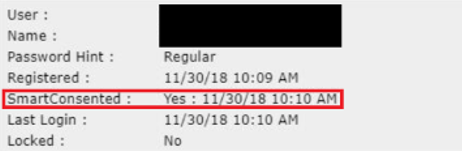
- An Administration user should log into Group Administration.
- Under Support, enter an email address under Find. After
finding the user, their profile will show their consent
status. You can also search for the user on the Home page.
After selecting the user, their consent status will
display.
Insert Issues Date
Select this option to automatically insert a system generated issue date when a document package is sent electronically. For a package that is viewed online, the Issued Date is the date the package was submitted to WK E-Sign.
