Ancillary Outputs (Post-Processing)
Ancillary Outputs are post-processing steps applied to assembled documents after the document is rendered. They are applied on a request to generate documents (and apply to all documents generated as part of the request) or as part of a DocumentSet object to apply the instructions to each specific document generated as part of the request.
PostProcess is invoked to apply watermarks and barcodes, merge, and encrypt by placing the resulting DocSet into a PostProcess request and adding the AncillaryOutputOption elements with Watermark, Barcode, and SetEncryption nodes.
The AncillaryOutputOptions are submitted in the Generate, SelectAndGenerate, and SelectGenerateDeliver operations to apply to all documents generated. They are submitted as part of the DocumentSet in the Generate, SelectAndGenerate, and SelectGenerateDeliver operations to apply on a document-by-document basis. To apply multiple post-processing events to a document or document set, you must submit a unique AncillaryOutputOptions object on the request (so that a single request might contain multiple AncillaryOutputOptions objects.
The AncillaryOutputOptions are submitted in the Generate and PostProcess operations to apply to all documents generated. They are submitted as part of the DocumentSet in the Generate and PostProcess operations to apply on a document-by-document basis. To apply multiple post-processing events to a document or document set, you must submit a unique AncillaryOutputOptions object on the request (so that a single request might contain multiple AncillaryOutputOptions objects. In addition to submitting post-processing instructions on a request that also generates documents (described above), you can use the PostProcess operation to submit a document using DocumentSet that has already been assembled.
The AncillaryOutputOption is submitted in the Generate, SelectAndGenerate, SelectGenerateAndSave, and AssembleDocumentSet operations to apply to all documents generated. It is submitted as part of the DocumentSet in the Generate, GenerateAndSave, and AssembleDocuments operations to apply on a document-by-document basis. To apply multiple post-processing events to a document or document set, you must submit a unique AncillaryOutputOption object on the request (so that a single request might contain multiple AncillaryOutputOption objects. In addition to submitting post-processing instructions on a request that also generates documents (described above), you can use the PostProcess operation to submit a document (using DocumentSet or DocSet) that has already been assembled.
This is a visual representation of the AncillaryOutputOption.
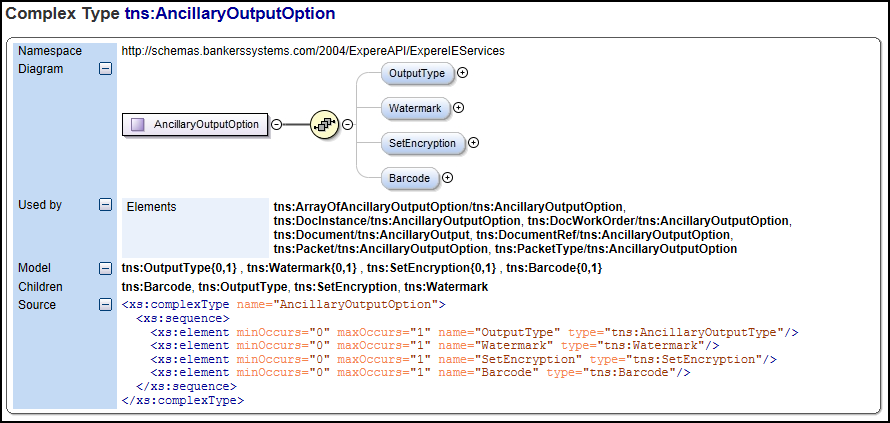
- Barcode: Applies a barcode to the returned PDF or RTF documents. If used, you must also submit a Barcode object on the request. See BarcodesSee Barcodes.
- CertificationSeal: Applies a seal to the PDF document (using Adobe PDF features) that will notify the recipient of the document if a seal has been applied and if the seal was broken prior to the recipient opening the file. A broken seal might indicate modifications were made to the document after the seal was applied. This is sometimes referred to as a tamper seal.
- Encryption: Defines the PDF file encryption information and document rights management options. If used, you must also submit a SetEncryption object on the request. See Encryption and SetEncryption.
- Watermark: Applies a watermark to the returned documents. The watermark is applied independent of the Adobe PDF Watermark functionality; it is applied using iText programmable PDF software to apply an image (watermark image) to the PDF. If used, you must also submit a Watermark object on the request. See Watermarks and Watermark.
- eSignature and Acroform fields: allows users to enable eSignature and Acroform field functionality on a transaction basis or globally through bsi.properties. See Using eSignature and Acroform fields.
- PdfMerge: Sets the output as a single PDF comprising a merged
grouping of individual documents in a packet and removes all individual
documents (only returns the single merged PDF). Note: Only one
<DocInstance/>is returned - PdfMergeWithDocInstances: When this new
ancillary option is included in the request, the response will include one
Base64 merged PDF within the first
<DocInstance/>. All additional<DocInstance/>entries within the response will contain elements that pertain to the specific document(s). For example:<InstanceDisplayName>,<InstanceFileName>, etc - MergedCopyPDF: Sets the output as a single PDF comprising a merged grouping of individual documents in a packet and also returns all individual documents.
- Zip: Creates an archive (ZIP file) containing all returned documents. This can be used with the PdfMerge and MergedCopyPDF options and on document returned.
- SignaturePointSet: Provides a means to replace signature fields (signature and dates) with a point set (X, Y coordinates) and removed the signature fields so that only a line exists in the document. This is used most often with a customer employs another post-processing event to a PDF that requires X and Y coordinates for all signatures in a document. If this is not submitted, the standard eSignature or signature processing as defined in the transaction date is used. See Signature Points See Signature Points or SignaturePointSet.
- Duplex: prints documents on both sides of the paper and inserts a blank page if the document consists of an odd-number of pages and is included in a document package.
Requirements Editor users
<ESignatureAndFieldSupport> container:- BarcodeWithESignatureAndFieldSupport.xml
- BarcodeQRWithESignatureAndFieldSupport.xml
- DuplexWithESignatureAndFieldSupport.xml
- LogoWithESignatureAndFieldSupport.xml
- WatermarkWithESignatureAndFieldSupport.xml
These templates are available from the Test menu option > Execute Document > Ancillary Output section > Select ancillary output fragment.