Renaming a Custom View
A custom view can be renamed. The settings selected for the original name will remain for the new name.
- Select the custom view in the Views list.
- Select Rename in the Views list.
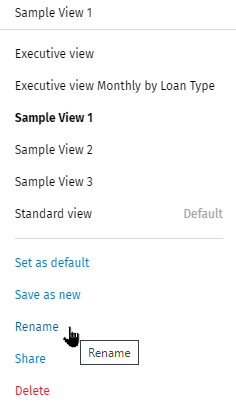
- Enter a new name for the view and select Save.
Note:
- The Standard View cannot be renamed. Only custom views can be renamed.
- The Save option will be disabled and an error message will display if a name already exists. Clear the box and enter a unique name.
- A user must use a unique name for each view in a single account.
- A user belonging to multiple accounts can use the same view name across multiple accounts, but the name can only be used once in each account.
- If the name is more than 100 characters, the Save option will be disabled, and an error message will display.