Branding
An organization can add their logo to the Vanceo application. After adding the logo, it displays in the upper left corner of both the Vanceo and Configuration applications.
A user assigned the Vanceo Administrator role and Manage Vanceo Portal Configuration permission in Security Administration can set up the logo in Configuration.
Setting up a Logo
- In Configuration, select Account Settings in the left pane and the Branding tab in
the right pane.
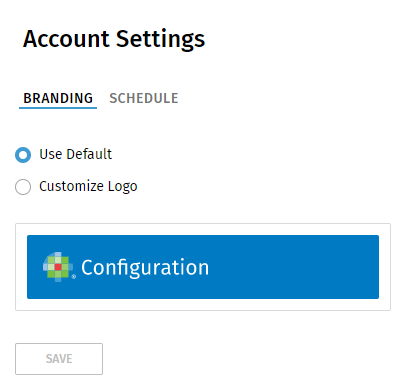
- Select Customize Logo.
- Select Upload. Locate and select a file. Select
Open.
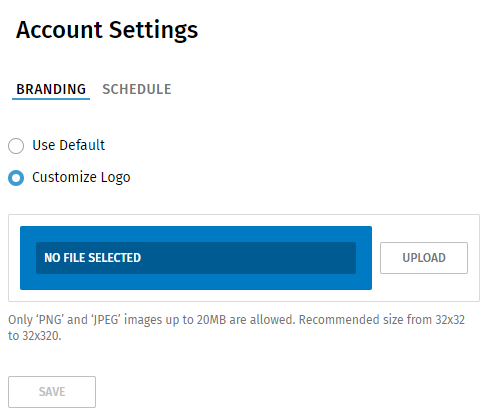
- Select Save after the logo displays.
- Refresh the Vanceo or Configuration page to display the logo.
Logo Requirements
- Only .png and .jpeg formats are allowed.
- Use a transparent background for logo to best display the logo on the blue background. Use a logo that will contrast with the blue background for a better visual display.
- The image cannot exceed 20 MB.
- The minimum image size is 32 x 32 pixels.
The maximum image size is 32 x 320 pixels.
- An image that is larger bigger than 32 pixels high or 320 pixels long will be resized proportionally.