User Settings/Email Notifications
In User Settings, email notifications can be set up to notify a recipient about inquiry, task, and transaction events like when a transaction is coming or past due. An email notification will provide a link to details about the event described in the email.
Setting Up Email Notifications
- Select Manage in the left pane, and select User Settings.
- Select Receive email notifications.
- Select the events to trigger email notifications.
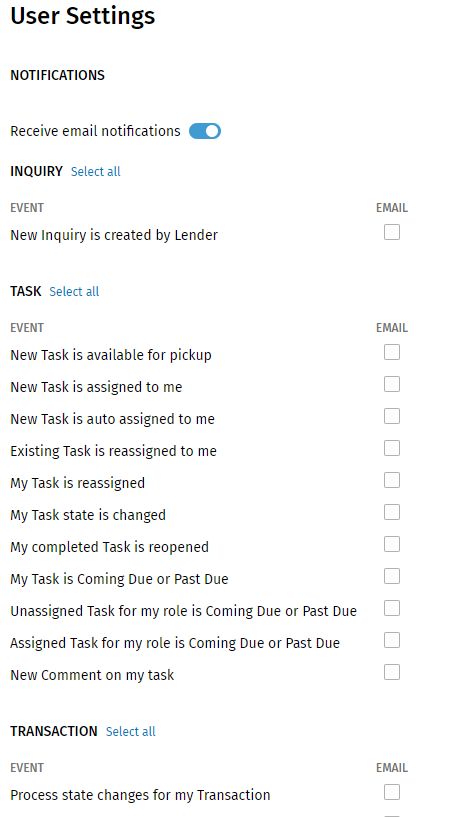
- Select Save.Note: Select Select all or Deselect all to turn off or on all notifications.Note:
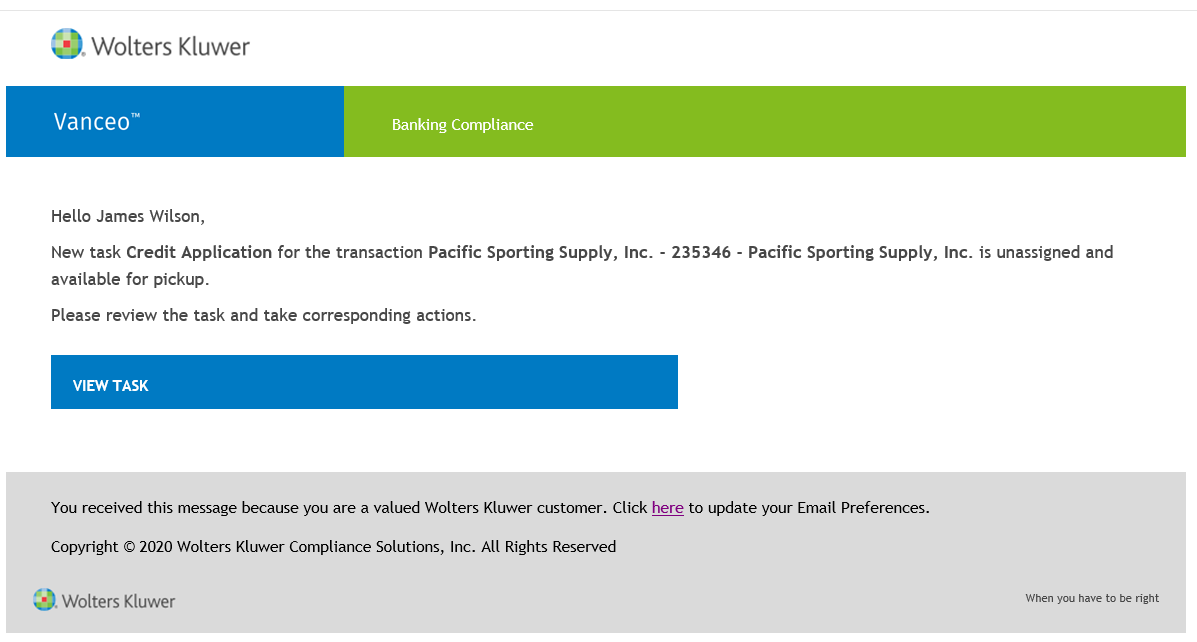
- A user can select the link in the body of email notification to go to the appropriate Inquiry Summary page/ Transaction Summary page/ Task Details page.
- A user an select here at the bottom of
the email to go to the Vanceo Notifications
page.
Event Definitions
| Event | Setting | Recipients |
| An inquiry is created in Vanceo. | New Inquiry created is by Lender | All eligible users who have the 'Claim/Assign Inquiry' Vanceo permission assigned in Security Administration |
| A task is created and is in queue. | New Task is available for pickup | All users in task's role |
| The task is assigned to the user by another user. | New Task is assigned to me | Task's Assignee |
| The task is assigned to the user by Vanceo. | New Task is auto assigned to me | Task's Assignee |
| The task is reassigned to a new user. | Existing Task is reassigned to me | New task's assignee, unless the user has reassigned the task to their self. |
| My task is reassigned to a new user and the previous assignee should be notified. | My Task is reassigned | Previous task's assignee |
| The task was stopped. | My Task state is changed | Current assignee of the open task |
| The completed task was reopened. | My completed Task is reopened | User who completed the Task |
| The task’s SLA became Coming Due or Past Due and the current assignee should be notified. | My Task is Coming Due or Past Due | Current task's assignee |
| The assigned task’s SLA became Coming Due or Past Due, and all the users that belong to task’s role should be notified. | Assigned Task for my Role is Coming Due or Past Due | All users in task's role except for current task's assignee |
| The unassigned task’s SLA became Coming Due or Past Due,and all users that belong to task’s role should be notified. | Unassigned Task for my Role is Coming Due or Past Due | All users in task's role |
| The comment was added to the task. | New Comment on my task | Task's assignee |
| The process was stopped or completed. | Process state changes for my Transaction | All current and past assignees of the process |
| At least one Open Task for the Transaction is Coming Due or Past Due. | My Transaction is Coming Due or Past Due | All current and past assignees of the process |
| The first task in the Stage has started or the last task in the stage was completed. | Stage starts or ends for my Transaction | All current and past assignees of the process Note: To receive an email notification for the
first task, the task must be set up to be assigned
to the 'Least busy.'
|